---
schema_version: "1"
id: 6a81842bcb415010b543367fbf2310596f81600b50330fc5cd8fa4c6be64d65f
title: Set Up the Service Catalog Site Pages
collection: admin
version: current
locale: en-us
portal_url: https://docs.salesforce.com/admin/current/en-us/service/264-0-0/svc_site_pages_setup_lwr.md
canonical_url: https://help.salesforce.com/s/articleView?id=service.svc_site_pages_setup_lwr.htm&release=264.0.0&type=5
source_site: help.salesforce.com
content_type: documentation
content_hash: a81197f96bd5ea3f9adbd5a602a611e9e099f0b7b2888899ff6dbbd3835eedbd
description: Create and configure the Service Catalog site pages for customers to browse your catalog.
products:
- Service Cloud
release: "264"
---
# Set Up the Service Catalog Site Pages
Create and configure the Service Catalog site pages for customers to browse your catalog.
### Required Editions
To build and configure Service Catalog site pages and components:
Permissions and licenses associated with the LWR Service Catalog Site
Builder
The setup steps guide you through creating and configuring the Service Catalog Item Definition Detail object page, Network Data Category Detail object page, and their page variations. Before you begin, review the provided information to help orient yourself with the Network Data Categories page, its structure, and how to use the Service Catalog components with it.
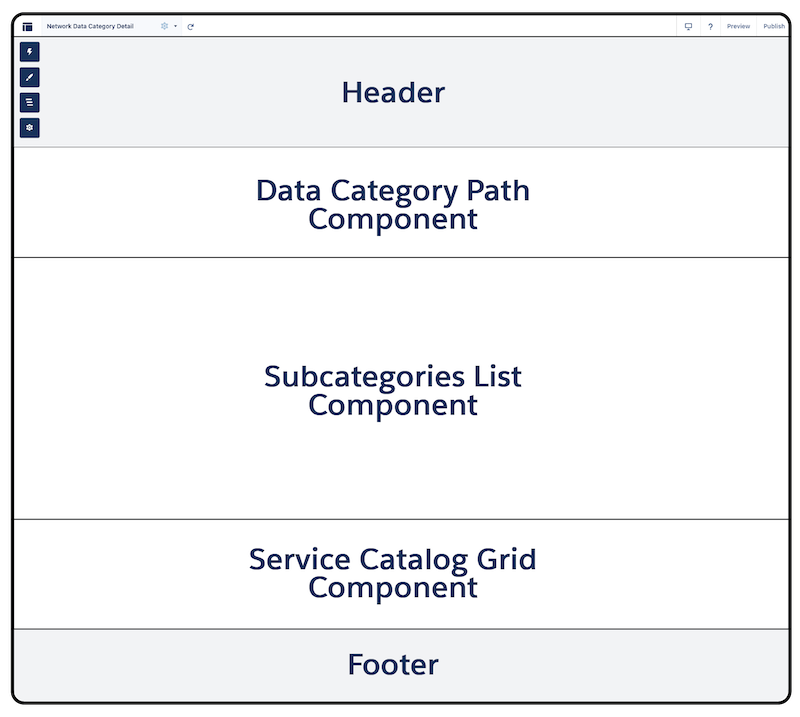
The standard Network Data Category page and its standard Network Data Category detail object page variation are used in the Service Catalog site to surface your data categories in the site. You must add these standard Experience components and custom Service Catalog components to the object page variation.
- Data Category Path
- Service Catalog Grid
- Subcategories List
Here’s the structure of the Network Data Category detail object page variation and the required layout of the components. Use this reference as you take the setup steps to configure the page.
1. Create the Service Catalog Item Definition object page.
1. From the Pages menu, click .
2. From the Pages dropdown, click **\+ New Page**.
3. In the New Page window, set these configurations in the workflow.
1. Select **Object Pages**.
2. In the search box, enter Service Catalog Item Definition, and then select **Service Catalog Item Definition**.
3. Click **Create**.
The Service Catalog Item Definition Detail, List, and Related List pages are created. The Service Catalog Item Definition Detail page opens in the page editor.
2. Configure the Service Catalog Item Definition Detail object page variation.
1. Click  on the left sidebar, and enter Service Catalog Record Detail in the Components search box.
2. Select **Service Catalog Record Detail** and place it on the middle column of the page editor.
The component property panel opens. This component has no settings, but it has several other components that you can configure. Set a Custom Success message for the Service Catalog Automation component. The message notifies your customers that their catalog item request is submitted.
3. Create the Network Data Category object page.
1. From the Pages menu, click .
2. From the Pages dropdown, click **\+ New Page.**
3. In the New Page window, set these configurations in the workflow.
1. Select **Object Pages**.
2. In the search box, enter Network Data Category, and then select **Network Data Category Detail**.
3. Click **Create**.
The Data Category Network page opens in the page editor.
4. Configure the Network Data Category Detail object page variation.
1. Click  on the left sidebar, and enter Service Catalog Grid in the components search box.
2. Select **Service Catalog Grid** and place in the first section of page editor.
The component property panel opens. Keep in mind that this component has no settings, but it contains the standard Grid component that you configure in the next steps.
3. From the page editor, within the Service Catalog Grid component, click the Grid component.
The component property panel opens.
4. From the Settings tab, under the Data Source field, ensure the Self-Service List is selected.
5. From the Settings tab, under the Object field, ensure the Service Catalog Item Definition is selected.
6. Click  the left sidebar, and then enter Data Category Path in the Components search box.
7. Select **Data Category Path** and place it in the header of the page editor.
8. From the Settings tab, under the Data Source dropdown, make sure Self-Service List is selected.
9. From the Settings tab, under the Object dropdown, make sure Service Catalog Item Definition is selected.
10. Click  on the left sidebar, and then enter Subcategories List in the Components search box.
11. Select **Subcategories List** and place it in the second section of the Network Data Category page.
Next, configure all other properties for each component to your preferences.