
Turn on Service Replies for Service Assistant for Messaging to have Service Replies populate directly in the Service Assistant component alongside the service plan steps.
Required Editions
| View supported editions. | |
 This article applies to: This article applies to:
|
Service Assistant for Messaging |
 This article doesn't apply to: This article doesn't apply to:
|
Service Assistant for Case |
| User Permissions Needed | |
|---|---|
| To set up Service Replies for Service Assistant: |
Customize Application OR System Admin AND Service Planner Builder permission set AND Service Replies User AND Prompt Template Manager AND Data Cloud Architect (only required if grounding replies with a data library) |

Service Replies is available for setup without needing to complete the general Service Assistant setup, including creating a Service Assistant agent. However, these prerequisites are required.
- Service Assistant for Messaging is turned on from the Messaging tab of the Service Assistant Setup page.
- The Service Assistant Lightning web component is added to the record page.
- The general Service Replies feature is set up. See Set Up Service Replies for Chat.
Turn On Service Replies for Service Assistant
Turn on Service Replies for Service Assistant from the Service Replies Setup page.
- From Setup, go to Service Replies Setup.
- In the Service Assistant section, turn on Service Replies for Service Assistant.
Assign Permissions
Assign these permission sets to your service reps to access and view Service Replies within the Service Assistant component.
- Service Replies User permission set
- Service Planner User permission set
- Prompt Template User Permission set
Test Service Replies for Service Assistant
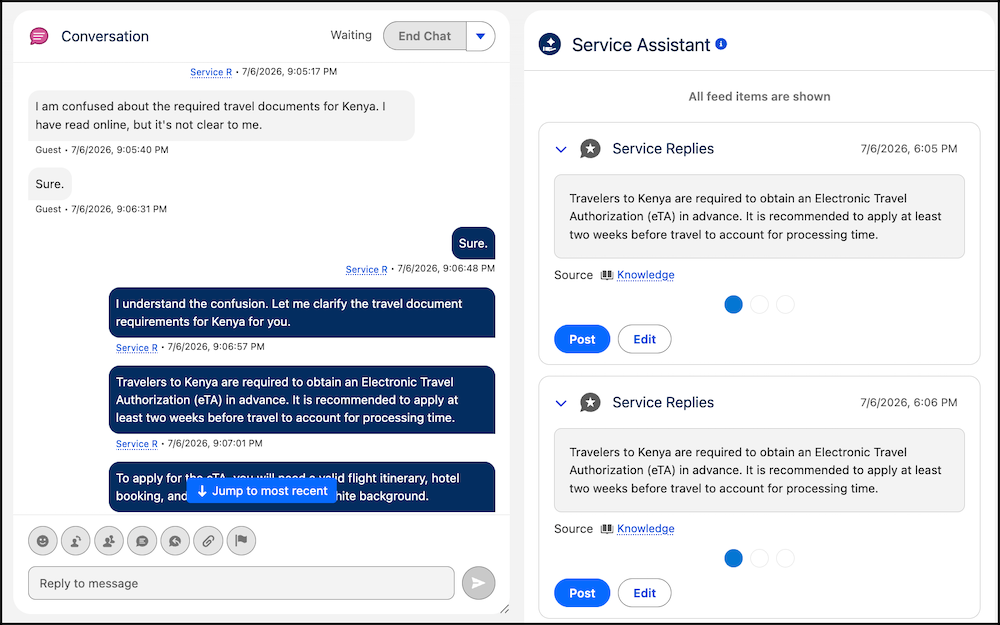
Confirm that Service Replies cards appear in the Service Assistant component during an active messaging session.
- Open the Service Console and start a messaging session that meets your eligibility criteria.
- Wait for a service reply to appear in the component. Cards appear automatically after the first messages. You don't need to take action in the component. It can take a few messages in the chat before the first card appears.
-
Review the suggested replies. To send a reply directly to the customer, click
Post. To modify a reply before sending, click
Edit.
If replies aren't generated, try these troubleshooting steps.
- Clear your browser cache, and then log out of Salesforce and back in.
- Confirm Service Replies for Service Assistant is turned on from the Service Replies setup page.
- Depending on your grounding sources, check either the data library or prompt templates. Make sure both are active and have no errors.
Considerations
Here are few considerations when using the feature. Find more details in Service Replies in Service Assistant.
- Service Replies are proposed only during active messaging sessions. When the messaging session and service plans end, Service Replies also stop, and the Service Assistant component is disabled. The reply cards remain saved in the component feed as a historical record.
- Service plans and service replies operate independently and don’t have context of one another. Service plans don’t reference Service Replies as a grounding source to create plan steps. Service replies don’t reference the service plan steps as grounding source to generate the reply.
- Service replies in the component don't auto-collapse. When a new reply is generated, the previous reply doesn't collapse. Service reps must collapse each reply manually.
- If you have the standard Service Replies component installed on the record page, it becomes disabled.
- Service Replies are translated if you turn on Real-Time Translations. See Setup Real-Time Translations.