
Complete the required setup steps for Service Assistant for Messaging.
Required Editions
| View supported editions. |
| User Permissions Needed | |
|---|---|
| To set up Service Assistant for Messaging: |
Service Planner Builder permission set AND Customize Application OR System Admin |
Before you begin, confirm that you've completed the general setup and created at least one agent with a subagent and instructions. See Complete General Setup for Service Assistant. Also, make sure you have assigned your agent the General CRM, FAQ, or both subagents.
The core of the setup requires creating an eligibility flow that determines which types of sessions can have a service plan. The eligibility flow doesn't rely on the ServicePlanner User's Run Flow permission to execute the flow when a service rep opens a messaging session record. Both service reps and admins require direct access to the flow so that it can run when the record page opens. We don't recommend providing your reps the Run Flows app permission unless doing so aligns with your company's security standards.
We recommend granting access through a custom permission set. To do so, restrict the flow's default general access, and then create a custom permission set that you assign to both the admin and service reps. Alternatively, restrict the flow's default general access, and then assign the flow to the Standard User profile if that aligns with your company's security standards.
The first procedure guides you through configuring your eligibility flow and restricting its default access. The next procedure guides you through creating a custom permission set that grants access to the flow.
You can use your own flow as long as it's an autolaunched flow that has one string input and one boolean output. If you use your own flow, skip the first procedure and go to the next one.
Configure Your Eligibility Criteria Flow
Use the Check Service Plan Eligibility for Messaging Flow Template to set conditions that messaging session records must meet to have a service plan.
- From Setup, in the Quick Find box, enter Flows, and then select Flows.
- Under All Flows, select Check Service Plan Eligibility for Messaging.
- From the Flow Builder canvas, select the Is Messaging Session Eligible for Service Plan? Decision element.
-
From the Decision Element properties section, in the Yes tab under Outcome Details, delete
the ineligibilityReason resource. Keep all others.
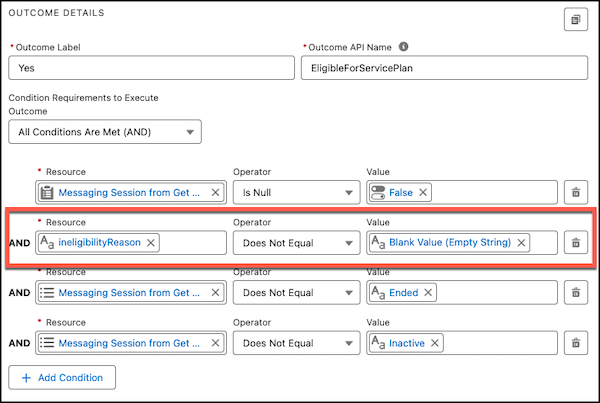
- To add another condition that determines when to generate a service plan, click + Add Condition. By default, we don't create service plans for messaging sessions that are set to Ended or inactive. Set additional conditions, such as creating service plans for messaging sessions that originate from specific channels or queues.
-
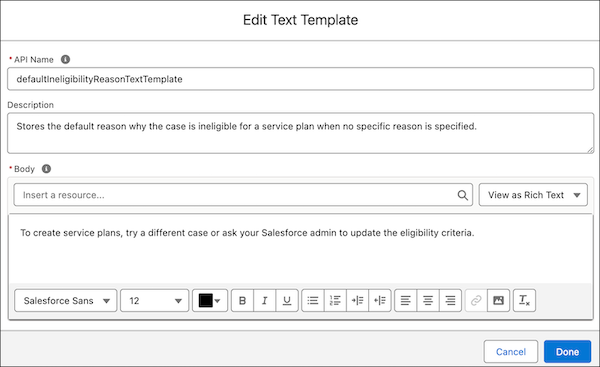
Optional: From the Manager Tab, under Text Templates, select
DefaultIneligibilityReasonTextTemplate to modify the default body
text.
The text tells service reps that a case can't have a service plan because it doesn't meet the eligibility criteria. The message that the service rep sees is based on the eligibility criteria that you've set in the flow. For example, if a condition set in the Decision element isn't met, service reps get a message such as "You can't create a service plan because the case isn't part of the specified queue."
- From the top-right corner of flow builder, click Save as New Flow.
- In the Save As window, provide a name and optional description, and then click Save.
- Activate your flow and exit Flow Builder.
- From the Flow Builder setup page, navigate to your eligibility flow.
- Click the drop down next to the flow and select Edit Access.
- Select Override default behavior and restrict access to enabled profiles or permission sets.
- Click Save.
Grant Access to Your Eligibility Flow
Grant users access to your eligibility flow with a custom permission set that provides access to the flow. The custom permission set is mandatory for service reps and admins, even when admins have Run Flows or Manage Flows permissions.
- From Setup, in the Quick Find box, enter and select Permission Sets.
- From the Permission Sets setup page, click New.
-
Provide a name for the permission set and optionally provide a description.
We recommend naming the permission set Messaging Eligibility Flow Access. Don't select a license.
- Click Save.
- From the Permission Sets page, select Messaging Eligibility Flow Access or the name you provided.
- From the permission set detail page, under Apps, select Flow Access.
- From the Flow Access section, click Edit.
- Add your messaging eligibility flow to the Enabled Flows section.
- Save your work.
- Assign the permission set to yourself (the admin) and your service reps.
Add Your Eligibility Criteria Flow to Service Assistant
Complete your eligibility criteria setup by adding your configured flow to the Service Assistant Setup page.
- From the Service Assistant Setup page, in the Customize Experience by Object section, select the Messaging tab and go to the Define Service Plan Eligibility Criteria for Messaging section.
- From the Flow Label field, select your messaging eligibility flow.
- From Input variables, select your variable.
- From Output Variables, set the fields for Eligibility Result Variable and Ineligibility Reason Variables.
- Save your work.
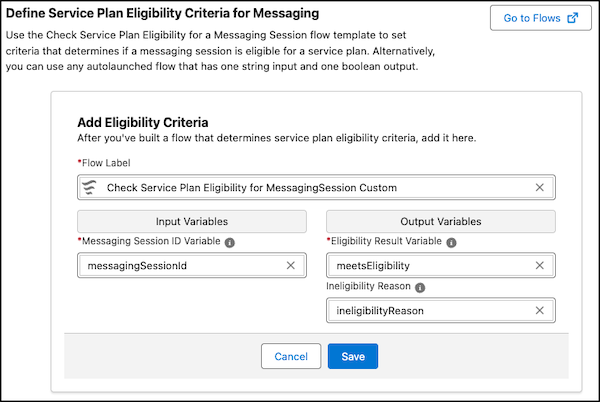
After you add your flow to Service Assistant, your eligibility criteria setup is complete. Next, turn on Service Assistant for Messaging.
Turn on Service Assistant for Messaging
Turn on the features that activate Service Assistant for Messaging.
-
Go to the Turn on Dynamic Plans section and turn it on.

-
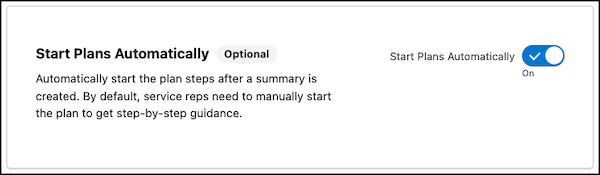
Optional: Under Turn on Dynamic Service Plans, turn on
Start Plans Automatically.
When you turn on this feature, service reps don't manually click Strat Plan in the component. The button isn't shown. Instead, the service plan starts automatically after the chat contains enough context for Service Assistant to identify the issue. The summary plan is first generated, and then the first step shows immediately after.
-
Turn on Service Assistant for Messaging.

Next, go to the Set Up Your Agent Assignment section.
Set a Default Agent
Because Service Assistant supports multiple agents, set a default agent in the Set Up Your Agent Assignment section of the Setup page so that an agent is always assigned to a record when your eligibility criteria are met.
If you created only one agent, select it. That agent is assigned to every record that meets your eligibility criteria.
If you have more than one agent, select a single agent that contains a subagent and instructions for a use case that you want to test. You don't need to set a flow at this time. The remaining setup procedures guide you through assigning permissions, adding the component to the record page, and validating that a service plan generates, which is based on the single agent you set as your default agent. Setting up and testing multiple agents isn't covered here because setup requires additional time and testing. See Multiple Agents in Service Assistant.
- In the Set Up Your Agent Assignment section, under Set a Default Agent, select your agent.
- Don't set a flow in Define Your Multi-Agent Assignment Criteria.
- Save your work.
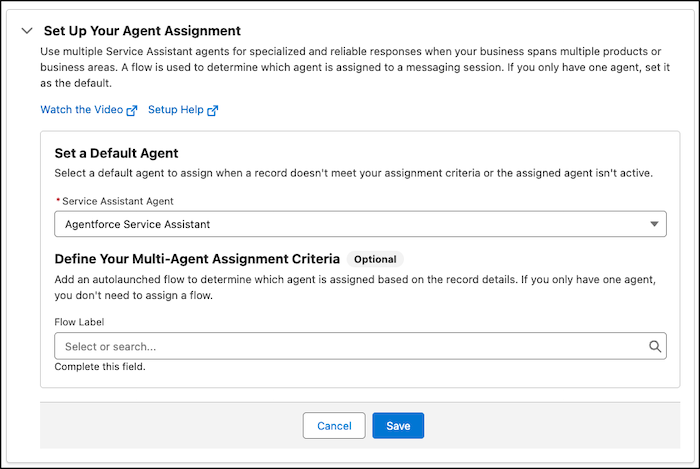
Next, assign the permissions that grant users access to Service Assistant for Messaging.
Assign Service Assistant for Messaging Permissions
Assign permissions that grant users access to Service Assistant for Messaging.
When you create a Service Assistant agent, the ServicePlanner User (the agent user) is automatically assigned the Service Planner Agent User and Agentforce_Service_Assistant Permissions permission sets. To generate service plans for messaging sessions, the agent user requires a custom permission set that grants object and app access to the Messaging Session object.
Also, make sure service reps have the Messaging Eligibility Flow Access custom permission set assigned. Without it, the eligibility criteria flow doesn't run when a service rep opens the record page.
- From Setup, in the Quick Find box, enter Permission Sets, and then select Permission Sets.
- Create an Agent Messaging Access custom permission set that grants Read and View All Fields on the Messaging Session object and enables the Access Conversation Entries app permission.
- Assign the Agent Messaging Access custom permission set to the ServicePlanner User, and then confirm your users have these permissions.
| Persona | User License | Standard Permission Sets | Custom Permissions |
|---|---|---|---|
| Service Assistant Admin | Salesforce | Service Planner Builder | Messaging Eligibility Flow Access permission set |
| Service Rep | Salesforce |
|
Messaging Eligibility Flow Access permission set |
| ServicePlanner User (agent user) | Einstein Agent |
*This is a default name provided by Agentforce. If you provided your agent a specific name in the Agent Creator, then the permission set name matches your agent name. |
Agent Messaging Access permission set Required permissions:
|
Next, add the Service Assistant component to the Messaging Session record page.
Set Up the Service Assistant Component for Messaging
Add the Service Assistant component to the Messaging Session record page.
- From the Service Console, go to the Messaging Session list page and open a record. Ideally, open a record that meets your eligibility criteria.
-
From the record page, click
 , and then select Edit Page.
- From the Components menu, search for and select Service Assistant, and then add the component anywhere on the canvas.
- Click Save and then click Activate.
- Exit Lightning App Builder, go back to the record page, and confirm that you see the component on the page.
The Messaging Session record page now shows the Service Assistant component (1) and chat box (2).
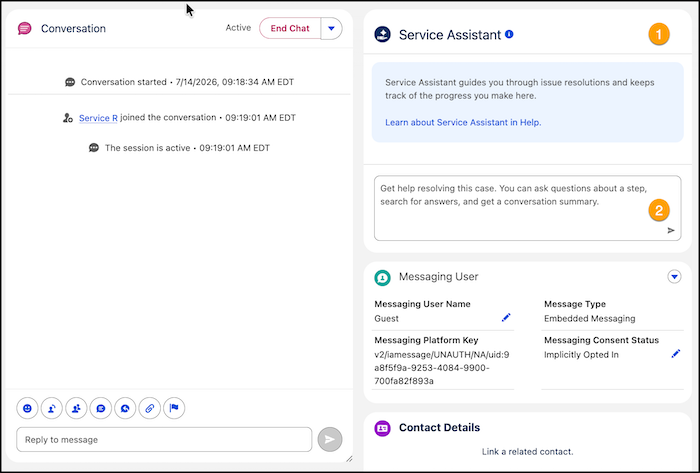
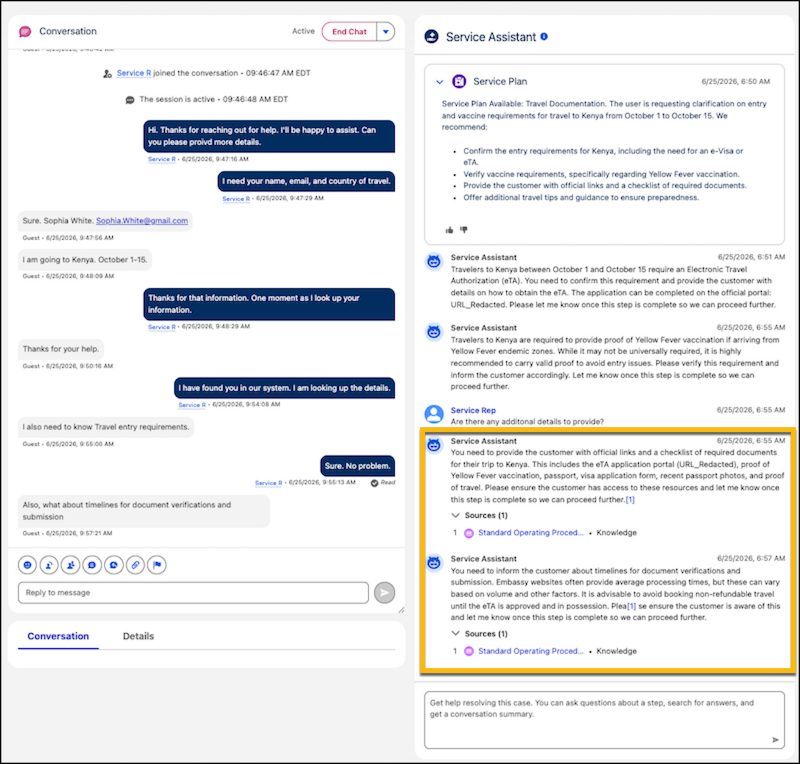
When your eligibility criteria are met and the chat contains enough context for Service Assistant to identify the issue (1), a plan summary shows in the center of the component and indicates which subagent is assigned to the record (2), for example, "Service Plan Available: Order Refund". Service Assistant is active and processes a service plan only when the record owner is a human user. It doesn't process requests when any other user owns the session record, such as a bot or queue.
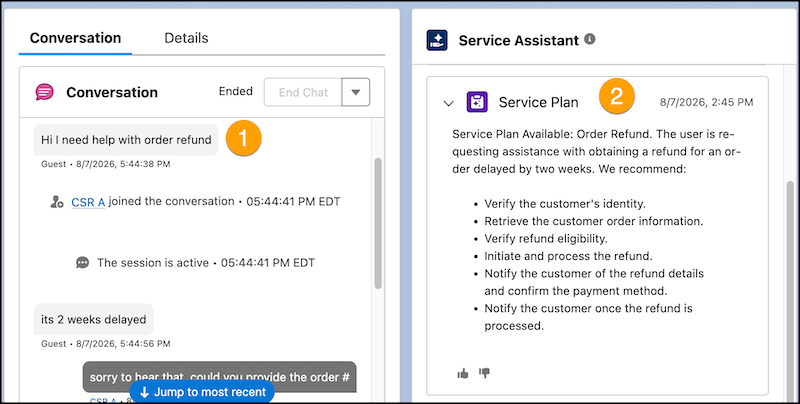
What counts as enough context to start the plan depends on whether there’s an issue or problem clearly defined in the transcript (1). There's no standard threshold for the number of messages required to have the first step of the plan show in the component. Plan processing and initiation times vary and depend on clarity of the messages in the transcript. Also, there is no indication that a summary plan generating. The compoenent remains static.
If you turned on Start Plans Automatically, the Start Plan button isn't shown, and the first step shows after the summary plan is generated and when the chat contains enough context for Service Assistant to identify the issue. There is also nao indication that the first step is generating. The component remains static and you only see the summary plan.
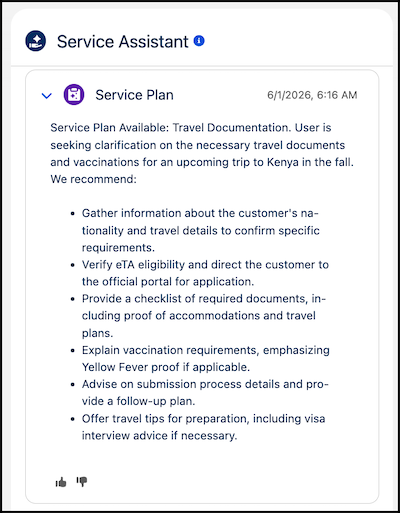
If the plan summary fails to generate or you see error messages, take these general troubleshooting steps. For more testing and troubleshooting guidance, see Test Service Assistant and Troubleshoot Service Assistant Error Messages.
- Check the permissions for your agent user (ServicePlanner User). Make sure it has the required app permissions needed for the Agent Voice Access permission set.
- Check that you have a default agent assigned in the Setup page and confirm the agent is active. Also check that the agent has a subagent that matches to the specific issue referenced in the transcript.
- Check your eligibility flow configuration and access to the flow. Make sure the voice call type is eligible for a plan and that you have direct access to the flow, even if you have the Run All Flows app permission. The flow doesn’t run on the ServicePlanner Users’ permissions Grant Access to Your Eligibility Flow and Add Your Eligibility Criteria Flow to Service Assistant.
- Check that the messaging session record is owned by a human agent, not a bot user. Service Assistant doesn't generate a plan for a record owned by a bot user or queue.
When you see a summary plan, work through a service plan to test it.
- Confirm that Service Assistant shows the first plan step when there's enough context.
- Confirm that the guidance in each step is consistent with your grounding sources and that Service Assistant shows the correct actions at the right time.
- Review each step for accuracy against your grounding sources, monitor when actions and steps are cited.
- Use the agent chat to ask for knowledge information, run actions, and draft plan summaries.
If you haven't already attached a data library to your agent, review our knowledge grounding setup guidance in Set Up Knowledge Grounding. Knowledge grounding requires extra permissions plus additional testing and validation to make sure that your service plans are grounded in your knowledge base. We provide details on our recommended configuration, what to expect when referencing citations, and troubleshooting information.
We only officially certify the use of the knowledge data library type for Service Assistant. However, this doesn’t prevent you from setting up and testing other data types (file upload, custom retrievers, and web search), but we don't provide setup guidance or recommendations specific to those data types for Service Assistant. All set up and usage follows the general Agentforce guidance. For details on custom retrievers, see Retrieve Data.
Optionally, you can also Set Up Service Replies for Service Assistant. Service Replies operate independently of the service plan. Service Replies don’t ground the service plan. Also, the standard Service Replies become deactivated and replies are only shown in the Service Assistant component. See Service Replies for Service Assistant.