Complete the required setup steps for Service Assistant for Case.
Required Editions
| View supported editions. |
| User Permissions Needed | |
|---|---|
| To set up Service Assistant for Case: |
Service Planner Builder permission set AND Agentforce Default Admin permission set AND Customize Application OR System Admin |
Before you begin:
- Confirm that you've completed the general setup and created an agent with subagents and instructions. See Complete General Setup for Service Assistant. Also, make sure you have assigned your agent the General CRM, FAQ, or both subagents.
- Confirm that you understand your plan type options for case: guidance plans and dynamic plans. Selecting a plan type is part of your setup, and you can turn on only one plan type at a time. A quick overview and key details are provided in Choose Your Plan Type and Turn on Service Assistant, but you can find more details about the plan types in Service Plans and Service Assistant Agent, Component, and Capabilities.
Turn On Service AI Grounding
Complete the steps to ground Service Assistant in the case data so it drafts a case summary and begins creating a service plan.
Service Assistant uses Service AI Grounding to analyze the active case based on the fields and objects you configure in this step. By default, Subject and Description are included as required grounding sources and can't be modified. Service Assistant uses these fields to identify the issue and assign a subagent to the case. To provide richer grounding context, you can add fields and objects such as Case Email, Case Comments, and Case Feed. Service Assistant uses these additional sources to generate the issue summary, create the plan steps, and regenerate a plan step when there’s new information found in the fields or objects.
Service AI Grounding only references only the active case. It doesn't use your historical case data.

- On the Service AI Grounding Setup page, knowledge grounding is shown as a grounding source, but it's not supported in Service Assistant. Use Agentforce Data Libraries instead.
- Encrypted fields aren't supported for grounding.
- Only String and Text Area type fields are supported for grounding.
- Only text from Case Emails, Case Comments, and Case Feed is supported. PDFs, images, and other attachments aren't used as grounding sources.
- If you turn on case feed grounding, provide the ServicePlanner User (the agent user) access to the Case Feed. Service Assistant has access to Case Emails and Case Comments by default.
- The checkbox for the case feed has an info bubble that states the object is only available for grounding that uses Einstein Case Summaries. The object is supported in Service Assistant.
- Service plans are grounded in the case data based on the ServicePlanner User's permissions rather than the individual service reps' permissions. Service reps can view information from your selected fields and objects in case summaries and service plans, even if they don't have direct access. Set your grounding configuration so that the ServicePlanner User's permissions align with the data access intended for your service reps. See Service Assistant Grounding Data Access.
- From Setup, in the Quick Find box, enter and select Service AI Grounding.
- From the Service AI Grounding Setup page, turn on the feature.
- From Choose Objects and Fields for Grounding, select Case and then turn on Grounding with Cases.
-
From the Required Fields section, set these settings.
- In the Subject field, select Subject.
- In the Description field, select Description.
- From the Additional Fields section, select the fields that you want as a grounding source for Service Assistant.
- From the Additional Object Grounding Options section, select whether you want Service Assistant to use Case Emails, Case Comments, or Case Feed as grounding sources.
- Save your work and then turn on Grounding with Cases.
Here's an example configuration. After you complete the steps, go to the Flows Setup page.
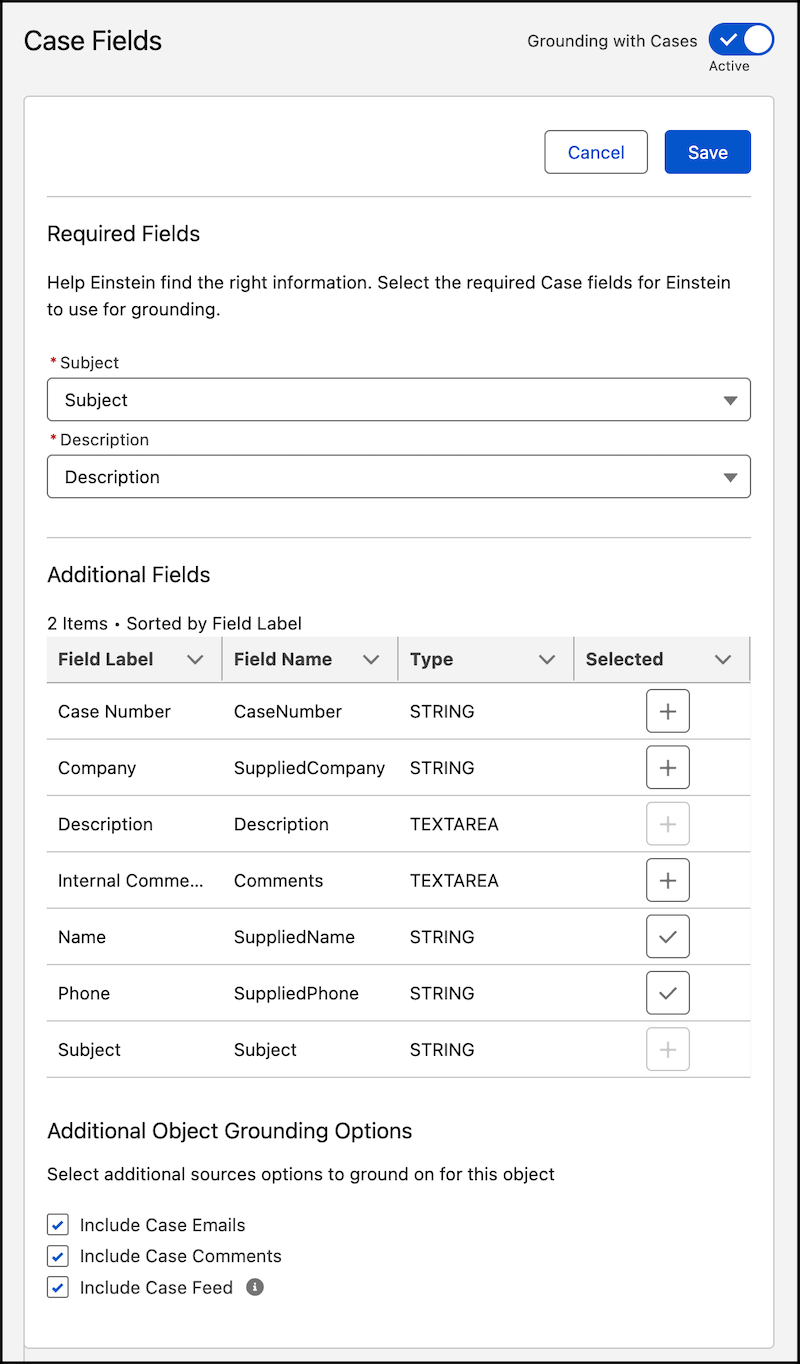
Then go to the Flows Setup page to configure your eligibility criteria.
Start Your Eligibility Criteria Setup
Use an autolaunched flow to set conditions that determine which cases can have a service plan.
To complete this task, we guide you through the configuration of the Check Service Plan Eligibility flow template that you can configure to your preferences. See Service Plan Eligibility Criteria.
Optionally, use your own flow, as long as it's an autolaunched flow that has one string input and one boolean output. If you use your own flow, skip this step and go to the next one.
- From Setup, in the Quick Find box, enter and select Flows.
- From Flows Setup, under All Flows, select Check Service Plan Eligibility.
- From the Flow Builder canvas, select the Decision element, and then click Edit Element.
-
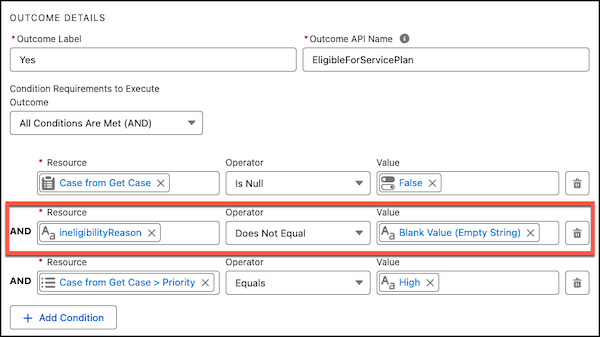
Under Outcome Details, in the Yes tab, delete the ineligibilityReason
resource. By default, a condition is set to Priority = High. You can keep
or remove the condition.
-
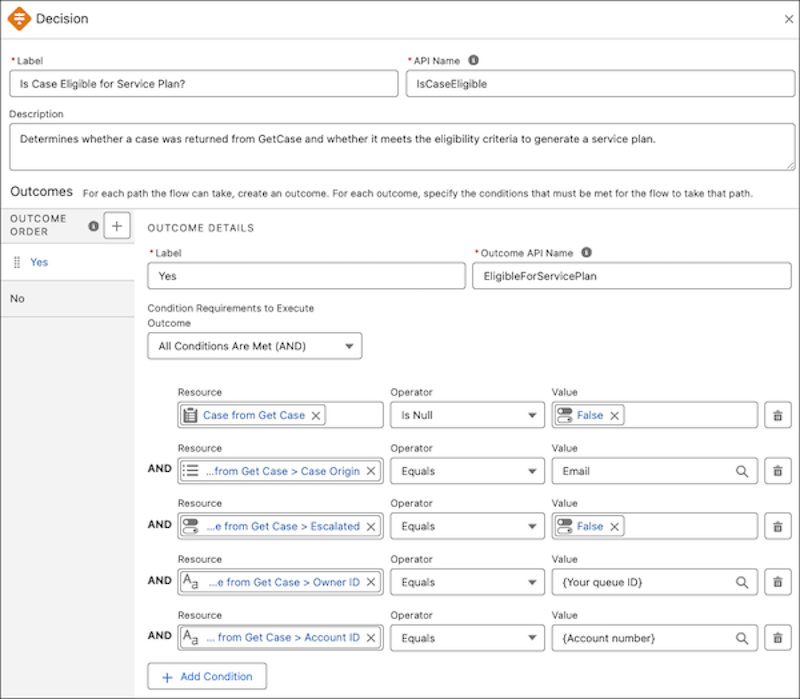
Add any other conditions that you want the case to meet.
Here's an example set of conditions.
- CaseOrigin= Email
- Escalated = False
- OwnerId = {Queue ID}
- AccountId = {Account number}
-
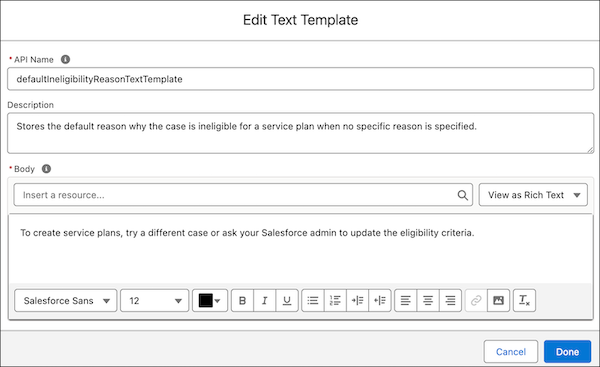
Optional: From the Manager Tab, under Text Templates, select
DefaultIneligibilityReasonTextTemplate to modify the default body
text.
The text tells service reps that a case can't have a service plan because it doesn't meet the eligibility criteria. The message that the service rep sees is based on the eligibility criteria that you've set in the flow. For example, if a condition set in the Decision element isn't met, service reps get a message such as "You can't create a service plan because the case isn't part of the specified queue."
- From the top-right corner of flow builder, click Save as New Flow.
- In the Save As window, provide a name and optional description, and then click Save.
- Activate your flow.
After activating your flow, exit Flow Builder and go to the Service Assistant Setup page.
Complete Your Eligibility Criteria Setup
Complete your eligibility criteria setup by adding your configured flow to the Service Assistant Setup page.
- From Setup, in the Quick Find box, enter and select Service Assistant.
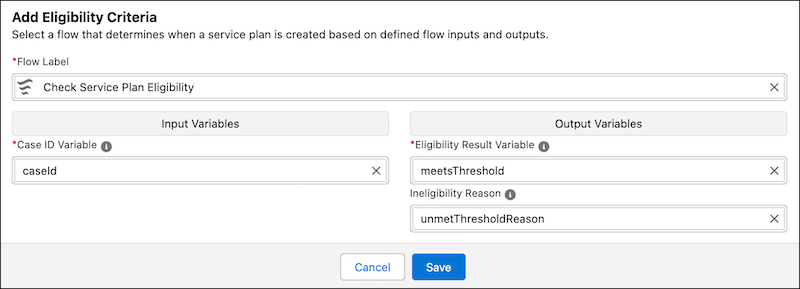
- Go to Step 4: Customize Your Experience by Object, and in the Case tab, go to the Add Eligibility Criteria section.
- From the Flow Label field, select your configured eligibility flow.
- From Input variables, select your variable.
- From Output Variables, set the fields for Eligibility Result Variable and Ineligibility Reason Variables.
-
Save your work.
Here's an example configuration of eligibility criteria set on the Service Assistant Setup page.
Next, go to the Define Service Plan User Experience section of the Setup page.
Choose Your Plan Type and Turn on Service Assistant
Choose your service plan experience: guidance plans or dynamic plans.
From the Define Service Plan User Experience section, two columns list the features available for the plan types that Service Assistant for Case supports: guidance plans and dynamic plans. Choose a plan type. Only one plan type can be active at a time, but you can switch between the two. Find more details about the plan types in Service Plans.
- Guidance Plans
- Provide a static checklist of steps that doesn't update automatically. Guidance plans are best suited for cases with stable, predictable resolution workflows where the steps are consistent for most cases. In addition to the checklist of steps, guidance plans also provide access to additional features that are listed on the left side of the page. Setup guidance for those features is in Extend Service Assistant for Case.
- Dynamic Plans
- Provide a step-by-step conversational workflow where steps are created and updated in real time based on the current record data. Dynamic plans are best suited for case types where the record is updated consistently and the resolution path changes as information comes in where service reps benefit from real-time adaptation. Dynamic plans are turned on from the right side of the section.
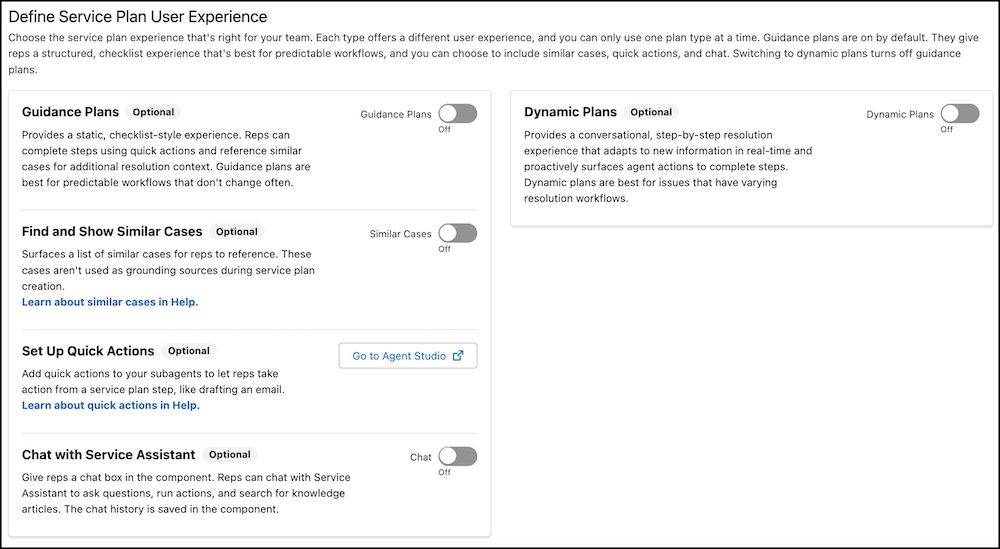
Both plan types use the same standard grounding sources: subagents, knowledge articles, and related record grounding.
Chat with Service Assistant is automatically included with dynamic plans. Guidance plans don't have chat on by default. Turn on Chat with Service Assistant manually. We include a step here to turn it on.
- From the Define Service Plan User Experience section, select a plan type.
- Optional: If you turn on guidance plans, turn on Chat with Service Assistant to provide your service reps a chat box where they can ask for knowledge information and query record information. All other listed features under Guidance Plans are optional.
-
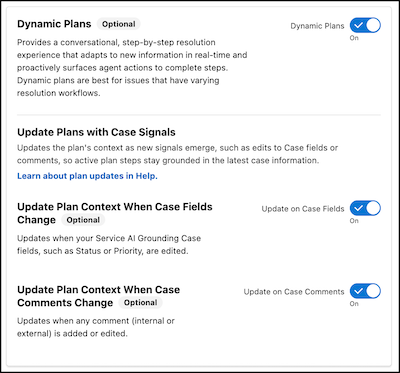
Optional: If you turn on dynamic plans, turn on Update Plan Steps When
Case Fields Change, Update Plan Steps When Case Comments
Change, or both.
This feature enables Service Assistant to track updates to case fields and comments (internal and external) after a dynamic plan starts and update the steps in real time to accommodate the new information. These settings apply only to case fields and comments. Service Assistant handles Case Emails and Case Feed differently.
- You don't turn on automatic tracking and plan step regeneration for Case Emails. This is enabled by default when you have Case Emails enabled for grounding from the Service AI Grounding Setup page.
- Case Feed updates don't trigger step regeneration. If you enable Case Feed grounding, Service Assistant still monitors the feed and captures new data, but applies it only when the current step completes and the next step is created.
- Plan context updates for case comments include internal and external comments.
- If you ground on the Internal Comments field, you must set Case Comments for grounding. Internal Comments data isn't tracked unless Case Comments is enabled for grounding.
-
At the bottom of the Case tab, turn on Service Assistant for Cases.

Next, go to the Set Up Your Agent Assignment section.
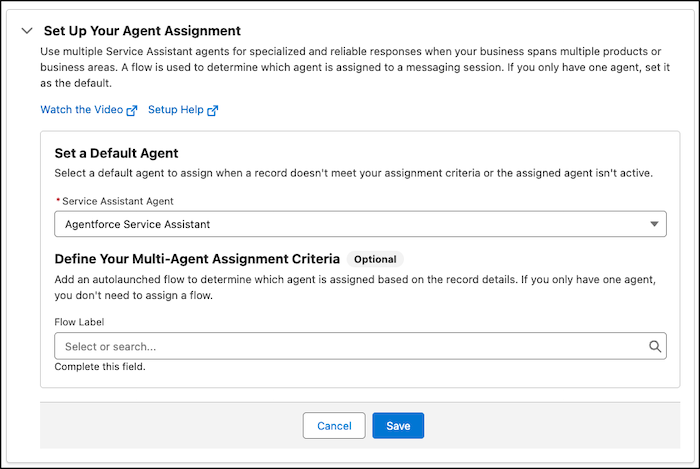
Set a Default Agent
Because Service Assistant supports multiple agents, set a default agent in the Set Up Your Agent Assignment section of the Setup page so that an agent is always assigned to a record when your eligibility criteria are met.
If you created only one agent, select it. That agent is assigned to every record that meets your eligibility criteria.
If you have more than one agent, select a single agent that contains a subagent and instructions for a use case that you want to test. Don't set a flow at this time. The remaining setup procedures guide you through assigning permissions, adding the component to the record page, and validating that a service plan generates, which is based on the single agent you set as your default agent. Setting up and testing multiple agents isn't covered here because setup requires additional time and testing. See Multiple Agents in Service Assistant.
- In the Set Up Your Agent Assignment section, under Set a Default Agent, select your agent.
- Don't set a flow in Define Your Multi-Agent Assignment Criteria.
- Save your work.
Next, go to the Permission Sets setup page to assign permissions.
Give Users Access
Assign your users permissions to access Service Assistant.
When you create a Service Assistant agent, the ServicePlanner User (the agent user) is automatically assigned the Service Planner Agent User and Agentforce_Service_Assistant Permissions permission sets.
Manually assign the Data 360 User standard permission set only if you choose to use the knowledge grounding or similar cases features.
If you turn on case feed grounding in your Service AI Grounding configuration, provide the ServicePlanner User (the agent user) access to the case feed. Service Assistant has access to case emails and case comments by default when you turn on the objects for grounding.
| Persona | User License | Standard Permission Sets |
|---|---|---|
| Service Rep | Salesforce |
|
| ServicePlanner User (agent user) | Einstein Agent |
*This is a default name provided by Agentforce. If you provided your agent a specific name in the Agent Creator, then the permission set name matches your agent name. |
Next, add the Service Assistant component to the Case record page.
Set Up the Service Assistant Component
To finalize your setup, add the Service Assistant component to the Case record page.
- From the App Launcher, select Service.
- From the tabs menu of the Service page, select Cases.
- From the Cases page, open a case record. Ideally, select a case that meets your eligibility criteria.
-
From the record page, click the
 , and then select Edit Page.
- From the Components menu, search for and select Service Assistant, and then add the component anywhere on the canvas.
- Click Save, and then click Activate.
- Exit Lightning App Builder to go back to the Case record page.
-
From the Case record page, confirm that you see the Service Assistant component on the
page.
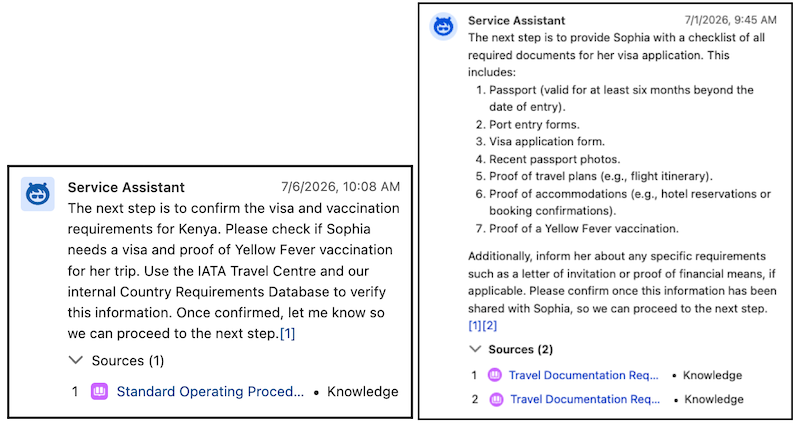
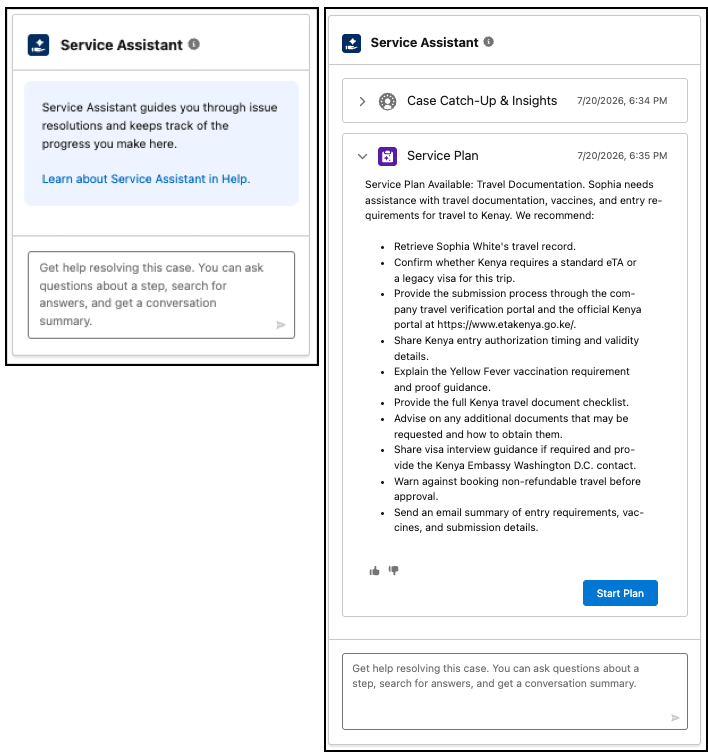
For dyanmic plans, there’s no indication that a service plan is in progress. The component remais static (left iamge). A service plan summary shows automatically and can take up to a minute. For guidance plans, you see a status indicator: “Service plan summary in progress...”.
In this example, you see Start Plan, which indicates that dynamic plans are turned on. If you have guidance plans turned on, you see Draft Plan.
- Optional: If the plan summary fails to generate or you see error messages, review the troubleshooting steps in Troubleshoot Service Assistant Error Messages.
-
When you see a plan summary, click Draft Plan or Start
Plan in the component and review the service plan.
Review the service plan to confirm that the steps are relevant to the case details and your subagents and instructions. We provide general detail here on how to test. Generally, this step serves as a validation check that Service Assistant produces a summary plan and generates a guidance plan or starts a dynamic plan.
Service Assistant summarizes the wording used in your grounding sources, and it can combine several pieces of information in a step, including procedural information. There isn't an exact match to the wording and language used in your grounding sources.
For more detailed testing guidance, see Test Service Assistant.
Reviewing Guidance Plans
For guidance plans, click Draft Plan. Guidance service plans are separated into several sections to guide case resolution: Gather Information, Work The Issue, Resolve The Issue, and Wrap Up. "Gather Information" is always included, and the other sections appear based on the amount and clarity of your subagents and instructions in relation to the case data from your Service AI Grounding configuration. The more detailed your instructions and case data, the more comprehensive the plan.
If your plan isn't detailed enough or doesn't align with your subagents and instructions or your grounding configuration set in Service AI Grounding, review your configuration for these grounding sources. When you update subagents and instructions or the grounding fields on the case record, the Redraft Plan button shows. Click the button to draft a new plan. If you don't see the Redraft Plan button, refresh the page.
Service Assistant can propose its own steps that aren't based on your grounding sources. For guidance plans, such steps are indicated with an asterisk (*), as shown in the first step under Work The Issue. Proposed steps show when there isn't enough information in your grounding sources.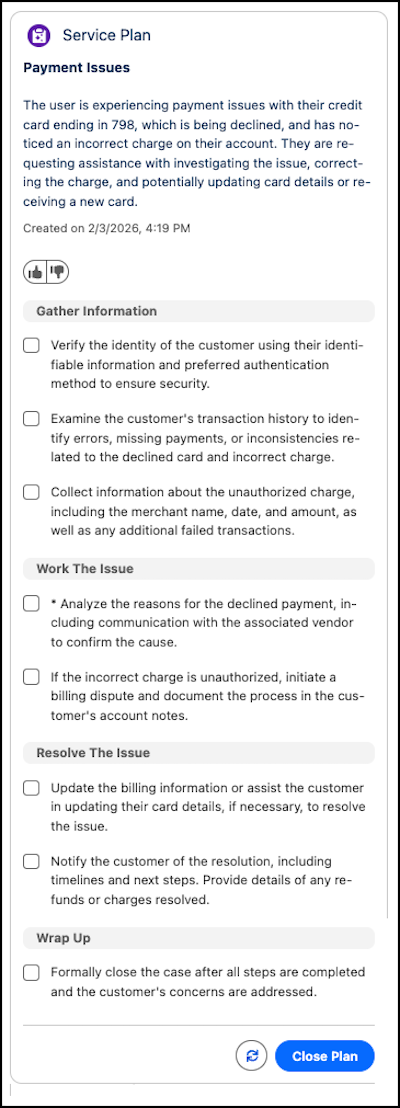
Reviewing Dynamic Plans
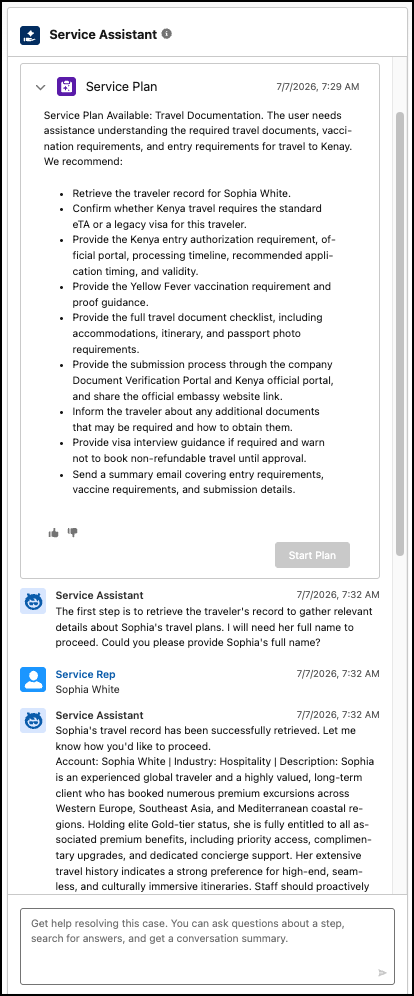
For dynamic plans, click Start Plan and work through the step-by-step workflow. Service Assistant automatically walks you through the resolution process step-by-step. It surfaces the first step and tells you what needs to be completed.
As you work through the plan, each step is created in real time. Service Assistant reviews the current record data and does a fresh retrieval of all your grounding sources to make sure that each step is relevant to the current record context. Make sure that each step aligns with your subagent instructions and grounding sources and follows a real-world pattern of how service reps resolve the issue.
When steps are created outside of your grounding sources, Service Assistant uses language such as "There's no information found in company documents. Here's what I suggest."
After you verify that you can draft or start a service plan, your Service Assistant for Case setup is complete. Next, you can also set up additional optional features specific to case. See Extend Service Assistant for Case.
If you haven't already attached a data library to your agent, set up knowledge grounding. See Set Up Knowledge Grounding. Knowledge grounding requires extra permissions plus additional testing and validation to make sure that your service plans are grounded in your knowledge base.
We only officially certify the use of the knowledge data library type for Service Assistant. However, that doesn't prevent you from setting up and testing other data types (file upload, custom retrievers, and web search). We don't provide setup guidance or recommendations specific to those data types for Service Assistant. All setup and usage follow the general Agentforce guidance. For details on custom retrievers, see Retrieve Data.