
Ground voice service plans in related records using a prompt template and flow.
Required Editions
| View supported editions. | |
 This article applies to: This article applies to:
|
Service Assistant for Voice |
 This article doesn't apply to: This article doesn't apply to:
|
Service Assistant for Case and Messaging |
| User Permissions Needed | |
|---|---|
| To set up related record grounding for Voice: |
Customize Application OR System Administrator AND Service Planner Builder permission set AND Prompt Template Manager |

Before you begin, confirm you have completed these tasks.
- Set Up Service Assistant for Voice.
- Confirm your users have the required Service Assistant for Voice permissions.
Grounding voice service plans in related records requires setting up a prompt template and flow that we provide you.
- Prompt Template: Voice Call Related Record Details
- The Voice Call Related Record Details prompt template grounds service plans in standard and custom Voice Call fields that you add to the template. You must manually add the fields you want to ground on as resources for the template. We don't include any default fields. The template includes a flow resource to gather related record data from other objects and fields.
-
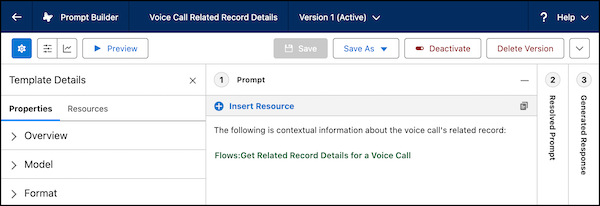
- Flow: Get Related Record Details for a Voice Call
- The Get Related Record Details for a Voice Call template-triggered prompt flow grounds service plans in related records attached to the voice call using Prompt Instruction Elements. By default, the flow includes Case and Account as grounding sources. You can modify the flow to add additional fields and objects. The flow is a standard flow, so you can configure and activate the flow directly.
-
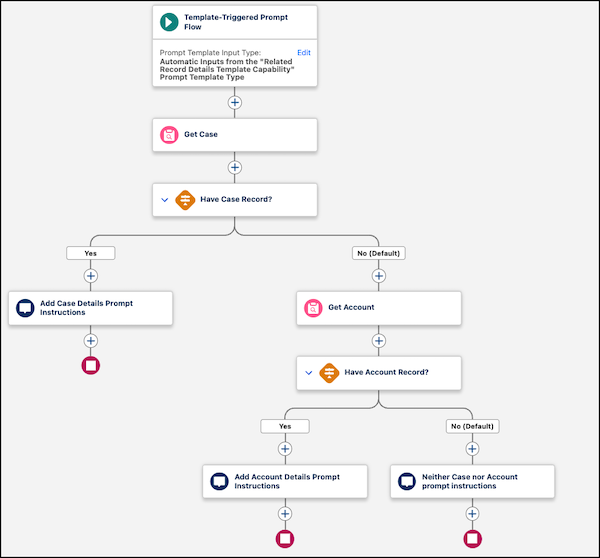
These are the default fields set in the Prompt Instruction elements of the flow for Case and Account. Modify the default flow configuration to add additional fields and objects.
| Object | Fields included |
|---|---|
| Case |
|
| Account |
|
You can use either the prompt template, the flow, or both depending on your requirements. If you only use the flow, you only need to configure and activate your flow. You don't need to activate the prompt template. It's active by default and the flow is included as an input in the prompt template.
Turn On Related Record Grounding
Turn the feature on from the Service Assistant Setup page.
- From the Service Assistant Setup page, go to the Customize Your Experience by Object section.
- Select the Voice tab, and then go to the Include Context from Related Records section.
- Turn the feature on.
-
Click Go to Prompt Template.
The Voice Call Related Record Details prompt template opens in Prompt Builder.

Configure the Prompt Template
Use the grounding prompt template to ground service plans in standard and custom Voice Call fields. If you choose to only ground on related objects and fields, skip this step and go to the next procedure.
-
From the Include Context from Related Records section, select Go to Prompt
Template.
The Voice Call Related Record Details prompt template opens in Prompt Builder.
- Click Deactivate.
- Click Save As and then click Save As New Version.
-
Click Insert Resource and then add the voice call fields you want
to ground on as inputs in the prompt template.
By default, the template only includes a flow resource that pulls Case and Account information using the Get Related Record Details for a Voice Call flow.
- Save your work and activate the prompt template.
Afterward, go to the Flows Setup page to configure the Get Related Record Details for a Voice Call flow to ground the service plan in related records.
Configure the Flow
Use the Get Related Record Details for a Voice Call flow to edit the default data pulled in from Account and Case or add additional objects and fields.
- From the Flows Setup page, under All Flows, select the Get Related Record Details for a Voice Call flow. The flow is active by default.
-
From Flow Builder, review the default flow configuration and modify the flow to add
additional objects and fields using Add Prompt Instruction elements.
By default, the flow automatically retrieves data from Case and Account through Add Prompt Instruction elements. The element adds the data into the Voice Call Related Record Details prompt template for Service Assistant to reference and ground the service plan. Add additional Prompt Instruction elements for other objects and fields you want to ground on.
- After making your configurations, activate the flow.
Provide Access to Your Grounding Data
Grant the ServicePlanner User and service reps read access to the objects and fields included in your prompt template and flow.
To include related record data in a voice service plan, both the ServicePlanner User (agent user) and service reps require read access to all objects and fields in your prompt template and flow. We recommend providing access through a Voice Record Grounding custom permission set. Service reps also need the Prompt Template User permission set.
The ServicePlanner User's access retrieves and passes the data into the plan, and the service rep's access lets that data appear in the service plan. Grant service reps access to the objects and fields included in your prompt template and flow according to your data access and sharing rules.
| User | User License | Permission Sets |
|---|---|---|
| ServicePlanner User (agent user) | Einstein Agent |
|
| Service Rep | Salesforce |
|
Test and Troubleshoot
Test your setup by starting a service plan on a voice call and work through the plan reviewing the steps to verify related record information is present in the plan.
For example, if you added a custom field like Input:Account.LoyaltyStatus__c to the prompt template instructions of the flow, the customer's loyalty status is indicated in relevant plan steps along with all other grounding field data.
Another way to quickly confirm that Service Assistant captures the data is to ask for record information using the agent chat.
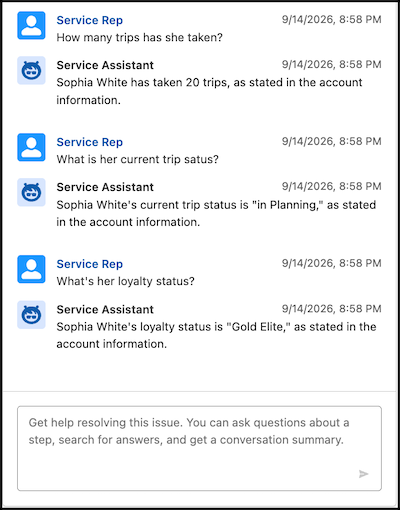
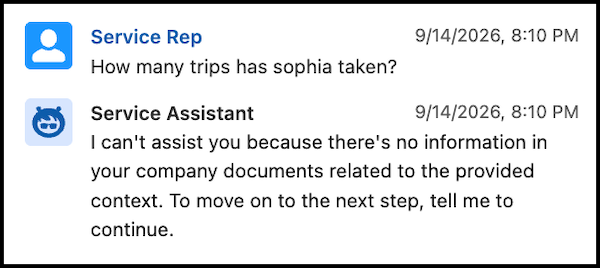
If Service Assistant can't access the data from the record, you'll see a message from Service Assistant in the form of "I can't assist you because there's no information in your company documents related to the provided context." Check that the object and field are included in your prompt template and that both Service Assistant and the service rep have access.
Service Assistant tracks any new information found in your related record grounding fields. When new information is detected or you update the prompt template to add additional fields, Service Assistant captures the new data and uses it as context to create the next plan step. Field or prompt template updates don't trigger Service Assistant to automatically regenerate the active plan step.
Keep in mind that not every step is grounded in or references the related-record data. Service Assistant reviews the grounded data in relation to the context of the active conversation. If the data isn't relevant to the conversation, the data isn't referenced in the plan steps.
If related record data isn't showing in the plan steps, check the following.
- Confirm that the prompt template and the flow are both active.
- Confirm that the Include Context from Related Records toggle is turned on from the Voice tab of the Service Assistant Setup page.
- Confirm that the agent user and service reps have read access to all objects and fields included in the prompt template.
- If you have multiple Service Assistant for Voice agents:
- Confirm that all your agents are active.
- Confirm that your agent assignment flow is active in Flow Builder and is selected in the Set Up Your Agent Assignment section of the Setup page.
- Confirm that each agent has access to the objects and fields in your prompt template. All agents use the same prompt template, but you must grant access to each agent individually.