
Learn how Service Assistant grounds in Case fields, emails, comments, and feed to create service plans.
Required Editions
| View supported editions. | |
 This article applies to: This article applies to:
|
Service Assistant for Case with guidance and dynamic plans |
 This article doesn't apply to: This article doesn't apply to:
|
Service Assistant for Messaging and Voice |
Service Assistant uses Service AI Grounding to ground itself in the details of the active case that the service rep is handling. With Service AI Grounding, you set the case fields and objects you want Service Assistant to ground on. Service AI Grounding supports standard and custom String and Text Area fields and case-related objects, such as Case Email, Case Comments, and Case Feed.
- Record Processing Initiation
- Effective Subject and Description Fields
- Record Processing and Updates
- Considerations
Record Processing Initiation
Record monitoring begins when the service rep opens the case record and the case meets your eligibility criteria. Service Assistant then reviews the Subject and Description to identify the customer's intent and issue and assigns a subagent to the record.
Service Assistant uses only the Subject and Description fields to identify the customer's issue and then assign a subagent to the case. No other grounding fields or objects that you set in your Service AI Grounding configuration are used to assign a subagent. Thus, the content of the Subject and Description fields plays a key role in assigning a subagent to the record, so make sure the Subject and Description clearly state the customer's issue. See the next section for more details.
All other fields and objects set in your Service AI Grounding configuration are used to create the case summary (service plan summary) and plan steps. Other grounding sources, such as knowledge articles, are also used. Service Assistant references the Case field and object data to create an initial case summary and plan steps. It also uses that information to search for relevant knowledge articles and create steps based on your company policies.
Effective Subject and Description Fields
To accurately assign subagents to case records, the Subject and Description fields need clear information about a specific issue so that Service Assistant can match the case with a subagent. Service Assistant is built to resolve specific issues, so a generic issue stated in the case Subject and Description doesn't provide enough detail for accurate subagent matching.
| Example Subject and Descriptions | Details |
|---|---|
|
This description works because there's enough detail for Service Assistant to match a relevant subagent.
|
|
The description can match a related travel subagent, but it doesn't always provide enough context for Service Assistant to generate a focused plan. Although the keyword "travel documents" can help Service Assistant surface a related subagent, it doesn't capture country-specific variations. To accommodate general case descriptions, structure subagent descriptions so they encompass different issue-type variations. For example, you can create a broad "Travel Documentation" subagent that matches a wide range of issue types by using a description such as this: "Your job is to assist service reps in helping customers understand and complete travel document requirements for international travel, including passports, visas, vaccination documentation, entry forms, and destination-specific eligibility or timing requirements. You must not handle inquiries outside of travel document guidance and related travel entry requirements." See Service Assistant Subagent Best Practices for more details. |
Record Processing and Updates
By default, Service Assistant actively monitors your grounding configuration for the entire life cycle of the case. Service Assistant automatically detects case field, case comment, and email updates and passes that context to the service plan. How the new record data is incorporated differs between dynamic and guidance plans.
Dynamic Plan Record Processing and Updates
During a dynamic service plan, Service Assistant actively reviews all grounding sources in real time when it creates each plan step. While a service rep works on an active step, a field or object in your grounding configuration can be updated. Service Assistant then reviews the new details and regenerates the active plan step in real time. Automatic step regeneration is supported for:
- Updates to case fields
- New case emails
- New case comments (internal or external)
- Updates to existing case comments (internal or external)
To track case field and object updates and update steps in real time, turn on Update Plans with Context from the Service Assistant Setup page. In the Dynamic Service Plans section, you choose what you want Service Assistant to update: Update Plan Steps When Case Fields Change, Update Plan Steps When Case Comments Change, or both.
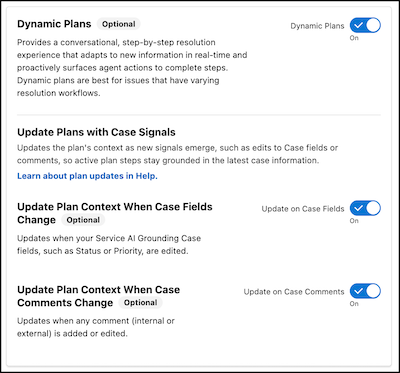
The settings available in Setup apply only to case fields and comments. Service Assistant handles case emails and the case feed differently.
- You don’t turn on automatic data tracking and updates for Case Emails. This is enabled by default.
- Automatic step regeneration doesn't apply to Case Feed. If you enable case feed grounding in Service AI Grounding, Service Assistant still monitors the feed for updates and captures the new data. However, the new data doesn't trigger regeneration of the active step. Service Assistant grounds on the new data when the current step is completed and the next step is created.
- If you ground on the Internal Comments field, enable Case Comments for grounding. Internal Comments data isn't tracked when Case Comments isn't enabled for grounding.
Guidance Plan Record Processing and Updates
Unlike dynamic plans, you don’t turn on the Update Plan Steps settings for guidance plans. Tracking field and object updates is enabled by default for all fields and objects.
However, guidance plans don't automatically redraft when Service Assistant finds new information in your grounded fields and objects. Instead, Service Assistant tracks all fields and objects set in your configuration and shows the Redraft Plan button to indicate that updates are available. Service reps select Redraft Plan to incorporate the updates.
Considerations
Data Access and Permissions
- Service plans are grounded in the context of the ServicePlanner User's permissions. As a result, service reps can see grounded responses for fields and objects they don't have direct access to. Set your grounding configuration so that the ServicePlanner User's permissions align with the data access intended for your service reps. See Service Assistant Grounding Data Access.
- If you turn on Case Feed grounding, give the ServicePlanner User (the agent user) access to the Case Feed. Service Assistant has access to case emails and case comments by default.
Supported Data and Field Types
- Encrypted fields aren't supported for grounding.
- Only String and Text Area fields are supported for grounding.
- Custom fields are supported.
- Only text from Case Emails, Case Comments, and the Case Feed is used to ground a service plan. PDFs, images, and other attachments aren't used as grounding sources.
- For Case Emails, both the initial plan generation and regenerating plan steps for new case emails can fail if there is a very high email volume. If a record has a large set of emails, the ingestion and grounding of the data can exceed internal limits and the plan fails with an error like “Something went wrong. Try again later or contact Salesforce Customer Support”. If this occurs, remove Case Emails from the grounding configuration on the Service AI Grounding Setup page, or summarize emails into a custom Case field and ground on that field instead.
- If you ground on the Internal Comments field, enable Case Comments for grounding. Internal Comments data isn't tracked when Case Comments isn't enabled for grounding. This applies to both dynamic plans and guidance plans.
- On the Service AI Grounding Setup page, knowledge grounding is shown as a grounding source, but knowledge grounding isn't supported in Service Assistant. Use Agentforce Data Libraries instead.
Other Considerations
- Service plan summaries are never updated to account for field and object updates. This behavior applies to both guidance and dynamic plans.
- Service Assistant also supports context variables for passing record data to your actions. See Set Up Context Variables.