
Integrate your quick actions with Service Assistant using the Quick Actions manager in the Agentforce Builder.
Required Editions
| View supported editions. | |
 This article applies to: This article applies to:
|
Service Assistant for Case with guidance plans. |
 This article doesn't apply to: This article doesn't apply to:
|
Service Assistant for Case with dynamic plans. |

Before you begin, complete these prerequisites.
- You can only complete this task in the Legacy Agentforce Builder. Service Assistant isn’t supported in the New Agentforce Builder. Starting in July 2026, the requirement that new agents can only be created in the new Agentforce Builder doesn’t apply to Service Assistant. You can continue to use Service Assistant in the legacy builder until further notice. See Create Agents in the New Builder Only Starting July 2026.
- You must add all your quick actions to your Case page layout. Adding quick actions to the layout is required for them to show in the Quick Actions manager within the Agentforce Builder and in a service plan. See Add Quick Actions to the Case Page Layout.
- Create versions of any standard Agentforce topics you want to use with your quick actions. You can't assign quick actions directly to standard Agentforce topics, only to versions of the topic. See Edit a Standard Topic.
- All quick actions used in Service Assistant must have only a single
CaseIdinput. - All quick actions require instructions that detail what the action does and when it’s used. Like topic instructions, these instructions help Service Assistant determine when an action is relevant to include in a service plan step. The Quick Actions manager includes a required field for adding these instructions. For specific examples and more details, review Guidelines for Creating Quick Actions and Quick Actions Sample Library .
- We provide you with instructions for the standard Draft Email and Close Case quick actions. You can modify our provided text to suit your needs. Although these quick actions automatically appear in the Quick Actions Manager, you must manually add their instructions in the Quick Actions Manager. In addition, you must make sure they’re added to your case page layout.
- Review the table to understand what quick action types are supported and the required permissions. The standard Service Assistant permissions provide access and use of most quick actions in a drafted service plan. However, additional permissions are required for Flow and Visualforce quick actions.
| Quick Action Type | Supported Quick Actions | Required Permissions |
|---|---|---|
| Standard Case object |
|
Service Planner User permission set |
| Custom Case object |
|
|
Setup Quick Actions for Service Assistant
Use the Quick Actions manager in the Agentforce Builder to add your quick actions to Service Assistant.
Required Editions
| User Permissions Needed | |
|---|---|
| To set up quick actions in the Quick Actions manager: |
Customize Application OR System Admin AND Agentforce Default Admin permission set AND Service Planner Builder permission set |
You use the Quick Actions manager in the Agentforce Builder to integrate your quick actions with Service Assistant.
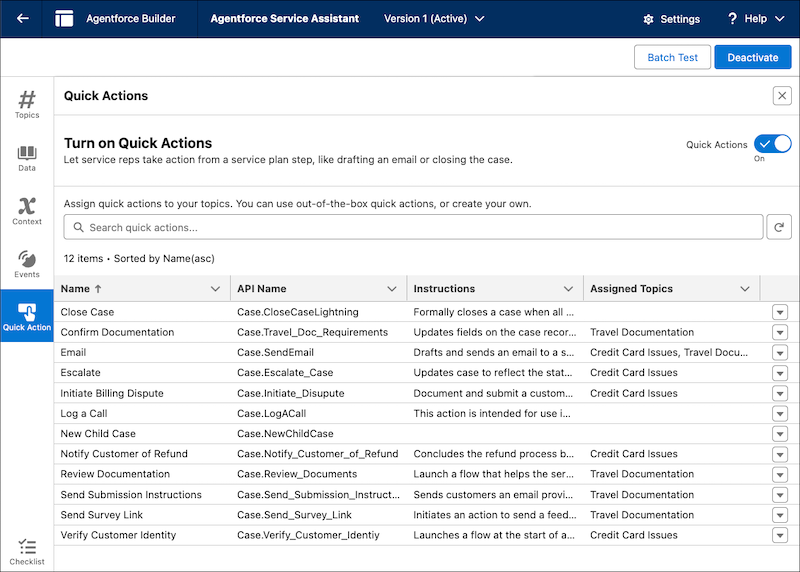
The Quick Actions manager is where you select what quick actions you want to use in Service Assistant and then assign them to topics and provide instructions for each quick action. The instructions define the quick action, its goal, and any conditions or requirements for the action. All quick actions require instructions. See Guidelines for Creating Quick Action Instructions and Quick Actions with Topics.
To get you started, we provide you instructions for the Draft Email and Close Case quick actions. You can modify them.
- In the Set Up Quick Actions section of the Service Assistant Setup page, click Go to Agent Studio.
- From the Agentforce Agents Setup page, under Agent Name, select Service Assistant.
- From the Agent Details Page, click Open in Builder.
- From the Agentforce Builder, in the left rail, select Quick Action.
- From the top of the Quick Actions manager, confirm your agent is deactivated. If it’s not, click Deactivate. Quick actions can be assigned only when your agent is deactivated.
- Turn the feature on.
-
From the list of quick actions, search for a quick action or locate the action in the
quick actions list, and then click Manage.
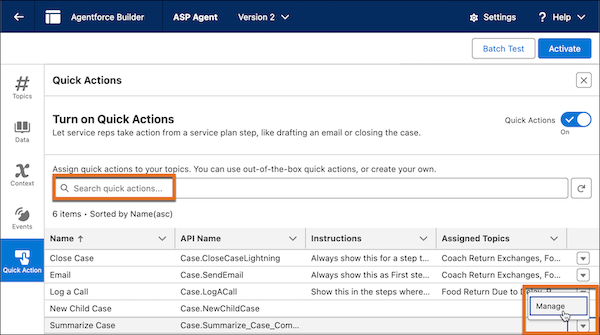
-
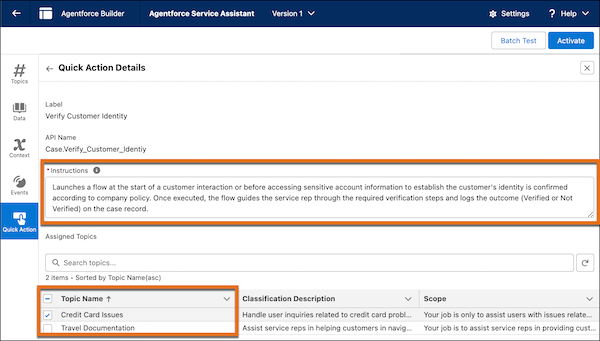
From the Quick Action Details page, in the Instructions field, add your instructions and
then assign the quick action to topics. You can assign the quick action to multiple
topics.
Quick action instructions define the action and detail the action’s goals, conditions, and requirements. Here’s an example.
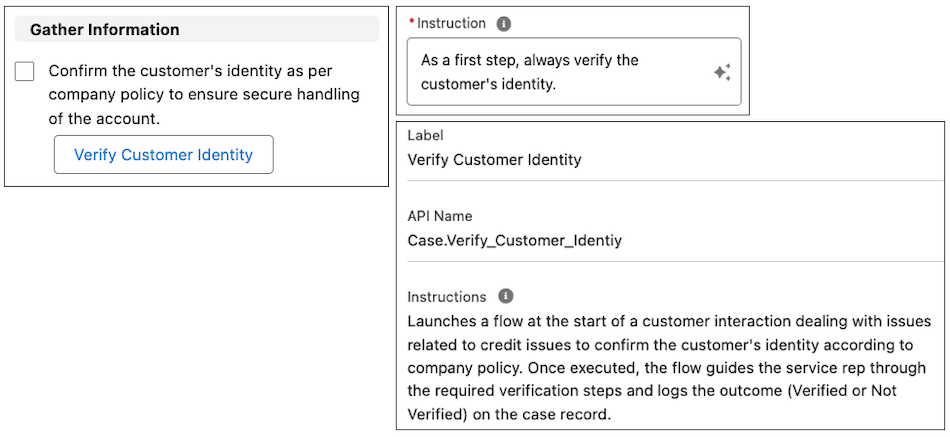
Name: Verify Customer Identity
Description: Launches a flow at the start of a customer interaction dealing with issues related to credit issues to confirm the customer's identity according to company policy. Once executed, the flow guides the service rep through the required verification steps and logs the outcome (Verified or Not Verified) on the case record.
- Save your assignments.
- Repeat steps 7 through 9 for each quick action you want to use in Service Assistant.
-
Optional: If you use the Draft Email or Close Case quick actions, provide these
instructions. You can modify them.
- Close Case: Closes the case when all required steps to resolve issues are completed and no further action is needed. Once executed, the support process is formally concluded and no additional steps can be performed.
- Send Email: Drafts and sends an email to a specified recipient directly from a service plan step. The email can be used for customer communications, including, but not limited to, providing status updates, conveying resolution details, and requesting or supplying additional information during case management or follow-up.
- After you complete your quick action assignments, click Activate. To make edits to your quick action instructions or make changes to what topics they’re assigned to, click Edit at the bottom of the page or click the pencil icon in the Instructions field.
- Test your work by drafting a few service plans.
Keep in mind that any changes made to a quick action name or instruction after service plans are generated aren’t considered new case information. The Redraft Plan button doesn’t appear in the component. You must make changes to the topics or the Subject and Description fields of the case and then redraft the plan.
Also, when updating or creating new quick actions, they don’t automatically surface in drafted service plans. You must redraft the service plan.
Example Service Plan with Quick Actions
Here's an example service plan showing the quick action and topic instructions that form the plan steps. The examples follow the quick action instruction best practices described in Guidelines for Creating Quick Actions. The samples also show both methods for combining quick actions with topics, as described in Quick Actions with Topics. For more examples, see Quick Actions Sample Library.
Keep in mind that there's no single method that guarantees your quick actions show in a service plan. We recommend trying out all our provided methods and guidelines. Also, quick actions might not show in plan steps right away. Try drafting a few plans first and then update your instructions if they don't show.
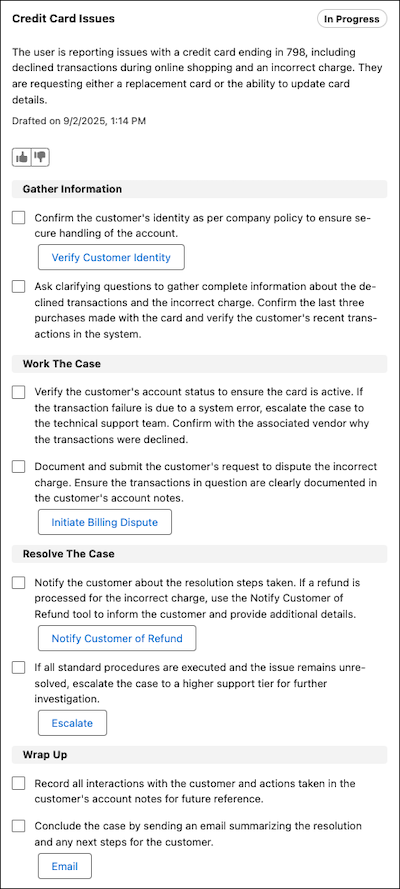
Example 1: Verify Customer Identity. This example uses the independent instructions approach.
Example 2: Notify Customer of Refund. This example uses the dependent instructions approach.
.png)