
Use Service Insights to review Service Assistant metrics and analyze how effective service plans are for your organization.
Required Editions
| View supported editions. |

Metrics Overview
Accurate and high-quality subagents help to provide effective plans for your service reps. With Service Assistant metrics data provided through Service Insights, you can identify low-performing subagents and then edit them to produce more effective service plans.
For example, one metric is obtained when your service reps use the feedback buttons in the Service Assistant component to rate the quality of the plan. The feedback data helps you identify which subagents associated with a particular issue type aren’t performing well.
Metrics are based on the subagent assigned to the record. For example, the dashboard shows how long it takes to resolve cases with plans that use a particular subagent. Metrics don’t measure the time reps spend on individual steps or how helpful individual steps are in dynamic plans. Metrics also don’t provide data on actions, such as how often actions are assigned to a step or how often they’re run.
Accessing and evaluating Service Assistant performance is completed with Service Insights, a data analytics feature that uses Data 360 and Tableau to gather and track key performance indicators (KPIs).
- Through Service Insights, you create a metrics dashboard that shows key metrics, such as case-handle time with service plans, top subagents assigned to service plans, and plan ratings.
- Through Data 360, you install the Service Planner Data Kit that initiates the flow of data from Service Assistant to its associated data model objects (DMOs) in Data Cloud. Service Insights unpacks the data in these DMOs and shows the metrics in the Service Assistant dashboard within the Service Insights App. Keep in mind that the data kit name reflects the name for the tracked metrics of service plans, not Service Assistant.
The following steps provide you with the specific Service Insights setup documentation you're required to complete for Service Assistant. Keep in mind that the installation of the Service Planner Data Kit isn’t included as part of Service Insights. We've included it here.
Set Up Service Assistant Metrics
To evaluate service plan metrics, set up a Service Assistant metrics dashboard using Service Insights.
Required Editions
| View supported editions. |
| User Permissions Needed | |
|---|---|
| To set up and use Service Insights for Service Assistant: |
*Requires the Draft Service Plans with Generative AI system permission enabled for the permission set. |
Before you get started, review these prerequisites.
- To view Service Assistant metrics, you must have Service Assistant set up and in use. We recommend reviewing your metrics after a few weeks’ use of Service Assistant.
- The Service Assistant metrics dashboard provides metrics for Service Assistant for Case only. It doesn’t provide metrics for Service Assistant for Messaging or Service Assistant for Voice.
- Review the Service Data Kit considerations in Service Insights Considerations and Requirements.
- You must have Data 360 provisioned and enabled.
- You have these Service features enabled. They're required for Service Insights.
- Email Drafts
- Email-to-Case
- Omni-Channel
- Skills-Based Routing
- Surveys
Start Service Insights Setup
Complete Service Insights prerequisite steps to get your Salesforce org prepared for data analytics.
Deploy the Service Assistant Data Kit
Use the Service Assistant Data Kit to create data streams that initiate the flow of data from the standard Service Assistant objects to data model objects.
- From the app launcher, enter and select Data Cloud.
- From the Data Cloud app, in the menu tabs, select the Data Streams tab. If you don’t see the tab, click the More tab and then select Data Streams.
- From the Data Streams page, click New.
- From the New Data Stream guided setup, under connected sources, select Salesforce CRM.
- From the Salesforce org dropdown, select your Salesforce org.
- Next to the Salesforce org dropdown, select Data Bundles.
- Under Custom Data Bundles, select Service Planner.
- From the Edit Data Fields window, determine what fields you want included for each object. All fields are selected by default.
- Click Next.
- From the Data Streams Bundle Configuration Details window, click Deploy.
Complete Service Insights Setup
After you complete the installation, your dashboard is available in the Service Insights app.
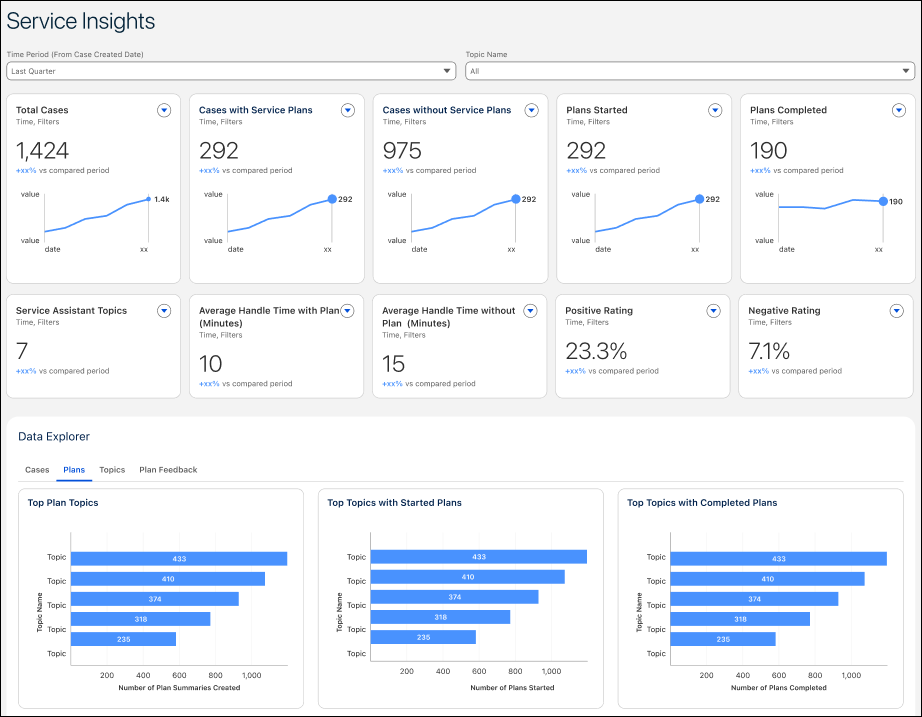
Service Assistant Metrics Reference
When you open the Service Assistant dashboard, the dashboard shows a general overview of several service plan KPIs for a quick look at service plan performance. To further evaluate your metrics, use the four data tabs under Data Explorer: Case, Plans, Topics, and Plan Feedback. Here are the specific metrics each tab shows.
Cases Tab
| KPI | CALCULATION |
|---|---|
| Case Trends | The number of cases over time. |
| Cases (With Plans) | The number of cases with service plans over time. |
| Cases (Without Plans) | The number of cases without service plans over time. |
Plans Tab
| KPI | CALCULATION |
|---|---|
| Top Plan Topics | The most frequently assigned subagents within your service plans. |
| Top Topics with Started Plans | The frequently assigned subagents to service plans that are started by service reps. |
| Top Topics with Completed Plans | The most frequently assigned subagents to service plans that are completed by service reps. |
Topics Tab
| KPI | CALCULATION |
|---|---|
| Topic Name | The name of the subagent that you want to review. |
| Plan Count | The total number of plans with an assigned subagent. |
| Plans Started (Percentage) | The total number of plans with the assigned subagent that are started by service reps. |
| Plans Completed (Percentage) | The total number of plans with the assigned subagent that are marked as closed by service reps. |
| Average Handle Time (Minutes) | The total amount of time in minutes that it takes a service rep to start and close a case that has a service plan with the assigned subagent. |
| Positive Rating (Percentage) | The percentage of service plans with the assigned subagent that have a positive rating. |
| Negative Rating (Percentage) | The percentage of service plans with the assigned subagent that have a negative rating. |
| No Rating (Percentage) | The percentage of service plans with the assigned subagent that have no rating. |
Plan Feedback Tab
| KPI | CALCULATION |
|---|---|
| Plan Feedback Ratings | The total number of plans with feedback ratings. |
| Top Topics with Positive Ratings | The total number of plans with positive feedback ratings. |
| Top Topics with Negative Ratings | The total number of plans with negative feedback ratings. |