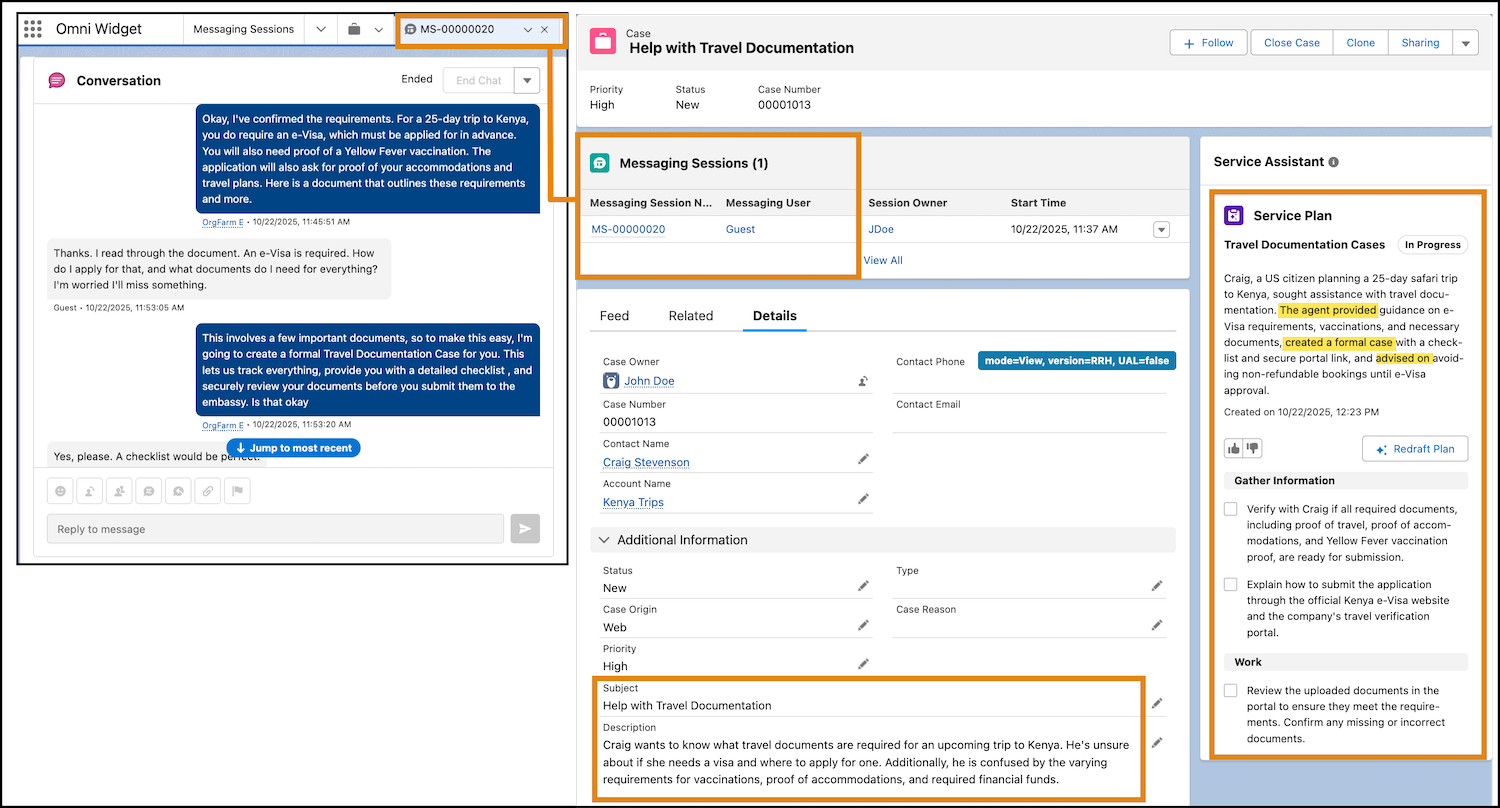
Ground service plans on messaging sessions and voice call records that are associated with the case.
Required Editions
| View supported editions. | |
 This article applies to: This article applies to:
|
Service Assistant for Case with guidance and dynamic plans. |
 This article doesn't apply to: This article doesn't apply to:
|
Service Assistant for Messaging and Voice. |
| User Permissions Needed | |
|---|---|
| To set up Messaging Session and Voice Call record grounding: | Service Planner Builder permission set |

When a Case is created from a Messaging Session or a Voice Call, Service Assistant analyzes the record transcripts as a grounding source. As a result, the case summary and service plan includes key details from the conversation.
Specifically, the service plan summary states what occurred in the conversation and what resolution steps were completed. In addition, the drafted plan starts the plan steps from where the conversation left off. The record grounding provides service reps with more context-specific and streamlined resolution guidance in the service plan.
Keep in mind that Service Assistant references only the text transcript from the related records as a grounding source. Attachments (such as images or files) included in the related records aren’t used as grounding sources. In addition, Service Assistant only ground on messaging sessions that are set to Ended or voice calls that are set to Complete. Service Assistant can’t ground on active messaging sessions or voice calls.
Turn on Messaging and Voice Record Grounding
- From the Service Assistant Setup page, go to the Customize Experience by Object section.
- From the Case tab, go to the Turn on Messaging and Voice Record Grounding section and then turn the toggle to On.

Assign Permissions for Related Record Grounding
Create and assign the Conversation Grounding Access custom permission set to the ServicePlanner User.
The ServicePlanner User (the agent user) requires a custom permission set with specific app and object permissions. This grants Service Assistant record-level access to process the Messaging Session or Voice Call transcripts and include the information in a service plan.
Service reps don’t require additional permissions to view data from Messaging Session or Voice Call records included in drafted service plans. However, accessing the messaging session or voice call record from the case still adheres to your organization's sharing rules. Service reps must have record-level access to open and view the records attached to the Case.
- From the Service Assistant Setup page, in the Quick Find box, enter Permission Sets, and then select Permission Sets.
- From the Permission Sets Setup page, click New.
- From the Label field, enter Conversation Grounding Access. This is a suggested name. You can enter an alternative name.
- From the License field, select Einstein Agent.
- Click Save.
-
From the permission set detail page, add these permissions to the permission set.
- App Permission: Access Conversations Entries, View all Voice and Video Calls
- Messaging Sessions Object Permission: Read, View All Fields
- Assign the permission set to the ServicePlanner User.
Cases created from Messaging Sessions and Voice Calls are now used as grounding sources when drafting service plans. An example is provided below. To be used as a grounding source, Messaging Sessions must have the status set to Ended, and Voice Call records must have the status set to Completed.
For cases with existing service plans, any messaging or voice record that is either already attached to the case or added after the feature is turned on is considered new information. The Redraft Plan button shows and service reps can redraft the plan to incorporate the record data into the service plan.
Find more details and considerations in the Grounding Scenarios section of Grounding with Related Records.