
Ground service plans in your knowledge base with Agentforce Data Libraries.
Required Editions
| View supported editions. | |
 This article applies to: This article applies to:
|
Service Assistant for Case, Messaging, and Voice |
| User Permissions Needed | |
|---|---|
| To set up knowledge grounding for Service Assistant using Agentforce Data Libraries: |
Service Planner Builder permission set AND Data Cloud Architect permission set* AND Knowledge User is enabled on your user record. *Requires your default data space enabled on the Data Cloud Architect permission set. See Associate a Permission Set with a Data Space. |

We only officially certify the use of the knowledge data library type for Service Assistant using Salesforce knowledge. Enterprise knowledge isn’t certified for use in Service Assistant. However, this doesn’t prevent you from setting up and testing other data types (file upload, custom retrievers, and web search) or using Enterprise Knowledge, but we don't provide setup guidance or recommendations for Service Assistant. All set up and usage follows the general Agentforce guidance. For details on custom retrievers, see Retrieve Data.
The steps guide you through the general Agentforce Data Library creation process using a sample configuration that follows our recommended best practices. We also included a step for assigning the required knowledge grounding permissions, which are in addition to the general Service Assistant permissions. See Permissions for Service Assistant.
If you already have a knowledge data library configured, you don't need to create a new library. Deactivate your agent and then assign your existing library to Service Assistant in the Data tab of the Agentforce Builder, and confirm that you see the confirmation message that the library is ready for use. Select Show sources to give service reps a list of the knowledge articles used to create a plan, which is shown at the bottom of the component. Then activate your agent, confirm that the agent user and your service reps have the required knowledge grounding permissions, and test your setup by drafting service plans.
- Step 1: Assign Knowledge Grounding Permissions
- Step 2: Set Up Your Data Library
- Step 3: Test Knowledge Grounding
Before you get started, review these considerations.
- You can complete this task only in the Legacy Agentforce Builder. Service Assistant isn't supported in the New Agentforce Builder. Starting in July 2026, the requirement that new agents can only be created in the new Agentforce Builder doesn't apply to Service Assistant. You can continue to use Service Assistant and create and assign the agent a data library in the legacy builder until further notice. See Create Agents in the New Builder Only Starting July 2026.
- If you assign data categories to your knowledge articles or use custom record types, grant the ServicePlanner User (agent user) access to all categories and record types. See the permissions table in Step 1.
- Only Salesforce Knowledge is supported for grounding Service Assistant in your knowledge articles. Unified Knowledge and Enterprise Knowledge aren't supported.
- Only English knowledge articles are currently supported.
- Grounding Service Assistant in your knowledge base doesn't replace the need for subagents and instructions. You need a subagent and instructions for each case type you want Service Assistant to address.
- Service Assistant doesn't have an automatic preference for creating service plans from subagents or knowledge. They're considered equally. However, if your knowledge base contains clear, detailed, and well-organized information, it's more likely that plan steps are created from your knowledge articles than from subagents.
- When you evaluate knowledge-grounded service plans, not every detail from your articles appears in the plan, including full ordered procedures. Service Assistant summarizes content for clear, succinct resolution guidance. Your exact step-by-step articles aren't surfaced directly in service plans. Procedural steps can be omitted, condensed, or combined into a single step.
Step 1: Assign Knowledge Grounding Permissions
Create and assign custom permissions for the ServicePlanner User (the agent user) and service reps.
The ServicePlanner User requires a custom permission set to grant the agent access to your knowledge base so it can add the content to service plans. Service reps require a custom permission set to view the cited knowledge articles that show at the end of plan steps and in the Sources section at the bottom of the component.
Service reps require Read, View All Records, and View All Fields permissions. If a service rep doesn't have access to an article that's used to create plan steps, your knowledge content is still used to create a service plan, but the article isn't cited in the step-level citations or the Sources section. For an example of citations, review the service plan at the end of this article.
All listed permissions are in addition to the mandatory Service Assistant Permissions. See Permissions and Licensing for Service Assistant.
- Create custom permission sets for the ServicePlanner User and your service reps that have the listed permissions. See Create Custom Permissions.
- Assign the permission sets to each user.
| Persona | User License | Required Permissions |
|---|---|---|
| Service Rep | Salesforce |
Recommended custom permission set name: Service Rep Knowledge Access Permissions to include:
|
| ServicePlanner User | Einstein Agent |
Recommended custom permission set name: Agent Knowledge Access Permissions to include:
The agent user also requires the standard Data 360 User permission set. |
Step 2: Set Up Your Data Library
Build an Agentforce Data Library using the knowledge data type.
- From Setup, in the Quick Find box, enter and select Agentforce Agents.
- From the Agentforce Agents Setup page, under the list of agents, open the Agentforce Builder for Service Assistant.
- From the left sidebar of the Agentforce Builder, select the Data tab.
- From the Data Library field, select + New Library.
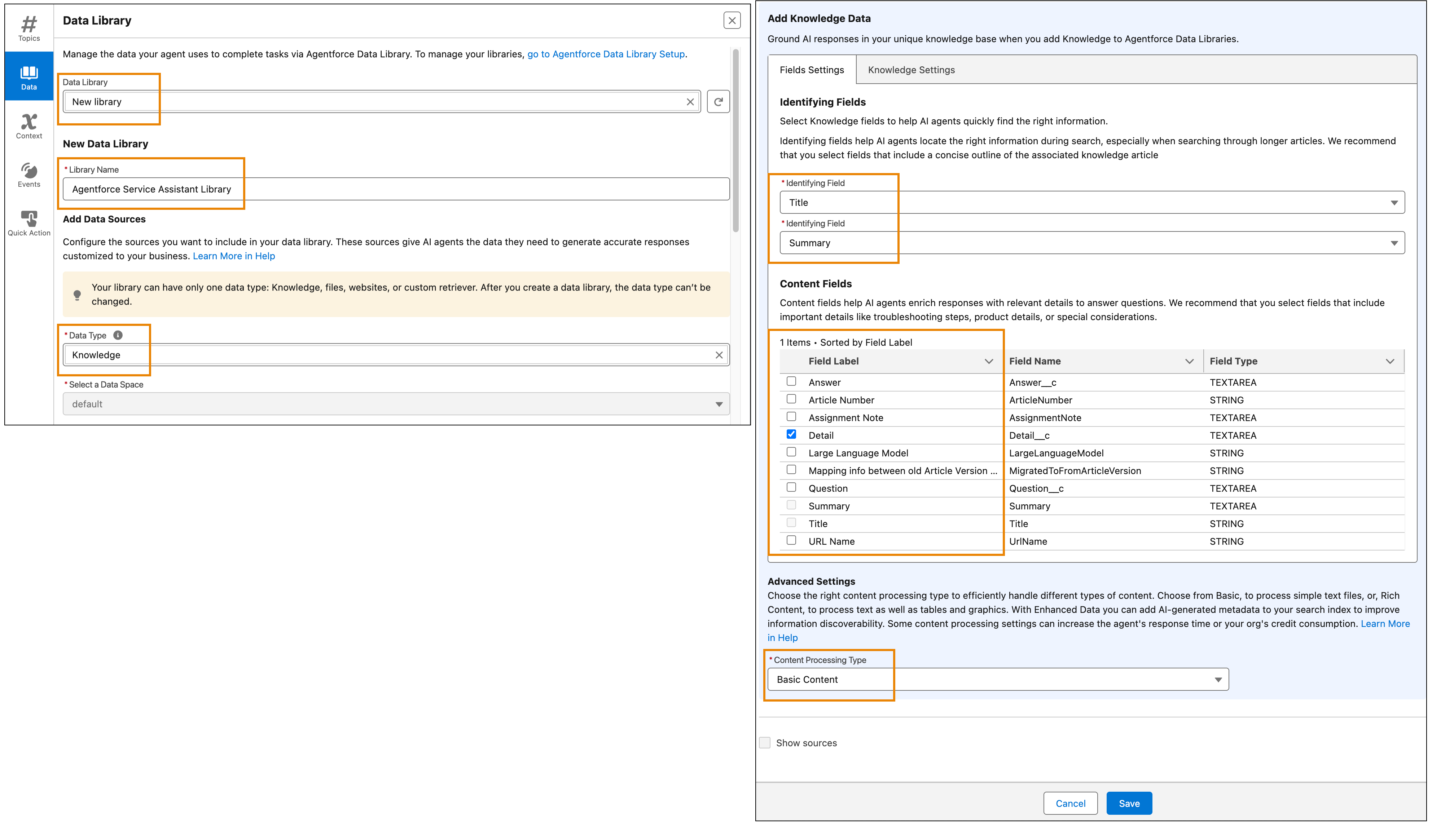
- Optional: From the New Data Library field, edit the name of your data library. The default name is Agentforce Service Assistant Library.
-
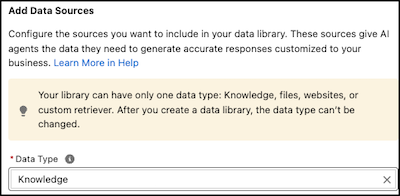
From the Add Data Sources section, in the Data Type field, select
Knowledge. Only the Knowledge data type is officially supported in
Service Assistant.
-
From the Add Knowledge Data section, set your knowledge data settings.
-
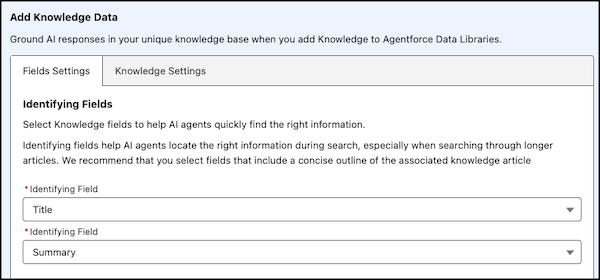
From Identifying Fields, select your fields.
Identifying fields help Service Assistant find, sort, and group knowledge articles that relate to the case and assigned subagent. The provided field configuration is only a recommendation. The Title, Summary, and Question fields are recommended because they provide a clear overview of each article and help Service Assistant identify articles related to the case.
- Identifying fields only support TEXT (String) and TEXT AREA field types.
- Avoid Rich Text Area fields. The HTML markup isn't stripped and it can reduce the quality of results.
- Identifying fields are limited to 255 characters, which keeps content within the 512 token limit and results in faster ADL build times. TEXT AREA fields cause the ADL to take longer to build and become ready.
-
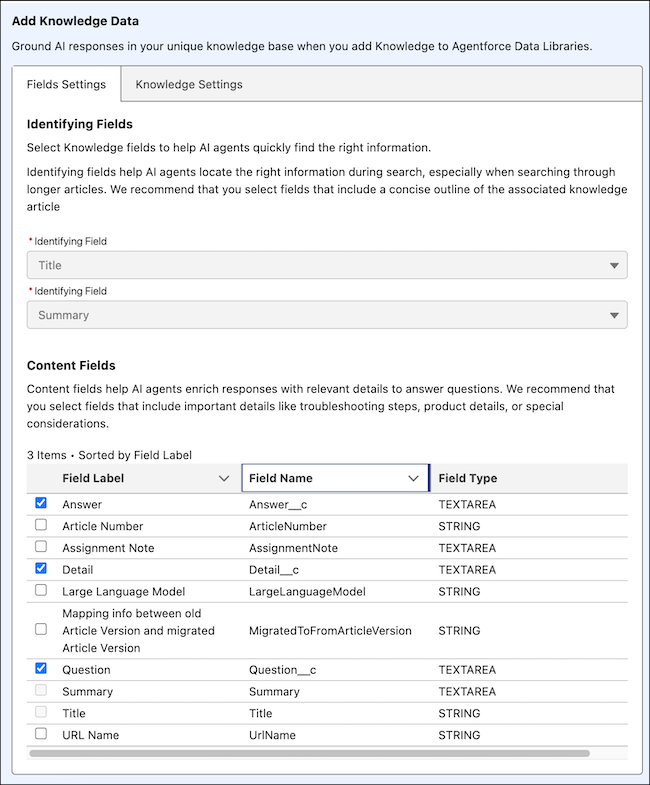
Under Content Fields, select your fields.
Content fields are the specific content areas of your articles that are used by Service Assistant to review the information and create plan steps. We recommend selecting content fields that contain the most information, such as Answer, Detail, and Question.
-
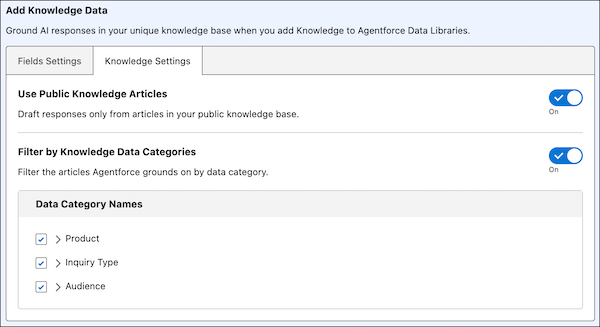
Optional: Configure the Knowledge Settings tab to your preferences.
The settings tab provides options for grounding Service Assistant in your public knowledge articles and setting data category filters. If you have data categories assigned to your knowledge articles, select your data categories in the data categories section. In addition, make sure that the ServicePlanner User has access to the data categories assigned to your knowledge articles.
-
From Identifying Fields, select your fields.
-
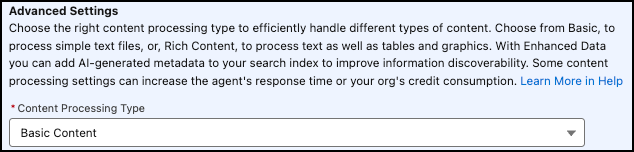
From the Advanced Settings section, keep the Content Processing
Type field set to Basic Content.
-
Review your configurations and then click Save at the bottom of the
page.
Keep in mind that the option to select Show sources at the bottom of the page is disabled when setting up a data library. You must first build your data library to access this setting.
Here's an example data library setup.
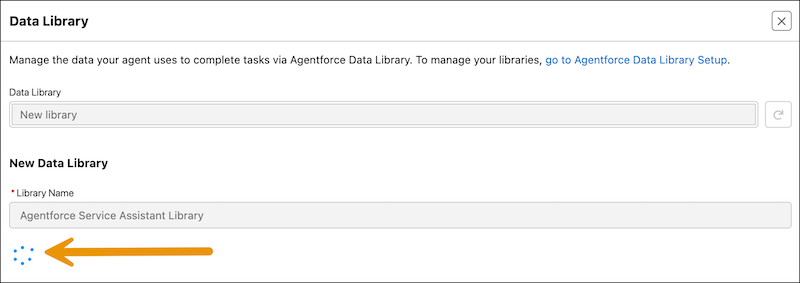
After you click Save, your data library starts to build. The build time varies based on the size of your knowledge base.
After the build is complete, you see a success message and the data library configuration page opens showing the configurations you've saved. Continue to the following steps.
-
Optional: Select Show sources at the bottom of the page.
Completion of the Knowledge Domain URL field isn't required.
When Show sources is enabled, each plan step created from your knowledge articles contains a citation in the form of [1]. The component contains a Sources section that lists all knowledge articles used to draft the plan. Each listed article contains a link for service reps to go directly to the source article. An example of citations and further details are provided in the next section.
-
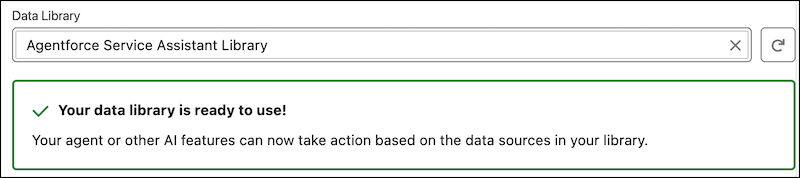
Click Save and then confirm that you see the data library success
message.
-
From the top right corner of the page, click Activate.
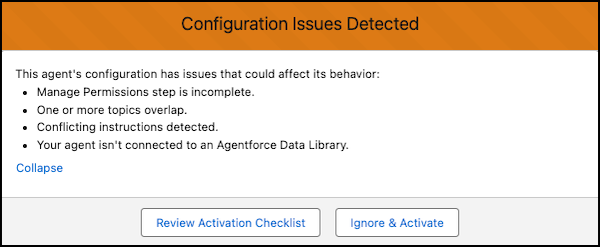
If you see a configuration error message stating that permissions are incomplete, you can safely click Ignore and Activate. This is a default message from Agentforce. Your agent has all general permissions assigned and the knowledge grounding permissions you have already assigned. If you see a message about overlapping subagents or instructions, review those.
Step 3: Test Knowledge Grounding
Draft a service plan to confirm that your service plans are grounded in your knowledge articles.
- Go to a new case or messaging record that meets your eligibility criteria.
-
On a case record, either click Draft Plan or Start
Plan.
- For guidance plans, review the list of steps in the component. Confirm that you see citations in the form of [1] at the end of the steps and at least one article listed at the bottom of the component. See the following example.
- For dynamic plans, work through the service plan step-by-step. As Service Assistant presents each step, look at the bottom of the step for the Sources section that lists the articles used to create the plan step.
-
On a messaging record, start a chat session.
- Enter enough messages into the chat to give Service Assistant the context it needs to initiate the creation of a service plan. The amount of conversation needed before you see a summary plan populate in the component can vary. The key is to have clear issue and intent in the chat, like “I want an order refund.”
- From the summary plan, click Start Plan and work through the service plan step-by-step. As Service Assistant presents each step, look at the bottom of the step for the Sources section that lists the articles used to create the plan step. An example and more details about citations are provided below..
- When you don't see any articles cited, the cited articles aren't relevant, or you see error messages, review the provided troubleshooting steps in Troubleshoot Knowledge in Service Assistant.
Two common error message are listed. If you see them, go to the Agent Builder and remove data library and then add it back to the agent.
- Something went wrong while creating a plan.
- Ask your Salesforce admin to review the data library configuration.
Service plans are successfully grounded in your knowledge base when you see citations at the end of the plan steps in the form of [1]. The names of the articles are populated in the Sources section at the end of dynamic plan steps and in the Sources section at the bottom of the component for guidance plans.
Keep in mind that whether the Sources section shows in a service plan depends on whether Show sources is enabled in your data library when the service plan is generated, not when you view it. The behavior described applies to both dynamic and guidance plans.
- If Show sources isn't enabled during plan generation, the Sources section doesn't appear, even if you enable Show sources later.
- If you have service plans that existed before Show sources is enabled, the Sources sections don't show.
When you evaluate knowledge-grounded service plans, not every detail from your articles appears in the plan. Service Assistant summarizes your content into clear, succinct resolution guidance, so your articles aren't surfaced word for word. How your procedural steps appear depends on the plan type.
- In guidance plans for case, your exact step-by-step instructions aren't surfaced directly. Procedural steps can be omitted, condensed, or combined into a single step.
- In dynamic plans, Service Assistant can lay out your procedural steps within a single plan step, but the information can still be summarized, condensed, and worded diffently than your articles.
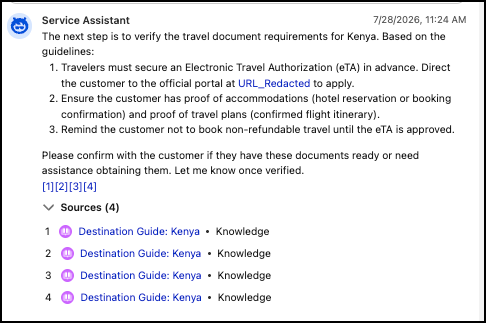
Here are examples of how citations show in both guidance plans (left) and dynamic plans (right). Guidance plans show the citations at the bottom of the component in the Sources section. Dynamic plan citations are shown at the bottom of each plan step under Sources. In both experiences, service reps can click the links to open the articles in a new tab.
.png)
Citation Display and Navigation
- Each step created from a knowledge article is cited with a number at the end of the step in the form of [1]. The citation contains a hyperlink to the corresponding entry in the Sources section at the bottom of the component that lists the name of the knowledge article.
- The list of sources displays the name of the knowledge article used to create the plan steps.
- Each entry in the Sources section contains a link to the article used to create the step that opens in a new tab.
- For guidance plans, when a knowledge article is used to create multiple steps, the article is cited in all steps with the same citation number and that number corresponds to the entry in the Sources section. For example, every [1] in the drafted service plan above corresponds to the first article (Travel Documentation) in the Sources section.
- For dynamic plans, when a knowledge article is used to create multiple steps, the article is cited in each step and that citation number corresponds to the entry in the Sources section for that step. Because each step has its own Sources section, the same article can appear as [1] in one step and a different number in another.
- For dynamic plans, service reps can also ask Service Assistant in the chat to list all the knowledge articles used to create the plan steps.
- A step can be created from both a subagent and knowledge article.
- A step can be created from multiple knowledge articles. This is indicated when you see two or more citations at the end of a step, like [1][2].
- Because the ServicePlanner User has access to all knowledge content through the Agent
Knowledge Access custom permission set, the plan can include knowledge content that isn't
accessible to service reps. This happens when reps lack the recommended Read, View All
Records, and View All Fields permissions in the Service Rep Knowledge Access custom permission
set. When the ServicePlanner User has access to an article that the service rep doesn't:
- The plan steps are still grounded in the knowledge article content.
- The step-level citations and Sources section citations aren't included in the drafted plan to respect access rules for the service rep.
Considerations
- For guidance plans, if a knowledge article cited in a service plan is deleted after the plan is drafted, the citation number is removed from the plan step and the article is removed from the Sources section. The knowledge content already included in the steps stays in the plan. However, if the plan is redrafted, the knowledge content is omitted from the plan.
- For dynamic plans, this behavior doesn't apply, because service reps can't restart a dynamic plan. The content from the deleted article stays cited in the existing plan steps, but new steps aren't created from the deleted article.
- If a knowledge article cited in a service plan is archived after the plan is drafted, the
citation remains in the plan step and the article stays listed in the Sources section. This
behavior applies to both guidance and dynamic plans.
- For guidance plans, if a service rep redrafts the plan, the citation is removed from the step and the Sources list, and the steps originally created from the archived article are also removed.
- For dynamic plans, the existing steps and citations stay in the plan, and no new steps are created from the archived article.