
Review the optional features for Service Assistant for Messaging that add to the general Service Assistant features.
Required Editions
| View supported editions. |
Automatically Start Dynamic Plans
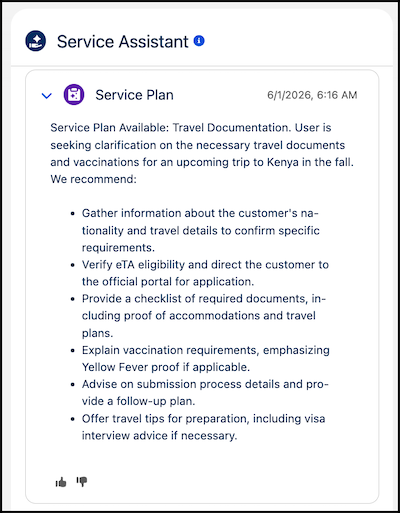
Service Assistant starts a dynamic plan as soon as the service plan summary is generated, so service reps don't click Start Plan. This allows reps to get started resolving the issue faster.
A plan only starts automatically after these requirements are met.
- The record meets your eligibility criteria.
- The chat session contains enough context for Service Assistant to identify the issue.
To use this feature, turn it on from the Service Assistant Setup page. No other setup or permissions are required. When turned on, the Start Plan button isn't shown in the plan summary. See Setup Service Assistant for Messaging.
Service Replies
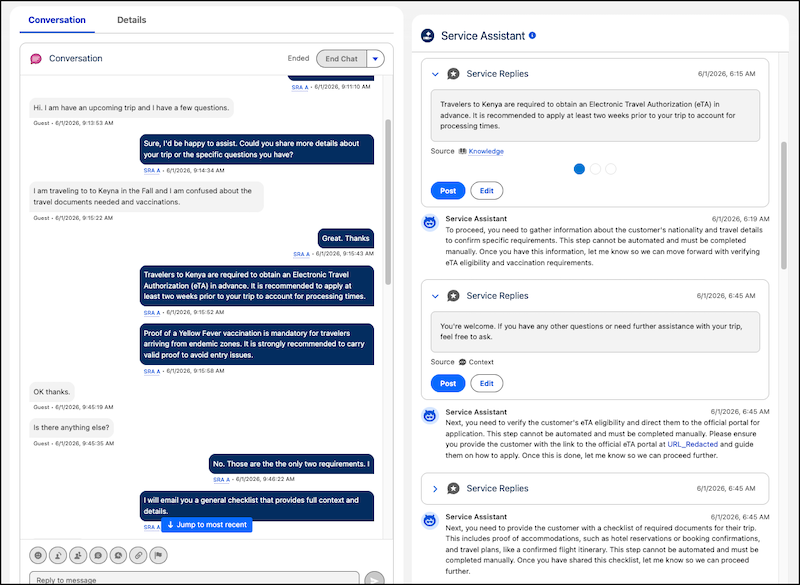
A capability of Service Assistant that surfaces AI-generated suggested reply cards in the Service Assistant component during active messaging sessions.
Service reps can post or edit a reply before sending it to the customer. Service Replies and service plans operate independently. Suggested replies aren't used as grounding for service plans, and service plan steps aren't used to generate suggested replies. When a rep posts a reply, it enters the conversation and becomes available as context for future plan steps.
Conversation Catch-Up
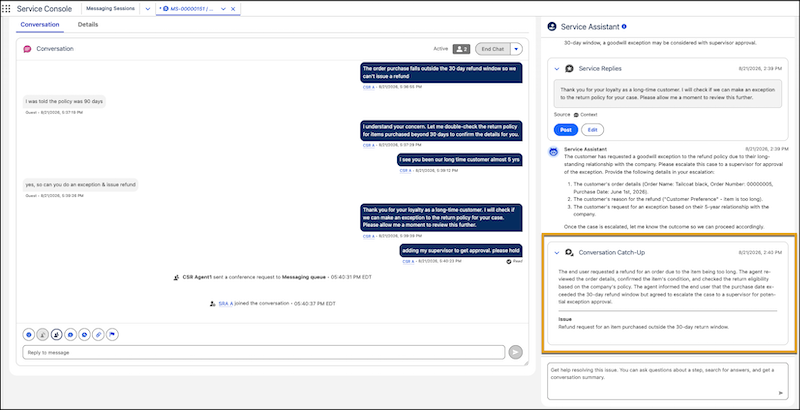
Conversation Catch-Up is a capability of Service Assistant that surfaces an AI-generated summary card in the Service Assistant component. The card captures the key points of an active conversation, so reps get up to speed without reading the entire transcript. When a voice call is transferred, the rep who takes over sees a summary card of the previous interaction and picks up right where the previous rep left off.
See Set Up Conversation Catch-Up for Service Assistant.
Related Record Grounding
Give service reps more contextual, detailed plan steps by grounding Service Assistant in related-record data. A default prompt template retrieves Account and Case data related to the messaging session, and Service Assistant references the data, along with your other grounding sources, each time it creates a plan step. To ground on data from other objects and fields, modify the prompt template.
To use this feature, turn on Include Context from Related Records on the Messaging tab of the Service Assistant Setup page, and then configure the prompt template. Both the ServicePlanner User and your service reps need access to the objects and fields that the prompt template references.