Learn about the optional features that extend Service Assistant for Case.
Required Editions
| View supported editions. |
- Provide Case and Customer Context with Case Catch-Up & Insights
- Ground Service Plans for Case in Related Records
- Make Guidance Service Plans Actionable with Quick Actions
- Provide Additional Case Context with Similar Cases
- Add Service Plan Data to Case Communications
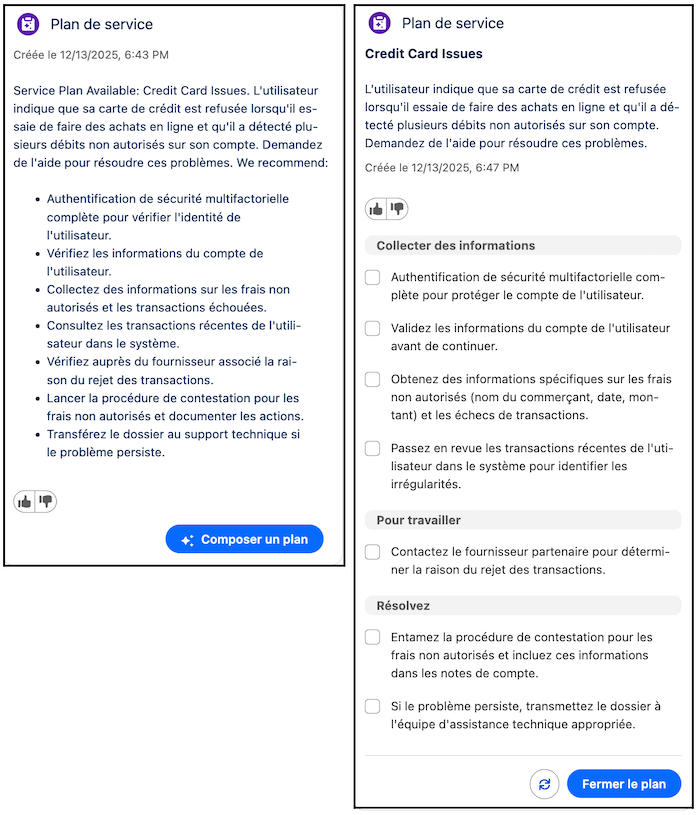
- Translate Guidance Service Plans
Service Assistant supports several optional features that extend its capabilities and provide enhanced resolution guidance. Features include messaging and voice record grounding, surfacing quick actions in guidance plan steps, automating emails and summaries with prompt templates, showing a list of similar cases, and plan translation.
Support for these features depends on your selected plan type. Each section notes whether the feature works with guidance plans, dynamic plans, or both. Permissions also vary by feature, and each feature's reference guide and setup steps list the required permissions.
| Optional Features | Description | Supported Plan Types |
|---|---|---|
| Plan Context Updates | Tracks case field and comment updates after a dynamic service plan starts and regenerates the current plan step in real time to reflect the latest case data. |
Dynamic plans. |
| Case Catch-Up and Insights | A capability of Service Assistant that surfaces as a card in the component that summarizes the related account, activity details, customer sentiment, and provides a case health score. |
Guidance and dynamic plans. |
| Related Record Grounding | Analyzes transcripts of messaging and voice records attached to a case to summarize what took place and start plan steps from where the conversation left off. |
Guidance and dynamic plans. |
| Prompt Templates | Adds service plan information to case emails, case summaries, case comments, and the case feed. |
Guidance and dynamic plans. |
| Quick Action Grounding | Adds buttons to guidance plan steps that let service reps complete a task without leaving the step, like changing the case status or summarizing a case. Agent actions aren't supported in guidance plans. Reps can use agent actions only through agent chat. For more details, see the following section. |
Guidance plans. |
| Similar Cases |
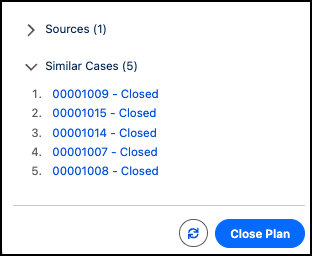
Shows a list of similar cases in a service plan that service reps can review for context while working on a case. The list serves only as a reference guide for service reps to provide additional context while they work an active case. The listed cases aren't used as grounding sources during the creation of a service plan. |
Guidance plans. |
| Translation |
Translates service plans into a service rep's preferred language. Translation is only supported for guidance plans. Dynamic plans only support English. |
Guidance plans. |
Provide Case and Customer Context with Case Catch-Up & Insights
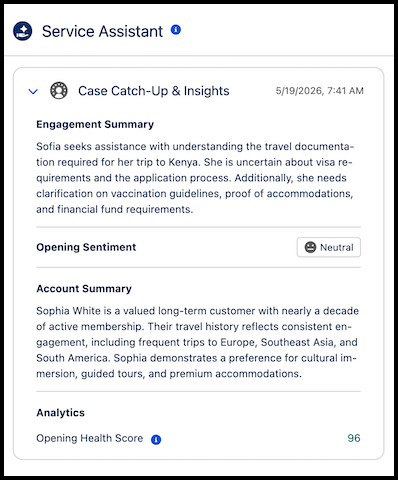
A capability of Service Assistant that generates a summary of case activity displayed as a card within the Service Assistant panel alongside the service plan. The card includes four sections in this order: Engagement Summary, Opening Sentiment, Account Summary, and Analytics.
Case Catch-Up & Insights works as a standalone capability within Service Assistant. Unlike other Service Assistant features, it doesn't require the general Service Assistant setup or agent creation. The only requirements are:
- Service Assistant is turned on from the Service Assistant Setup page.
- The Service Assistant Lightning Web Component is added to the case record page.
You turn on Case Catch-Up & Insights from the Case tab of the Service Assistant Setup page. After you turn it on, the page lists all available insights and you can choose which ones to activate. Certain insights require more features that you turn on and configure. See Case Catch-Up & Insights.
Ground Service Plans for Case in Related Records
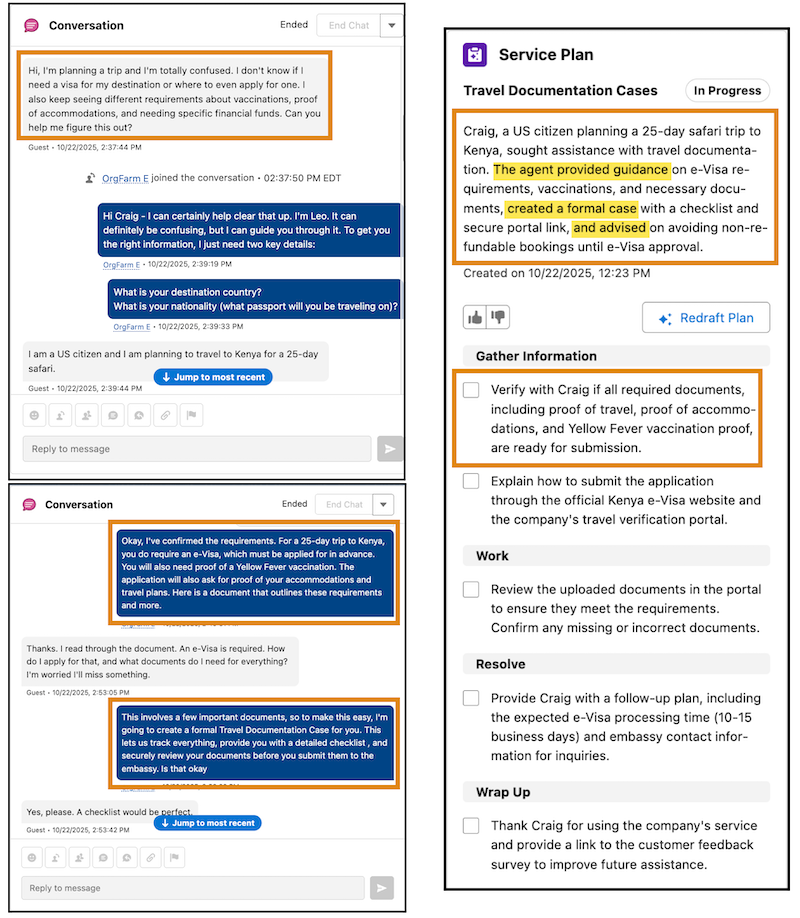
When a case is created from a messaging session or a voice call, Service Assistant analyzes the transcriptions of the records to use as a grounding source. As a result, the case summary, summary steps, and drafted service plan include key details from the conversation.
Specifically, the case summary and summary steps state what occurred in the conversation and what resolution steps were completed. In addition, the drafted service plan starts the plan steps from where the conversation left off. The record grounding provides service reps with more context-specific and streamlined resolution guidance in the service plan.
Grounding with messaging and voice records is optional. The ServicePlanner User requires a custom permission set that grants access to messaging and voice records attached to the case. The Service Assistant admin and service reps don't require additional permissions. However, service reps need record-level access to open and view the records attached to the case.
Make Guidance Service Plans Actionable with Quick Actions
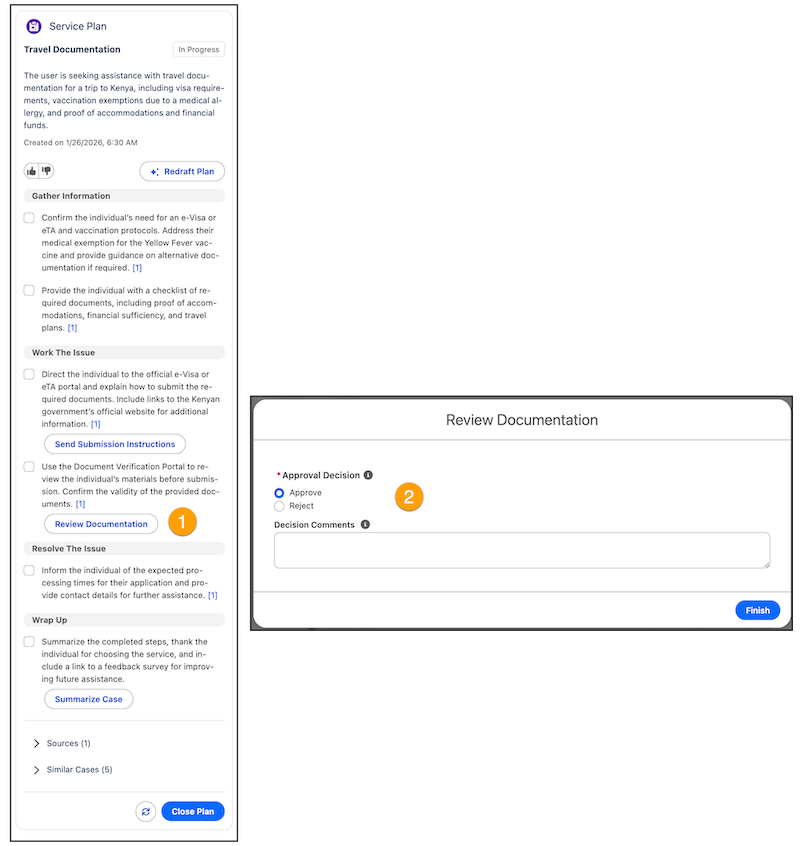
Quick actions show as buttons in guidance plan steps for service reps to launch workflows and complete tasks directly in a plan step, like sending an email or closing a case.
Quick actions are supported in guidance plans only. Because guidance plans are static and Service Assistant isn't a proactive agent, Service Assistant doesn't automatically surface agent actions in plan steps like it does in dynamic plans. Instead, quick actions give your service reps buttons to launch workflows directly in a plan step.
Your reps can still use agent actions with guidance plans if you turn on Chat with Service Assistant on the Service Assistant Setup page. From the chat, reps can ask Service Assistant to run an agent action, but Service Assistant doesn't launch actions on its own. Service reps have to ask. See Agent Chat and Grounding Service Assistant with Agent Actions.
You set up standard and custom quick actions on the Buttons, Links, and Actions Setup page for the Case object. You configure and manage all your quick actions for Service Assistant with the Quick Actions Manager in the Agentforce Builder. The Quick Actions Manager is available only for Service Assistant.
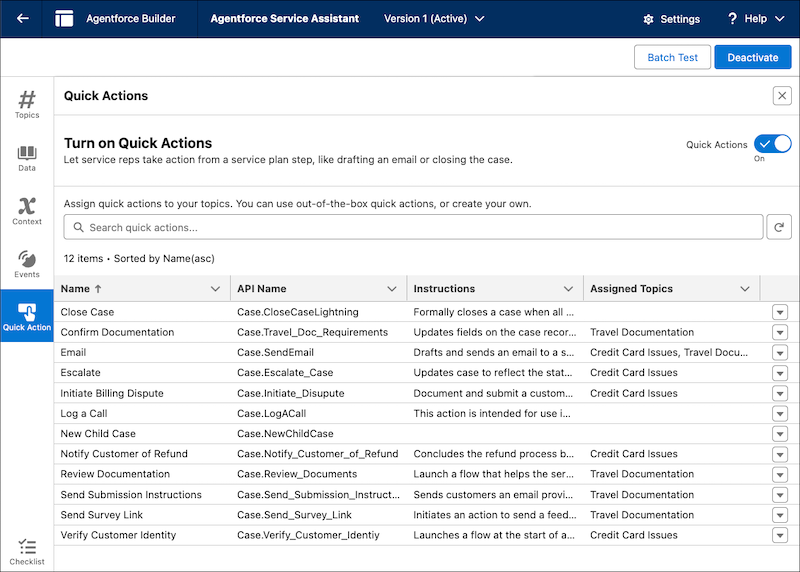
All your Case object quick actions (standard and custom) show in the Quick Actions Manager automatically when they're added to your case layout. The manager provides a two-step setup process for integrating your quick actions with Service Assistant. You select which quick actions you want available in Service Assistant and then add them to your subagents. Then you provide an instruction for each quick action.
Quick action instructions are clear and direct statements that define what the action does and when it's used for a particular scenario, case, or business process. These instructions provide Service Assistant the information it needs to determine when quick actions are most relevant to show in the steps of a service plan. You can assign one or more quick actions to subagents, and one or more quick actions can surface in a plan step. See Guidelines for Creating Quick Actions.
To get you started, we provide three quick action instructions for these standard Case object quick actions. You can use these instructions as they are or modify them to fit your specific needs. Manually add these instructions to each quick action, and add the quick actions to your case page layout.
- Send Email
- Drafts and sends an email to a specified recipient directly from a service plan step. Use the email for customer communications, such as providing status updates, conveying resolution details, and requesting or supplying additional information during case management or follow-up.
- Close Case
- Closes the case when all required steps to resolve issues are completed and no further action is needed. Closing the case formally concludes the support process, and no additional steps can be performed.
Provide Additional Case Context with Similar Cases
Service reps receive additional guidance when working a service plan with a list of similar cases that's displayed at the bottom of the component. This list serves only as a reference tool to provide extra context and support. The listed cases aren't used as grounding sources for creating the service plan.
Configuring this feature requires several setup steps in Data 360. Create a search index and data retriever to ingest and index your historical case data. We walk you through a general configuration that uses the subject and description fields so that Service Assistant retrieves cases that are relevant to the active case the service rep is working. You can adjust our sample configuration to include custom case fields and limit the search to a particular date range. You can also use an existing retriever if it has your indexed case data, but be sure to review the setup steps as we outline specific setting for your search index. See Set Up Similar Cases.
To help ease your setup, each setup step has a video that demonstrates and guides you through the setup steps. The videos don't contain audio. Find the full video playlist here: Similar Cases Setup Videos. Hover over the top-left corner of the video to see the video library.
Add Service Plan Data to Case Communications
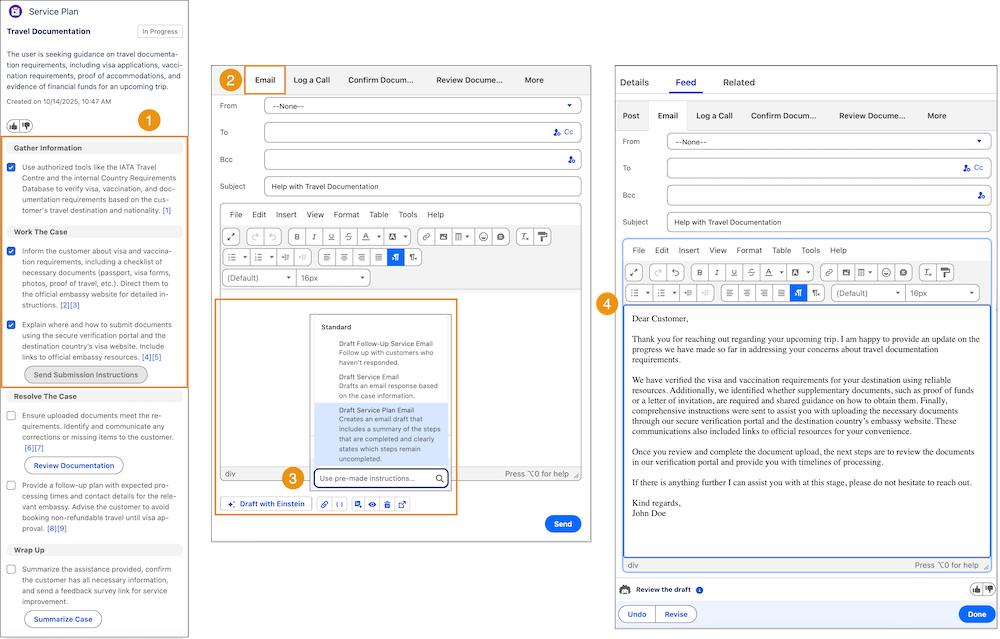
Instead of manually writing emails and case summaries, Service Assistant supports two prompt templates that draft case communications with key details from the case and its guidance or dynamic service plan, including all plan steps and any agent actions taken or surfaced.
Draft Service Plan Email prompt template
To keep customers informed about the status of an active case with a service plan, service reps can use the Draft Service Plan Email prompt template. Activate and configure the template in Prompt Builder. The default template text drafts an email with the latest updates for an in-progress case, including the original issue, the completed service plan steps and any actions taken, and the next steps to take. Service reps access the template from the Post tab of the case feed with the Draft with Einstein feature.
The prompt template requires additional permissions for the Service Assistant admin and service rep.
Summarize Case prompt template
To automatically generate a complete case summary with service plan information, you can set up the Summarize Case prompt template. The template summarizes details from the service plan, including the initial problem, the steps taken, any actions taken or surfaced, and the final resolution.
To use this template, set up and turn on Enhanced Case Summaries. After it's set up, service reps can post the case summary to the case comments or case feed. The case summary includes the case resolution only when the case is formally closed. If a summary is drafted while the case is open, the draft summary contains only the original issue and steps marked as complete.
The prompt template requires additional permissions for the Service Assistant admin, Service Planner User, and service rep.
Translate Guidance Service Plans
To provide service reps the ability to work with guidance service plans in their preferred language, you can optionally turn on Real-Time Translations. Translation of dynamic service plans isn't supported.
Real-Time Translations translates all text in the component from your company's preferred language into the service rep's preferred language in real time. All text is automatically translated when service reps:
- Open a new case and a case summary is drafted.
- Draft or redraft a service plan.
- Open a case that has a plan with either a case summary or a drafted service plan.
Service Assistant supports the same languages as real-time translations. See Real-Time Translations. This feature is supported only with the Agentforce for Service or Agentforce 1 add-on licenses, and service reps need the Service Plan Translation permission set. Customers with an Einstein for Service license who want to use translation can contact their account executive.