
Learn how your service reps draft service plan emails that provide your customers Case status updates with information from the service plan.
Required Editions
| View supported editions. |
| User Permissions Needed | |
|---|---|
| To have service reps use the Draft Service Plan Email prompt template: |
Service Planner User permission set AND Prompt Template User permission set AND Einstein Service Email Assistant User permission set |

Service reps can use the Draft Service Plan Email prompt template to draft case progress emails for cases that contain service plan information. The template summarizes what plan steps are completed and states the next steps for the case. The template is accessible using the Draft with Einstein feature in the Email tab of the Case feed.
- From the Case feed, select Email.
- From the Email action windows, click Draft with AI.
- Select Draft Service Plan Email.
- In the email composer, review and edit the drafted email.
- Click Done.
- Send the email.
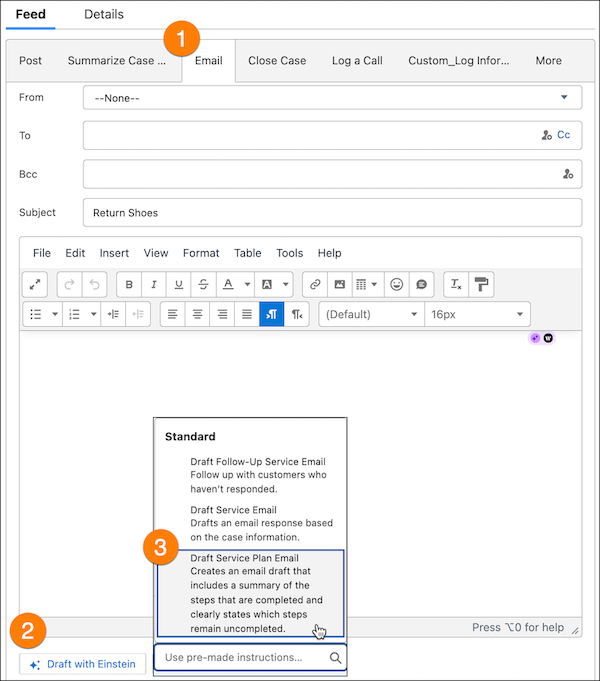
Draft Email with Service Plan Information
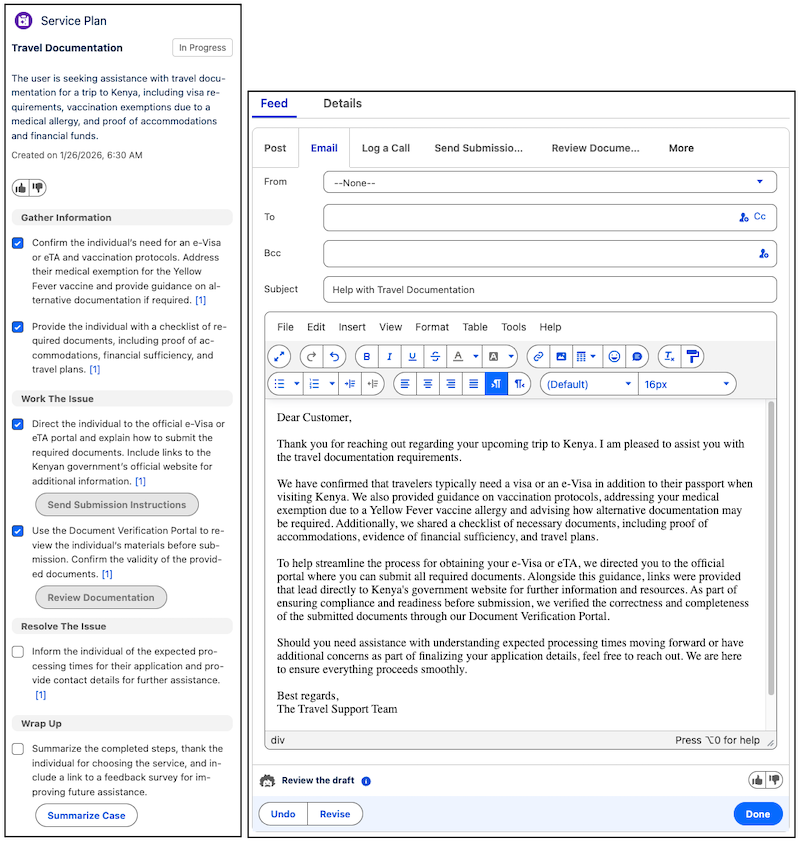
Considerations for Service Plan Email Updates
Keep a few consideration in mind when your draft a service plan email update.
- If you draft an email before you make a service plan, only the plan summary and summary steps are in the draft email.
- If steps aren’t marked as completed in a service plan, the template selects the first uncompleted step to inform the customer as to what actions are next for the case.
- The template doesn’t account for case or service plan status. Even if the plan or case is closed, the draft email summarizes the steps and suggests the next uncompleted step. If all steps are completed, the draft email includes only a summary of the executed steps.
- The template doesn’t differentiate between suggested and grounded steps. Make sure the draft email only contains information relating to grounded steps.