
Turn on automatic tracking of case field and comment updates so Service Assistant regenerates the current step of a dynamic service plan with the latest case data.
Required Editions
 This article applies to: This article applies to:
|
Service Assistant for Case with dynamic plans. |
 This article doesn't apply to: This article doesn't apply to:
|
Service Assistant for Case with guidance plans. |
| User Permissions Needed | |
|---|---|
| To turn on plan context updates: | Service Planner Builder permission set |

By default, Service Assistant grounds in the case record data using the fields and related objects (Case Comments, Case Emails, and Case Feed) you set in the Service AI Grounding Setup page. When you turn on Update Plan Context for case fields and case comments from the Service Assistant Setup page, Service Assistant actively monitors your grounding configuration for new case fields and case comments (internal and external) and then regenerates the steps in real time.
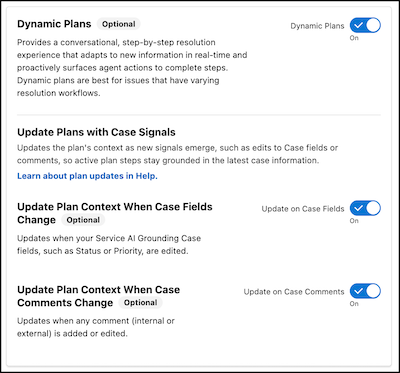
These settings apply only to case fields and comments. Service Assistant handles Case Emails and Case Feed differently.
- You don't turn on automatic tracking and plan step regeneration for Case Emails. This is enabled by default when you have Case Emails enabled for grounding from the Service AI Grounding Setup page.
- Case Feed updates don't trigger step regeneration. If you enable Case Feed grounding in Service AI Grounding setup, Service Assistant still monitors the feed and captures new data, but applies it only when the current step completes and the next step is created.
- Plan context updates for case comments include internal and external comments.
- If you ground on the Internal Comments field, you must set Case Comments for grounding. Internal Comments data isn't tracked unless Case Comments is enabled for grounding.
For more information about how Service Assistant tracks and applies case updates, see Grounding with Case Record Data.
- From Setup, go to the Service AI Grounding Setup page and, in the Case tab, review your grounding configuration to make sure you have all standard and custom case fields and objects set for grounding.
- Go to the Service Assistant Setup page, and in the Define Service Plan User Experience section, confirm that Dynamic Plans is turned on.
- From the Update Plans with Case Signals section, turn on Update Plan Steps When Case Fields Change, Update Plan Steps When Case Comments Change, or both.
- From the bottom of the Case tab, make sure Service Assistant for Case is turned on.
After you turn on these settings, start a service plan on a new case record to confirm the plan updates based on the case field or comment content.
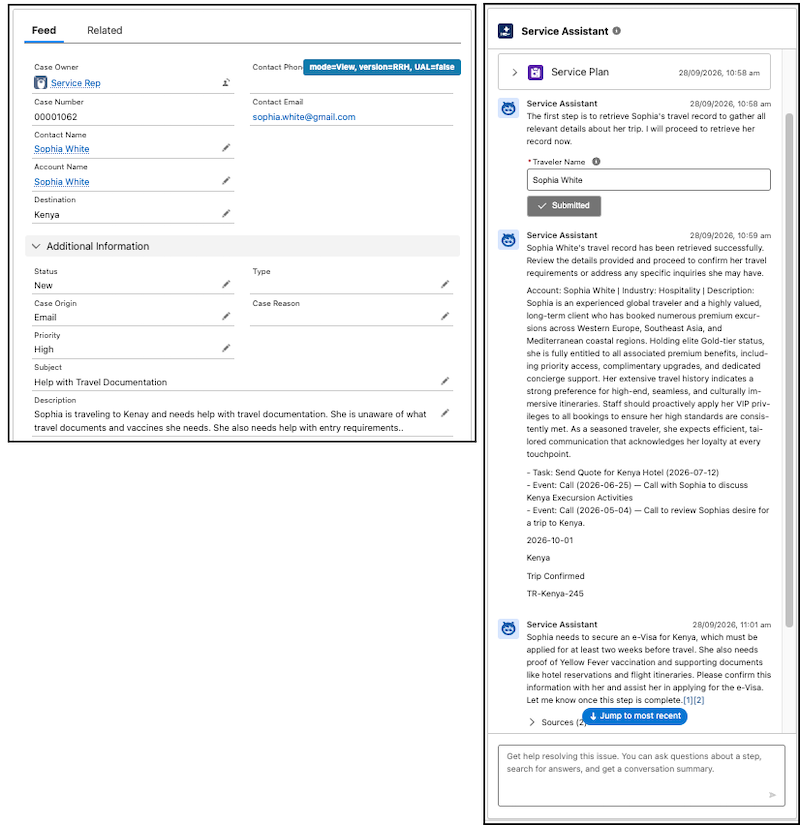
For example, a service plan is first created based on these record details, and Service Assistant creates plan steps based on that data.
If a grounding field is updated that changes the context of the plan, Service Assistant tracks the new data and then automatically creates a new step. It can take a few moments for the step to regenerate when a field or comment is updated or when there’s a new email. If you don't see the plan updated, refresh the page.
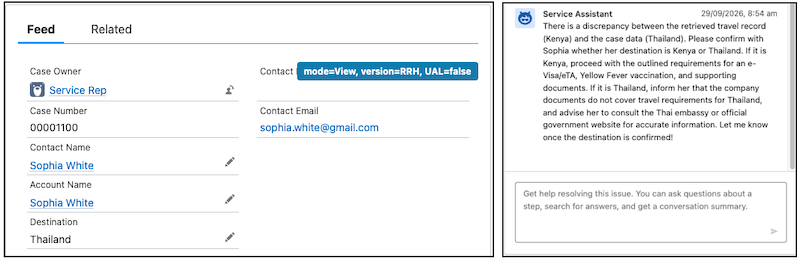
Keep in mind that there’s no status indicator showing that Service Assistant captured the new data and is processing it to create a new step. Service Assistant remains static and the new step shows automatically with no indicator that it’s generating. See Status Indicator Behavior for Dynamic Plans.
Troubleshooting and Considerations
If plan steps aren't updating dynamically as record data changes, try these troubleshooting steps. Also, review a few considerations that affect your setup and configuration.
Troubleshooting
- Confirm that the ServicePlanner User and service reps have read access to all standard and custom case fields set in your Service AI Grounding configuration.
- Confirm that no fields set in you grounding configuration aren’t encrypted. Encrypted fields aren’t supported for grounding.
- Confirm that you have Case Emails, Case Comments, or Case Feed enabled for grounding in Service AI Grounding.
Considerations
- Encrypted fields aren't supported for grounding.
- Only String and Text Area fields are supported for grounding.
- Only text from Case Emails, Case Comments, and the Case Feed is used to ground a service plan. PDFs, images, and other attachments aren't used as grounding sources.
- For Case Emails, both the initial plan generation and regenerating plan steps for new case emails can fail if there is a very high email volume. If a record has a large set of emails, the ingestion and grounding of the data can exceed internal limits and the plan fails with an error like "Something went wrong. Try again later or contact Salesforce Customer Support." If this occurs, remove Case Emails from the grounding configuration on the Service AI Grounding Setup page, or summarize emails into a custom Case field and ground on that field instead.
- If you ground on the Internal Comments field, enable Case Comments for grounding. Internal Comments data isn't tracked when Case Comments isn't enabled for grounding.
- Service plan summaries are never updated to account for field and object updates. This behavior applies to both guidance and dynamic plans.