
Learn how service reps work with guidance service plans for case.
Required Editions
| View supported editions. |
Component Overview
When the Service Assistant component is added to the case record page, service reps use the component to draft service plans and execute the plan steps. Check out this video to learn how service reps use the component to resolve cases. For additional details, review the information that follows. To open the video in full-screen, click here.
The Service Assistant component is available to service reps if they have the Service Planner User permission set. The component is hidden from service reps without the permission set.
Also, in order to use the component, the case must meet your Service Plan Eligibility Criteria. If the case doesn’t meet the criteria and the service rep has the permission set, the component shows a message that the case isn’t eligible for a service plan.
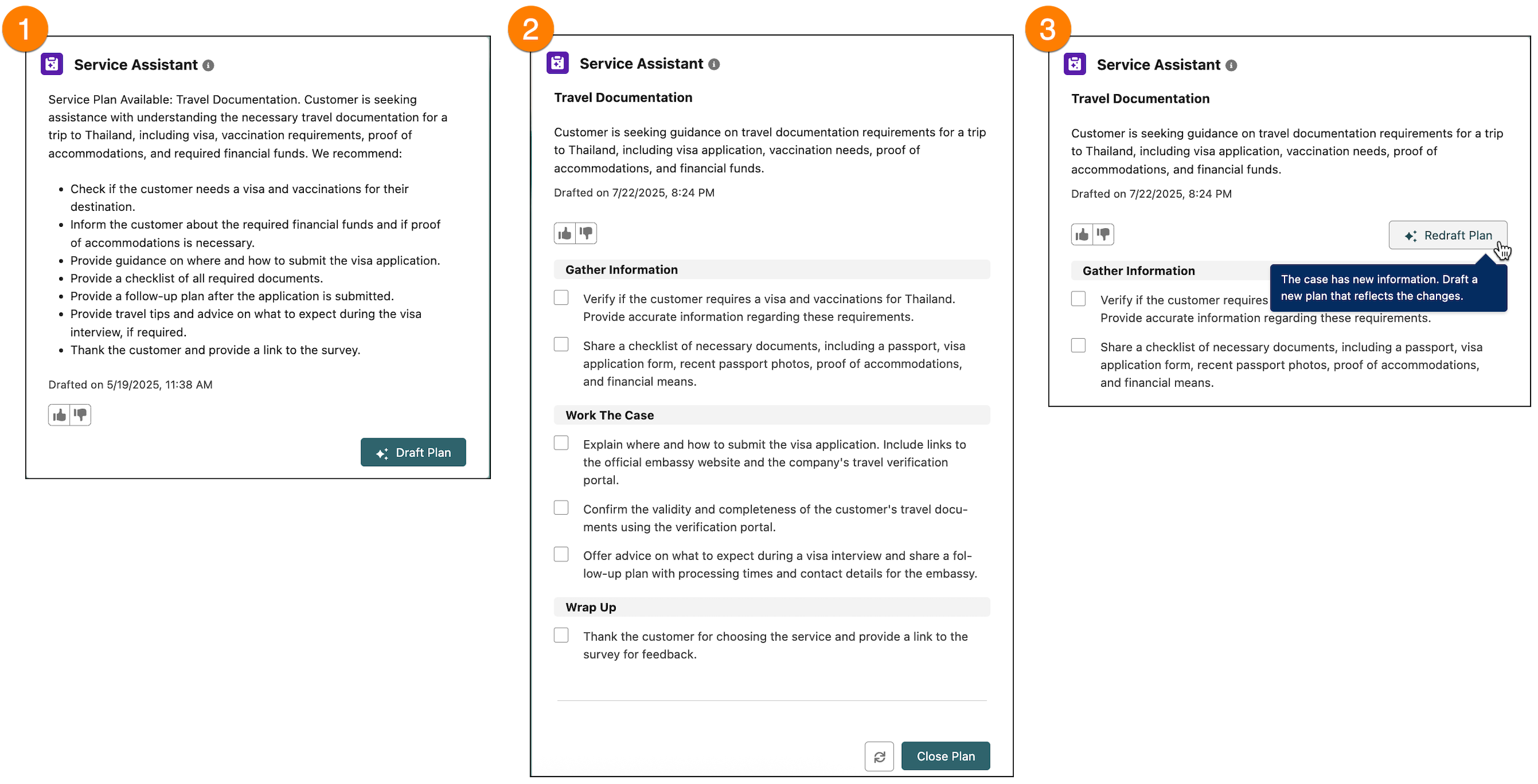
Service reps work with the component in three operational states: Summary State (1), Plan State (2), and Redraft Plan State (3).
Summary State
In the summary state, service reps receive an overview of the case so they don’t have to read through the case feed. Here’s an example of the summary state and a few details about what occurs in this state.
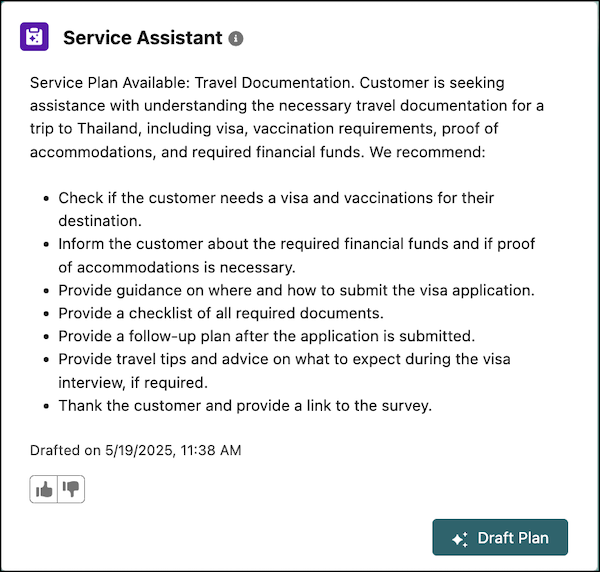
Case Summary
- When the case record page is opened and the case meets the eligibility criteria, the component summarizes the case and provides a high-level overview of what they can do to resolve the case, known as summary steps.
- The component shows the date and time for the creation of the summary and summary steps.
- Service reps can rate the accuracy and helpfulness of the summary by using the Feedback component.
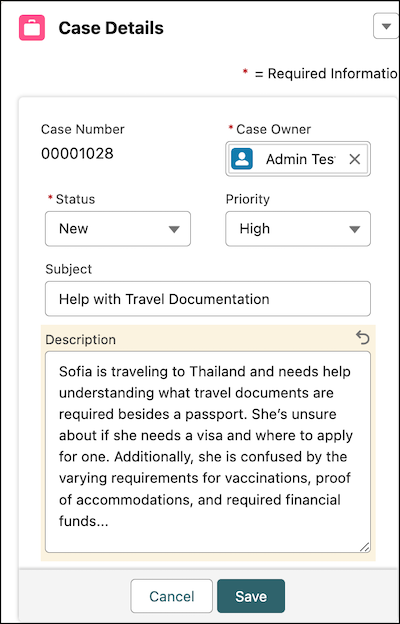
- If a service plan summary isn’t provided or you see a message that a summary can’t be provided, make any edits to the Subject or Description field. Then, click the Sync button or refresh the case record page. For example, add extra periods to the description.
Drafting a Service Plan
- Service reps click Draft Plan to create a service plan.
- The component enters the drafting state where the Draft Plan button is disabled.
- If the Service Assistant agent is deactivated in the summary state, an error message appears, and the Draft Plan button becomes disabled.
Draft Plan Availability
- The Draft Plan button is disabled for closed cases.
- Service Assistant uses the Subject and Description fields to match the case to a subagent and decide whether the case needs a plan. Both fields must clearly state the issue. Otherwise, the Draft Plan button can be disabled, or you can see an error message such as “There’s not enough information to draft a service plan summary.” To resolve this, state the issue clearly in both fields, and then refresh the page.
- If the case contains text indicating that the issue is resolved, or the Description doesn’t highlight a clear issue, Service Assistant concludes that there’s no issue to resolve. The Draft Plan button is disabled, and you can see the message “Looks like the issue is resolved, so there’s no need for a service plan.” Modify the Subject and Description to state a clear issue, and then refresh the page. The Draft Plan button appears.
Subagent Assignment
- The component shows Service Plan Available followed by the name of the subagent assigned to the case. Service Assistant builds the plan from the instructions in that subagent and from knowledge articles if a data library is attached to the agent.
- Service Assistant is an issue-specific agent that needs a subagent for each type of
issue you want it to help service reps resolve. If you create only a general-purpose
subagent, such as “Issue Resolution Assistance,” Service Assistant can’t generate an
accurate service plan. Service reps see the plan summary with the Draft Plan button
disabled, one of the following error messages, or both.
- “We couldn’t draft a service plan summary, but we’ll keep trying. If the issue continues, contact your Salesforce admin.”
- “There’s not enough information to draft a service plan summary. Add more details, then check back here.”
- “We couldn’t draft a service plan because no relevant topics exist. Ask your Salesforce admin to create one, or add more context to the item.”
- For example, a case describes a disputed credit card charge, but the only subagent you have is Issue Resolution Assistance. The service plan summary either fails to generate, or Service Assistant assigns the general-purpose subagent, shows Service Plan Available: Issue Resolution Assistance, and disables the Draft Plan button. Although the Subject and Description clearly state a credit card dispute, the subagent doesn’t have enough context to draft an issue-specific service plan, even if you use knowledge grounding. To fix this, create a subagent for the issue, such as Credit Card Dispute Resolution, with instructions for resolving it.
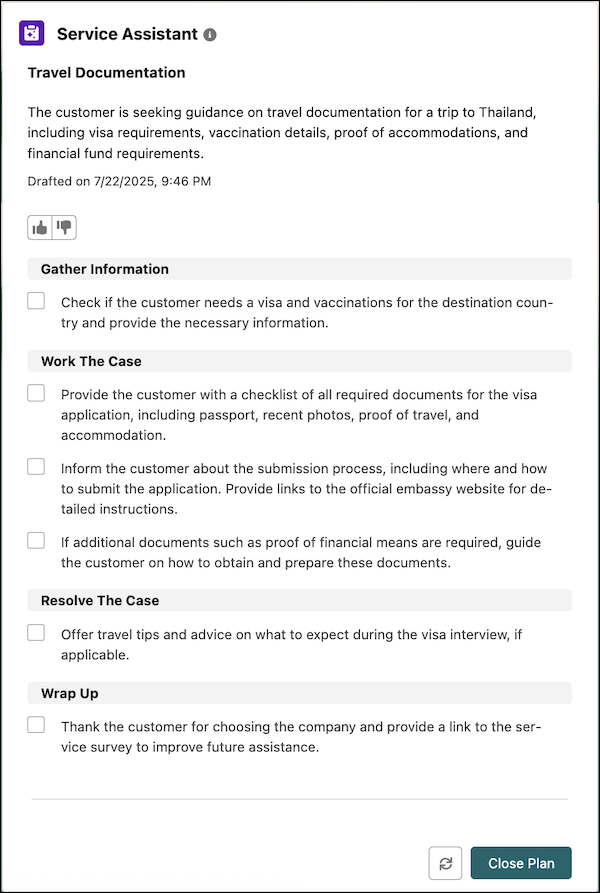
Plan State
In the plan state, service reps draft a service plan and execute the steps. Here’s an example of the plan state and a few details about what happens in this state.
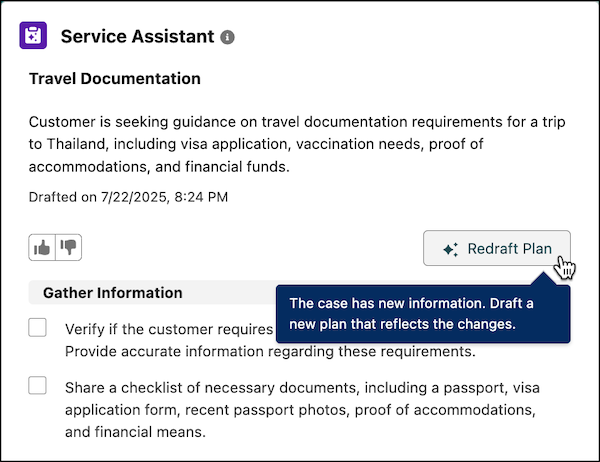
Redraft Plan State
In the redraft state, service reps click the Redraft Plan button to receive a new service plan with the latest case information. Here’s an example of a redraft plan state and a few details about what occurs in this state.
Error Messages
If Service Assistant can’t draft a service plan or plan summary, service reps can see one of these messages.
- “We couldn’t draft a service plan summary, but we’ll keep trying. If the issue continues, contact your Salesforce admin.”
- “We couldn’t draft a service plan summary. Contact your Salesforce admin for help.”
- “There’s not enough information to draft a service plan summary. Add more details, then check back here.”
- “I don’t have enough information to help with your request. Add more details and try again.”
- “We couldn’t draft a service plan because no relevant topics exist. Ask your Salesforce admin to create one, or add more context to the item.”
- “We couldn’t draft a service plan because we couldn’t find any related topics. Ask your Salesforce admin to create a relevant topic, or try again.”
- “Looks like the issue is resolved, so there’s no need for a service plan.”
These messages usually mean one of the following.
- A general processing error occurred.
- The Subject and Description don’t include enough details about the issue.
- The case or your grounding sources contain information that indicates the issue is resolved.
- No subagent matches the issue, or the only subagent that applies is general-purpose.
To troubleshoot, try these steps.
- Refresh the case record page, or make a small edit to the Subject or Description and click Sync.
- Make sure that the Subject and Description clearly state the issue.
- Make sure that you have a subagent created for the issue. Create one subagent for each type of issue, with instructions for resolving it.
- Remove information in the Subject, Description, case comments, case feed, or case emails that indicates the issue is resolved, and then refresh the page.
- Make sure that the ServicePlanner User has access to the case comments, case emails, case feed, and any grounding sources that you use.
- For more troubleshooting steps for each message, see Troubleshoot Service Assistant Error Messages.
Considerations for Working with Service Assistant
In addition to the general functionality of the component, here are a few considerations to keep in mind.
- Service Assistant can’t generate service plans for cases that have no topic assigned, little to no case information, and cases that are outside the scope of the set Service AI Grounding configuration.
- For steps that are created from Knowledge articles, citations for the source knowledge article aren't included.
- For steps that are created from Knowledge articles, the information is summarized. The exact words from the article aren’t repeated.
- Service Assistant can suggest steps that aren't based on your grounding sources (topics,
knowledge, and Service AI grounding). Suggested steps are indicated in the service plan with
*. Here are examples.
- * Review transactions for fraud.
- * Verify there are sufficient account funds.
- If you’ve enabled the support setting Show Closed Statuses in Case Status Field, the setting operates in a different ways within the component based on these scenarios.
| Scenario | Service Assistant Component Functionality |
|---|---|
| Cases are present before you’ve set up your eligibility criteria, and the case is marked Closed. | The component shows the default message for a closed case in the component. If you attempt to generate a service plan, the component returns an error message, and the Sync and Draft Plan buttons are read-only. |
| New cases match your eligibility criteria, and the case is closed before a case summary is generated. | The component returns an error message, and the Sync and Draft Plan buttons are read-only. |
| A case is closed after a case summary is generated, but a plan isn’t yet generated. | The component remains in the summary state with the Draft Plan button read-only. |