
Learn how service reps work with dynamic service plans for case, messaging, and voice.
Required Editions
| View supported editions. | |
 This article applies to: This article applies to:
|
Service Assistant for Case. Messaging, and Voice |
How Dynamic Plans Work
A dynamic plan is a real-time, conversational workflow that guides a service rep through resolving a case, messaging session, or voice call one step at a time. For each step, Service Assistant runs a new search of your grounding sources against the record data, so each step reflects the current context of the record. Reps don’t draft, redraft, or sync a dynamic plan. The plan adapts on its own.
Service Assistant monitors the record throughout its lifecycle. From the moment a rep opens a record to the moment it closes, every dynamic plan follows the same sequence.
- Eligibility check. Service Assistant checks that the record meets your eligibility criteria. See Eligibility Check.
- Agent and subagent assignment. Service Assistant assigns an agent to the record, and the agent identifies the issue and assigns the matching subagent. See Agent Assignment and Record Processing.
- Plan initiation and start. Service Assistant prepares the plan and then starts it. See Plan Initiation and Start.
- Working the plan. The rep works the plan step by step, and Service Assistant surfaces knowledge and actions and tells the rep what to do next. Reps can use the agent chat to ask questions, look up knowledge, run actions on demand, and ask for summaries. See Work a Plan and Using the Agent Chat and Component Feed.
- Plan end. The plan ends when the case closes or the session or call ends. Service Assistant and the chat box stay active for about 24 hours so reps can complete wrap-up tasks, and the feed history stays visible. See End a Plan.
From the moment a rep opens an eligible record until the plan summary or first step shows, Service Assistant is processing the record. During this time, case shows the status indicator “Service Assistant is working on it…". Messaging and voice don’t show a status indicator, so the component stays static until the plan summary (messaging) or first step (voice) shows. For exceptions, see Status Indicators.
The sequence is the same across record types, but what happens in each phase differs. This table compares the phases by record type.
| Service Plan Phase | Case | Messaging | Voice |
|---|---|---|---|
| Record Processing and Subagent Assignment |
Service Assistant starts processing the case when the rep opens a record that meets your eligibility criteria. Service Assistant matches a subagent to the record using the Subject and Description fields. |
Service Assistant starts monitoring the conversation when the session meets your eligibility criteria and the rep accepts it. When the transcript indicates a clear issue, Service Assistant assigns a subagent to the record. |
Service Assistant starts monitoring the call when the call meets your eligibility criteria and the rep accepts it. When the transcript shows a clear issue, Service Assistant assigns a subagent to the record. |
| Plan Summary |
Service Assistant generates a plan summary. A status indicator shows while it generates: "Service Assistant is working on it…" |
Service Assistant generates a plan summary after the transcript shows a clear issue. No status indicator shows while it generates. |
Service Assistant doesn’t generate a plan summary. No status indicator shows while it generates the first step. |
| Plan Start | The rep clicks Start Plan. |
The rep clicks Start Plan. If Start Plans Automatically is turned on, the plan starts automatically and the first step shows without a Start Plan button. |
The plan starts automatically. Reps don’t see a Start Plan button. The first step shows when Service Assistant identifies an issue in the call transcript. |
| Step Regeneration |
Service Assistant regenerates the current step when a new case email arrives, a grounding field changes, or someone adds or edits a comment. |
Service Assistant regenerates the current step each time a new message arrives. | Service Assistant regenerates the current step each time a new transcript segment arrives. |
| Status Indicator |
"Service Assistant is working on it…" shows when a rep opens an eligible case, clicks Start Plan, completes a step, confirms an action, or enters a request in the agent chat. It doesn’t show when a step is regenerated. See Status Indicators. |
No status indicator shows while Service Assistant generates the plan summary. | No status indicator shows while Service Assistant generates the first step. |
| Plan End |
The case closes or the messaging session or voice call ends. Service Assistant and the chat box stay active for about 24 hours so reps can complete wrap-up tasks, such as creating a summary of the record, service plan, and resolution. The details are saved to the component feed, and the history stays visible, even after Service Assistant and the chat box are deactivated. |
||
Eligibility Check
Service Assistant activates and generates a service plan only for records that meet the eligibility criteria. The eligibility check runs automatically when the service rep:
- Opens the case record page.
- Accepts a messaging session and the record page opens.
- Accepts a voice call and the record page opens.
When a record is eligible, Service Assistant continues to process the record and starts plan initiation. For what reps see while Service Assistant processes the record, see How Dynamic Plans Work.
If the record isn’t eligible, the component shows one of these error messages.
- A service plan isn’t available because the eligibility requirements aren’t met. Ask your Salesforce admin for details.
- This case isn’t eligible for a service plan yet. To create service plans, try a different case or ask your Salesforce admin to update the eligibility criteria.
- To create service plans, try a different record or ask your Salesforce admin to update the eligibility criteria.
If a rep sees "Looks like you don’t have access. Ask your Salesforce admin for help.", the rep is missing a required permission. For messaging and voice, the rep also needs direct access to the eligibility flow.
For troubleshooting steps, see Eligibility Criteria Errors and General Service Plan Errors.
For all records, a service rep must own the record. Service Assistant doesn’t generate a plan for a record owned by a bot user or queue. No error message shows for this scenario. Service Assistant doesn’t activate, no status indicator shows, and the component remains static.
Agent Assignment and Record Processing
After the record passes the eligibility check, Service Assistant assigns an agent to the record. The agent then assigns a subagent. Agent assignment and record processing happen at the same time.
As soon as the agent is assigned, it reads the record details, finds the matching subagent, and starts generating the plan. If Service Assistant can’t assign an agent, reps see "An agent wasn’t assigned to the record. Ask your Salesforce admin to check the agent assignment flow and make sure all agents are activated." and the plan doesn’t start. The cause can be an agent assignment flow error or timeout, an invalid or inactive agent API name, or no matching agent with no default agent set. See Agent Record Assignment Errors.
The subagent determines the guidance, instructions, and actions Service Assistant uses for the plan. For case and messaging, the subagent name shows at the top of the plan summary.
How Service Assistant Matches a Subagent
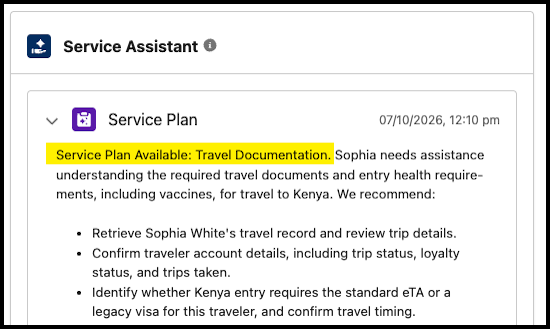
- Case: Service Assistant matches a subagent using only the Subject and Description fields. The other fields and objects set in your Service AI Grounding configuration ground the plan, but they don’t affect which subagent is matched. Every case summary begins with Service Plan Available: followed by the subagent name.
- Messaging and voice: Service Assistant matches a subagent using the context of the conversation transcript. If early messages don’t match a subagent, Service Assistant keeps monitoring the conversation and assigns a subagent when a later message provides a match.
If Service Assistant can’t find a matching subagent, the component shows one of these error messages instead of a summary. These messages apply to case, messaging, and voice.
- We couldn’t draft a service plan because no relevant topics exist. Ask your Salesforce admin to create one, or add more context to the item.
- We couldn’t draft a service plan because we couldn’t find any related topics. Ask your Salesforce admin to create a relevant topic, or try again.
Add a subagent for the issue. If a subagent already exists for the issue type, make sure the case Subject and Description clearly define the issue. For messaging and voice, make sure the transcript clearly states the customer’s issue. See General Service Plan Errors.
Subagent Switching
If the customer raises a second issue, Service Assistant can switch to the subagent that matches the new issue and resolve that part of the plan. When the second issue is resolved, Service Assistant can switch back to the original subagent. If it doesn’t switch back on its own, the rep can tell it in the agent chat, such as Let’s go back to the original issue.
Record Processing Errors
Service reps can also see error messages during record processing. These messages indicate general service plan errors, such as a timeout and a record without enough information to identify the issue. For the full list of messages and troubleshooting steps, see General Service Plan Errors.
Plan Initiation and Start
After the record passes the eligibility check, Service Assistant initiates the plan and then starts it by presenting the first step.
- Initiation is when Service Assistant prepares the plan. It reads the record, assigns a subagent, and, for case and messaging, generates a plan summary that summarizes the record, the issue, and the steps to resolve it.
- For case and messaging, the plan starts when the rep clicks Start Plan. For voice, the plan starts automatically by showing the first step.
During plan initiation and start, the agent chat is available as soon as the rep opens the record, before the plan summary or first step shows. Reps can start asking questions right away, such as for account or contact details. If a rep chats first, the component feed starts with that conversation, and the plan summary or first step shows in the feed after it. The summary card isn’t pinned at the top of the component. See Using the Agent Chat and Component Feed.
Case Plan Initiation
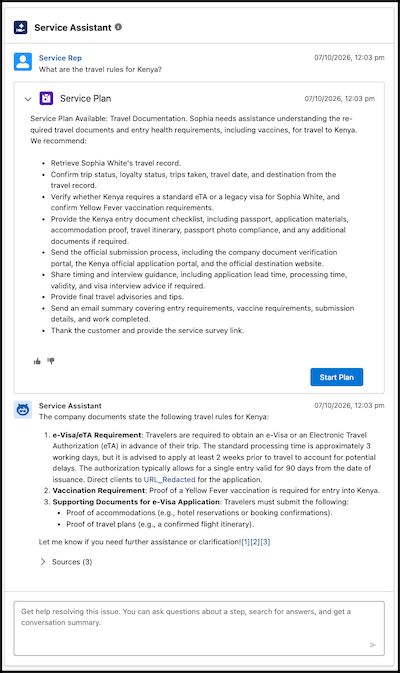
Initiation begins when the eligibility check passes. Service Assistant generates the plan summary, and it shows as a card in the component feed within a few moments. The status indicator shows while the summary generates.
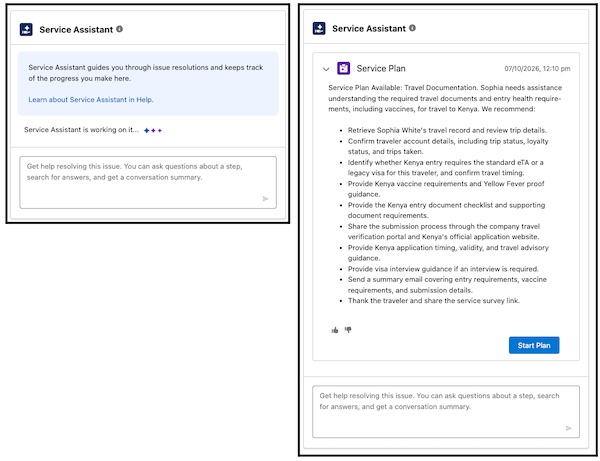
The rep reviews the plan summary and clicks Start Plan. The status indicator shows while Service Assistant generates the first step.
Messaging Plan Initiation
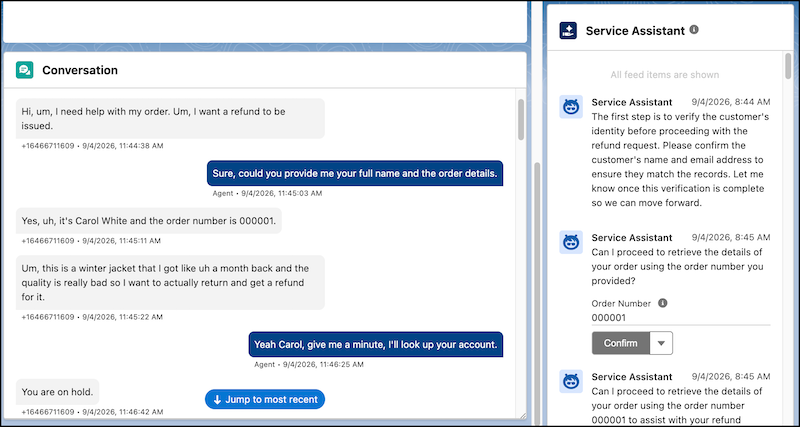
When the session opens, Service Assistant doesn’t generate a summary right away. It monitors the conversation and waits until the transcript contains enough context to identify the customer’s issue or intent. While it waits, no status indicator shows and the component stays static unless the rep has started chatting.
.png)
What happens next depends on whether Start Plans Automatically is turned on.
- If it’s turned on, the plan starts automatically and the first step shows after the summary. Reps see no Start Plan button.
- If it’s turned off, the summary shows a Start Plan button, and the rep clicks it to show the first step.
Voice Plan Initiation
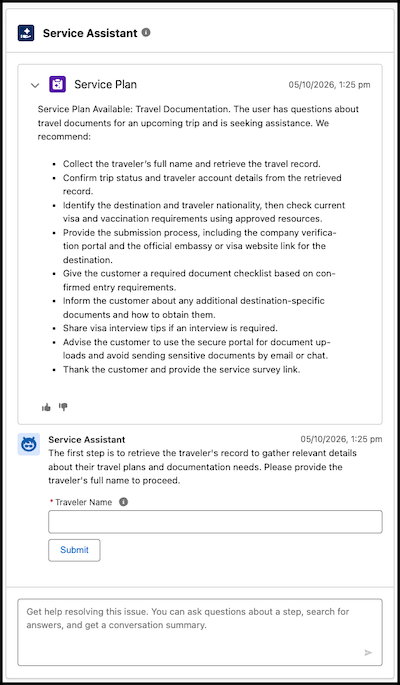
Service Assistant doesn’t generate a summary for voice calls. It monitors the call transcript and waits until the transcript contains enough context to identify the customer’s issue or intent. Then it starts the plan automatically and shows the first step. Reps see no Start Plan button and no status indicator, so the component stays static until the first step shows, unless the rep has started chatting.
Plan Summary Errors
For case and messaging, if Service Assistant can’t generate the plan summary, reps see one of these error messages instead. Voice has no plan summary.
- We couldn’t draft a service plan summary, but we’ll keep trying. If the issue continues, contact your Salesforce admin.
- We couldn’t draft a service plan summary. Contact your Salesforce admin for help.
- There’s not enough information to draft a service plan summary. Add more details, then check back here.
For case only, reps can also see "To create a service plan, save your changes and try again." If a plan can’t start or stops partway through, reps for all record types can see "Something went wrong. Try again. If the issue continues, ask your Salesforce admin for help." For troubleshooting steps, see General Service Plan Errors.
When a Plan Doesn’t Start
A plan starts only when Service Assistant can identify a clear issue and match it to a subagent for that issue. If it can’t, no plan starts. A general subagent, such as "Resolve Issue," "Resolve Record," or "General Support," doesn’t result in a plan. This rule applies to case, messaging, and voice.
For case, Service Assistant uses only the case Subject and Description to identify the issue. If they don’t clearly describe an issue that matches a related subagent, the plan doesn’t start and reps see an error message.
For messaging and voice, Service Assistant uses the transcript to identify the issue. It starts a plan only when the transcript clearly shows the customer’s issue or intent and that issue matches a subagent. If the issue isn’t clear, Service Assistant keeps monitoring the conversation and the component stays blank. No error message or status indicator shows. When a later message makes the issue clear, the plan initiates.
There’s no standard number of messages that’s enough. A plan starts sooner when the customer states the issue clearly in complete messages. A plan can take longer to start when the customer breaks the issue across many short messages, changes topics, or never states the problem directly.
For voice, how soon the plan starts also depends on your telephony model and transcript processing time. Background noise, crosstalk, poor audio, or unclear speech can produce an inaccurate transcript, which can delay or prevent the plan from starting.
If a plan doesn’t start, the rep can ask the customer to restate the issue and then check back.
Even when a plan doesn’t start, reps can still use the agent chat to look up knowledge related to the issue and run any relevant actions.
Work a Plan
A dynamic plan has no set length. Service Assistant adds steps based on the amount and complexity of the issue and record details. As the record updates, Service Assistant updates the step the rep is working on.
Step Generation
Service Assistant shows one step at a time. Each step describes what to do and, when an action is available, surfaces it so the rep can complete the step. Service Assistant bases steps on the record data and monitors the record in real time, so the steps stay relevant to the current data. How it monitors the record and creates steps differs by object.
When new information changes the current step or action, Service Assistant regenerates the current step. It can also move the plan forward by creating the next step without the rep completing the previous one.
| Object | Monitoring and Step Creation |
|---|---|
| Case | Service Assistant monitors the case emails and the case fields, comments, and feed that you enabled for grounding in Service AI Grounding. When new information arrives, Service Assistant regenerates the step the rep is working on so it reflects the updated data. The updated step shows automatically, with no status indicator. Which updates trigger a regeneration depends on your Update Plan Context settings. See Record Updates and Plan Progression. |
| Messaging and voice |
Service Assistant monitors the entire transcript. Each new chat message or call transcript segment triggers Service Assistant to process the new information. Depending on what information the message provides, Service Assistant either:
|
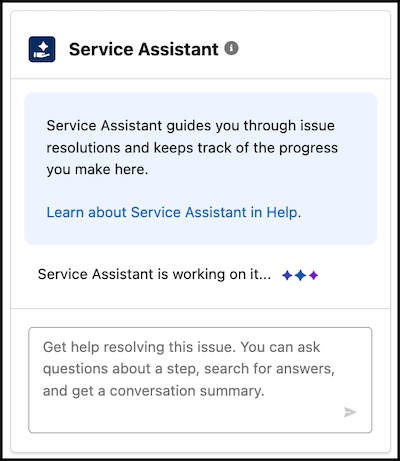
A status indicator confirms that Service Assistant is working during a service plan, so reps know it’s active instead of wondering whether it stalled. The status indicator behaves differently depending on the record type.
| Object | Status Indicator Behavior |
|---|---|
| Case |
Service reps see “Service Assistant is working on it…” when:
The indicator doesn’t show, or its presence is limited, in these scenarios. See Status Indicator Behavior for Dynamic Plans for demos of each scenario.
|
| Messaging and voice |
A status indicator doesn’t show when the record is first opened and the service rep accepts a messaging session or voice call. The component is blank and inactive until the chat or call transcript states a clear issue. Then the plan summary (messaging) or the first step (voice) shows automatically, with no status indicator that Service Assistant is active and processing the record or creating a service plan. 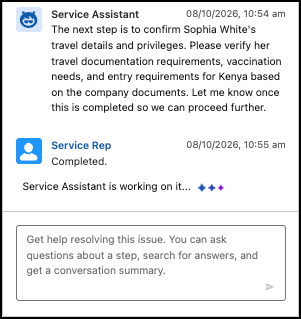 After the plan summary or first step shows, a status indicator does show when Service Assistant creates the next step or the service rep enters a message in the chat. |
Action-Based Steps
Agent actions help service reps complete a step without leaving the plan, such as by drafting an email or updating a record. Service Assistant surfaces an action when it matches the action to a plan step.
- Depending on how the action is configured, the rep confirms the action before it runs, or the action runs automatically.
- After the action runs, Service Assistant moves on to the next step and shows the “Service Assistant is working on it…” status indicator while the next step generates.
- Reps can also ask Service Assistant to run an action in the agent chat, such as “Draft an email to the customer.”
- Each action that Service Assistant surfaces and the rep completes is saved to the feed and the plan history.
- All actions run under the ServicePlanner User’s permissions. If the action fails or returns no data, check the action configuration and permissions.
Non-Action-Based Steps and Plan Progression
If an action doesn’t automate a step, Service Assistant describes the task and includes a statement such as "Let me know when this is complete." The plan doesn’t advance on its own. To move forward, the rep tells Service Assistant in the agent chat that the step is complete, such as Completed, Step complete, Confirmed, or Go to the next step. Service Assistant then generates the next step.
Record Updates and Plan Progression
Service Assistant updates the plan on its own as new information arrives. Service reps can’t ask Service Assistant in the agent chat to regenerate a step or restart a plan.
Service Assistant regenerates each step on its own using the latest record context. What triggers an update depends on the record type.
- Case:
A new case email always updates the current step in real time. If Update Plan Context When Case Fields Change, Update Plan Context When Case Comments Change, or both are turned on, case field updates and case comment updates also update the current step in real time. Case Feed updates are tracked but don’t update the current step. Service Assistant incorporates them when the current step is completed and the next step is generated.
Keep in mind that there’s no status indicator showing that Service Assistant captured the new data and is processing it to create a new step. Service Assistant remains static and the new step shows automatically with no indicator that it’s generating. See Status Indicator Behavior for Dynamic Plans.
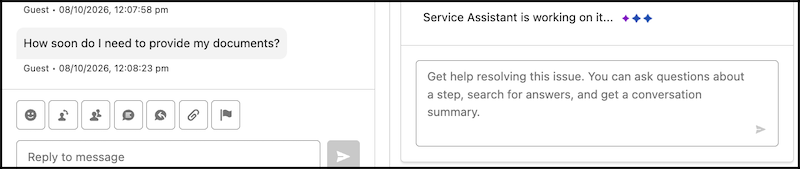
- Messaging and voice: Service Assistant monitors the transcript and creates a new step
as each new message or transcript segment comes in, so it can respond quickly to the customer.
Because messaging sessions and voice calls are fluid, Service Assistant responds to the latest
chat message or transcript segment. So if a service rep is still resolving a previous step or
hasn’t completed an action, Service Assistant moves the plan forward automatically. Service
Assistant indicates that it is processing the customers message with a status indicator showing
“Service Assistant is workign on it.…”.
If a rep wants to confirm that the plan reflects the latest record data, the rep can ask Service Assistant in the agent chat, such as Is there any new information? Service Assistant checks the record and either tells the rep that nothing has changed or creates a new step. This is most useful for case, where some updates, such as case feed updates, don’t change the current step until the rep completes it. Messaging sessions and voice calls are fluid, rapid conversations, and Service Assistant always responds to the latest chat message or transcript segment, so reps don’t need to ask.
Service Assistant uses your knowledge articles in two ways: It grounds plan steps in them, and reps can ask knowledge questions directly in the agent chat.
- In plan steps: Steps grounded in knowledge articles include numbered citations, such as [1], that link to the article in the step’s Sources section. Each step has its own Sources section, and the same article can have a different citation number from one step to the next. Each cited article includes a link that opens in a new window.
- In the agent chat: Reps ask a knowledge question, such as "What’s our return policy for damaged items?" Service Assistant searches your knowledge articles and returns the relevant information, with citations to the articles it used. To turn on this capability, admins add the General FAQ subagent, the General CRM subagent, or both to the agent. See Using the Agent Chat and Component Feed.
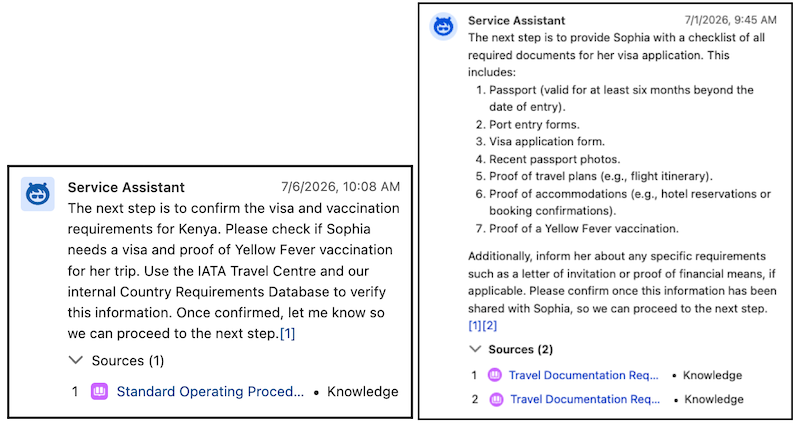
Each question asked and answer returned is saved to the component feed and used as context for future steps. Knowledge lookups return only information from the articles that the ServicePlanner User can access. If knowledge doesn’t show in a plan or in the chat, ask your admin to review the knowledge grounding setup. See Test Dynamic Plans.
If a problem with your data library prevents Service Assistant from citing knowledge, reps see one of these error messages. Reps can’t resolve these error messages. They’re caused by a permissions or data library issue.
- Something went wrong while creating a plan. Ask your Salesforce admin to review the data library configuration.
- I couldn’t find any sources to cite. Ask your Salesforce admin to check the data library configuration.
- We couldn’t show any sources. Ask your Salesforce admin for help.
Non-Grounded Steps
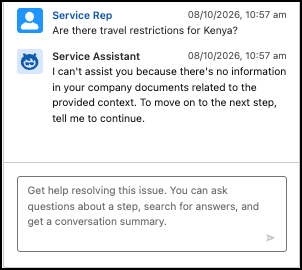
If your subagents, instructions, and knowledge don’t cover the situation, Service Assistant responds in one of two ways.
- It states that it doesn’t have information from your grounding sources to provide an answer: "I can’t assist you because there’s no information in your company documents related to the provided context. To move on to the next step, tell me to continue."
- It provides an answer based on its own knowledge, not on any of your grounding sources. The response includes language such as "There’s no information in your company documents. Here’s what I suggest, but it might not be correct."
Using the Agent Chat and Component Feed
The agent chat is a chat box at the bottom of the Service Assistant component. Reps use it to talk directly with the agent while they work the record, without leaving the component. In a dynamic plan, Service Assistant drives the workflow by stating what to do next, surfacing knowledge, and suggesting or running actions. The agent chat works alongside that workflow so reps can go deeper on any step or get information on demand.
Reps can use the agent chat to:
- Ask questions about the current step, or ask for clarification on it.
- Ask for a summary of the record activity or the service plan at any point, including when joining a record that already has history.
- Look up account and contact details, and query other CRM data.
- Draft, revise, and send emails.
- Ask knowledge questions and get answers from your knowledge articles.
- Run Agentforce actions, such as a common action or a custom action your admin added.
- Tell Service Assistant that a step is complete, such as by entering Step complete or Confirmed, so the plan advances.
- Redirect the plan to a different subagent, such as Let’s go back to the original issue.
Service Assistant is grounded in the whole session: the steps generated, the actions run, the chat history, and the record itself. What a rep does in the chat, such as asking follow up question, running an action, or gathering knowledge information, becomes context that informs the rest of the plan.
Every chat interaction is saved to the component feeds. The plan summary, steps, actions, and chat messages all appear in the feed in the order they happen. The feed is Service Assistant’s memory for the service plan and record as both evolve. Service Assistant is grounded in every interaction saved to it, so reps get consistent answers and a complete history without repeating themselves. The feed works this way:
- Shared by all reps: The conversation and the plan are tied to the record, not to an individual rep. When several reps work the same record, they all see the same chat thread, plan summary, and plan steps. Messages sent, actions run, and responses generated are visible to every rep working the record in real time.
- Useful when joining a record: Because Service Assistant monitors the record and is grounded in the feed, a rep who joins a record that already has history can ask for a summary to get up to speed.
- Feeds the next step: What a rep does in the chat, such as running an action or gathering record details, becomes the context that the next generated step adapts to.
- Ordered as generated: Steps and capabilities, such as service replies, appear in the feed in the order they’re generated. This applies to all plan types. Voice has no plan summary, but its steps and capabilities follow the same order.
- Can’t be pinned: Reps can’t pin a step, a capability card, or the plan summary to the top of the feed. The plan summary doesn’t stay in view as the rep works. It keeps its position in the feed, so as new items are added, reps scroll up to find it.
- Persists after the plan ends: The feed history is saved and stays visible after the plan ends and the chat box is deactivated, so reps can review the full record of plan steps, actions, and chat interactions. See End a Plan for what happens to the chat box.
The chat is available as soon as a rep opens the record, before the plan starts. This applies to case, messaging, and voice. If a rep chats before the plan summary or first step appears, the component feed starts with that conversation. The plan summary (case and messaging) or the first step (voice) then shows in the feed after the chat, in the order things happen. The summary doesn’t show at the top of the feed or replace the chat history.
Any chat that a rep enters before the plan starts becomes a grounding source for the plan, because it’s saved to the feed. For example, if a rep asks how to get started resolving the record and Service Assistant states what to do, that interaction is saved to Service Assistant’s memory. When the plan starts, it picks up from any steps the rep completed before then. To have Service Assistant skip those steps, the rep confirms in the chat that they already completed them. Otherwise, the first step in the plan can repeat work the rep already did.
Your admin setup affects the agent chat in these ways:
- Agent chat is turned on by default when your admin turns on dynamic plans for case, Messaging Session, or Voice Call on the Service Assistant Setup page.
- By default, the chat answers questions grounded in the current plan and record. To let reps look up account and contact details, query CRM data, draft emails, and answer general knowledge questions, your admin adds the General CRM subagent, the General FAQ subagent, or both to the agent. General FAQ supports only knowledge lookup. General CRM includes knowledge lookup and the broader CRM capabilities. Without a standard subagent, reps can interact with the agent only within the scope of the current plan and record.
- Agent chat requires the Adaptive Experience Add-On license. It requires no permissions beyond the standard Service Assistant permissions.
The agent chat has these limitations:
- The agent chat isn’t grounded in other Service Assistant capabilities. It doesn’t have context from Case Catch-Up & Insights or Service Replies, so reps can’t ask about the content of an insights card or a service reply.
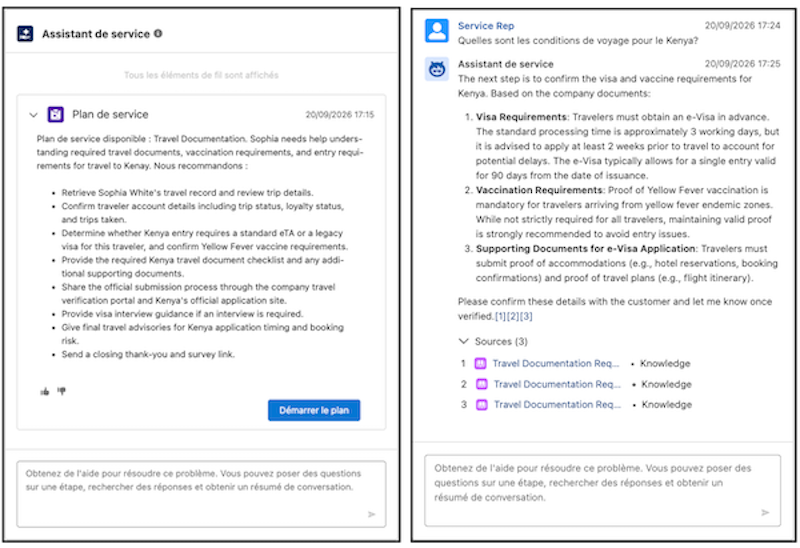
- Agent chat responses and dynamic plans aren’t translated. Only English is supported.
For setup details, see Agent Chat for Service Assistant.
Capabilities
The Service Assistant component can also show optional capabilities alongside a dynamic plan that provide additional resolution and contextual assistance for service reps. You set up and turn on each capability independently, and each one shows as its own card. See Service Assistant Capabilities.
| Capability | Available For | What Reps See |
|---|---|---|
| Case Catch-Up & Insights | Case | A collapsible card above the service plan with a customer engagement summary, an account summary, customer sentiment, and a case health score. |
| Service Replies | Messaging | Suggested reply cards during active messaging sessions. Reps can post or edit a reply before sending it to the customer. |
These behaviors apply to all capabilities and all objects.
- Each capability shows as a card in the component feed among the service plan steps and is saved as part of the feed history. The card stays visible after the plan ends and the record is closed.
- A capability card can show before the plan summary or the first step.
- Capability cards show in the feed in the order they’re generated. They aren’t pinned to the top of the component, and reps can’t pin them. See Using the Agent Chat and Component Feed.
- Capabilities operate independently of the plan. Service Assistant doesn’t reference them when it creates plan steps. The one exception is a reply that a rep posts from Service Replies. It becomes part of the conversation, so it’s available as context for later plan steps.
- The agent chat isn’t grounded in capabilities either, so reps can’t ask about the content of a card. See Using the Agent Chat and Component Feed.
End a Plan
The plan ends automatically when the record closes. Reps don’t close a dynamic plan or ask Service Assistant to stop one.
- Case: When the case closes, the plan ends, but Service Assistant and the chat box stay available for about 24 hours. Reps can use the chat for wrap-up tasks, such as asking for a summary of the record, service plan, and resolution. The details are saved to the component feed.
- Messaging: When the messaging session ends, the plan ends, but Service Assistant and the chat box stay available for about 24 hours. Reps can use the chat for wrap-up tasks, such as asking for a summary, drafting a follow-up email, asking knowledge questions, or running actions.
- Voice: When the call ends, the plan ends. Service Assistant and the chat box stay available for about 24 hours so reps can complete wrap-up tasks.
For all record types, the component feed history persists and stays visible after the record is done and the chat box is deactivated, so reps can review the plan steps, actions, and chat interactions.
Translation
Service Assistant supports only English for dynamic plans. Plan summaries, steps, and agent chat responses aren’t translated.
However, apart from the service plan itself, the Service Assistant component contains several content elements that are translated into the service rep’s preferred language. For dynamic plans, this results in a mixed-language experience when a service rep’s preferred language isn’t English. See Service Plan Translation.
- Status Indicator Behavior for Dynamic Plans
Learn when the “Service Assistant is working on it…” status indicator shows for dynamic plans in Service Assistant for Case, Messaging, and Voice, and when it doesn’t, so you can set expectations for your service reps.