
Set up Conversation Catch-Up to give service reps an AI-generated summary of an in-progress messaging session or voice call when they join the session or call.
Required Editions
| View supported editions. | |
 This article applies to: This article applies to:
|
Service Assistant for Messaging and Voice |
 This article doesn't apply to: This article doesn't apply to:
|
Service Assistant for Case |
| User Permissions Needed | |
|---|---|
| To set up Conversation Catch-Up for Service Assistant: |
Customize Application OR System Admin AND Service Planner Builder permission set AND Work Summaries User permission set AND View Conversation Catch-Up permission set |
Conversation Catch-Up is available in Service Assistant without completing the general Service Assistant setup, including creating a Service Asssitant Agent. You only need to complete these prerequisite steps.
- Set up the general Conversation Catch-Up feature. See Show Service Reps and Supervisors Midconversation Summaries.
- Turn on Service Assistant for Messaging from the Messaging object tab of the Service Assistant Setup page.
- Turn on Service Assistant for Voice from the Voice object tab of the Service Assistant Setup page.
- You installed the Service Assistant Lightning web component on the messaging session or voice call record pages.
Turn On Conversation Catch-Up for Service Assistant
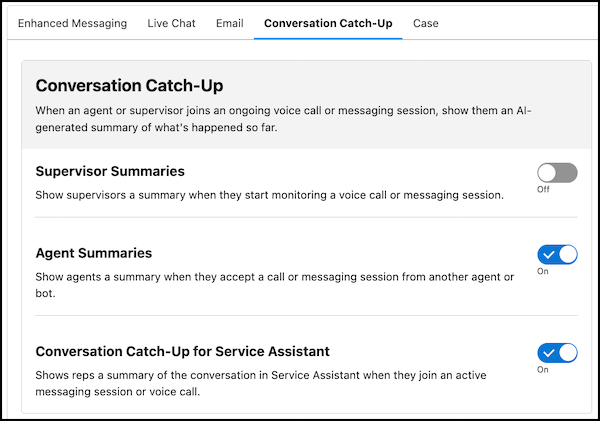
Turn on Conversation Catch-Up for Service Assistant from the Einstein Work Summaries Setup page.
- From Setup, go to the Einstein Work Summaries Setup page.
- Make sure that Einstein Work Summaries is turned on.
-
Select the Conversation Catch-Up tab, and then turn on Conversation Catch-Up for Service
Assistant.
Assign Permissions
Assign service reps these permission sets to access and view Conversation Catch-Up summaries in the Service Assistant component.
- View Conversation Catch-Up
- Work Summaries User
- Service Planner User
Test Conversation Catch-Up for Service Assistant
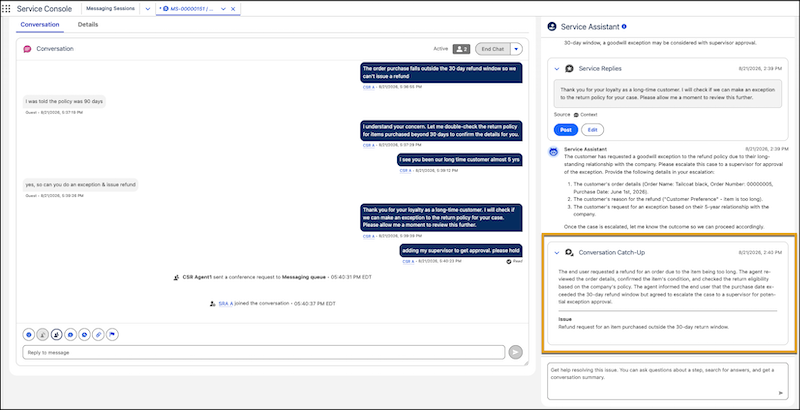
Confirm that Conversation Catch-Up cards appear in the Service Assistant component during an active messaging session.
- Open the Service Console and start a messaging session or voice call.
- Make sure that the transcript has a few messages from both the customer and the service rep.
- Transfer the session to a different user.
- Wait for a Conversation Catch-Up card to appear in the component. Cards are generated automatically when the service rep accepts the transfer. You don't need to take action in the component. It can take up to a minute for the card to appear in the chat.
Considerations
- A conversation needs at least 10 text-based entries before Service Assistant can generate a summary. These entries don’t include menu selections from the customer, auto-responses, or other rich content sent as part of the conversation. You can’t change the 10 message threshold.
- Service Assistant evaluates the message threshold only once. If the service rep joins before 10 messages are present, the card doesn't appear, and Service Assistant stops monitoring the session's message count. The card still doesn't appear even after the conversation meets the 10-message threshold.
- If you have the standard Conversation Catch-Up component installed on the record page, it becomes disabled.
- Service plans and Conversation Catch-Up operate independently. The Conversation Catch-Up summary isn’t used as grounding context to generate plan steps.
- Translation of the Conversation Catch-Up card in Service Assistant isn’t supported.
- The Conversation Catch-Up card displays in the Service Assistant chat feed at the point where the service rep joins the session. This means that it can show among existing service plan steps or alongside other capabilities, like Service Replies. You can't pin it to the top of the component. The card also doesn't auto-collapse after a service rep views it.