---
schema_version: "1"
id: 89ac4c413c422ecd350c79a583601fbb29a6f712c2f634b5cf81ae839aec3576
title: Create an Embedded Service Deployment
collection: admin
version: current
locale: en-us
portal_url: https://docs.salesforce.com/admin/current/en-us/service/264-0-0/snapins_create_deployment.md
canonical_url: https://help.salesforce.com/s/articleView?id=service.snapins_create_deployment.htm&release=264.0.0&type=5
source_site: help.salesforce.com
content_type: documentation
content_hash: 751bb1ebb24190c8ebaa9421e8b6ecb5032d38f385c83f0fadfa6f2f08e1d649
description: Create an Embedded Service deployment for each embedded chat window that you’re using.
products:
- Service Cloud
release: "264"
---
# Create an Embedded Service Deployment
Create an Embedded Service deployment for each embedded chat window that you’re using.
### Required Editions

Important
Legacy Chat will be retired on February 14, 2026. To avoid service interruptions to your end users, switch to enhanced Chat (formerly Messaging for In-App and Web). Enhanced Chat offers many of the legacy Chat [features that you love](https://help.salesforce.com/s/articleView?id=service.miaw_replacing_chat_considerations.htm&language=en_US) plus asynchronous conversations that can be picked back up at any time. Learn about migrating in [Help](https://help.salesforce.com/s/articleView?id=service.miaw_replacing_chat_considerations.htm&type=5&language=en_US) and [Trailhead](https://trailhead.salesforce.com/content/learn/modules/migrating-from-legacy-chat-to-enhanced-chat).
The Embedded Chat setup uses an Experience Builder site or Salesforce site, so that you can associate users with a guest user profile. Check if you already have any sites that you can use. If a site is already available, you can use that as your endpoint. Otherwise, create a site for this purpose.
1. From Setup, enter Embedded Service in the Quick Find box, then select **Embedded Service**.
2. In the Embedded Service configuration page, click **New Deployment**.
3. Choose a conversation type for your deployment by selecting **Embedded Chat** and click **Next**.
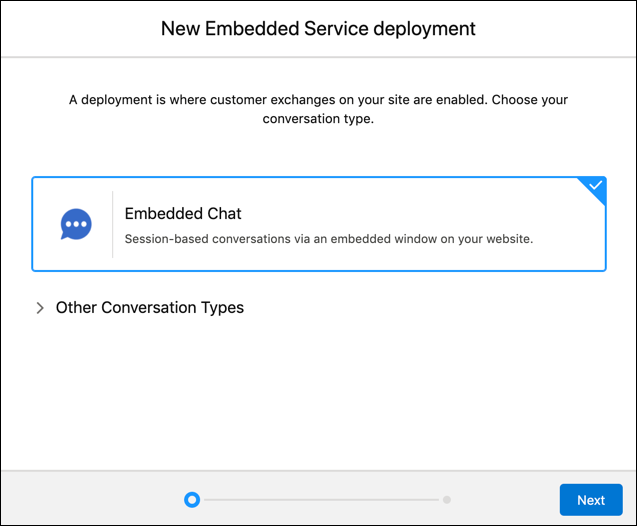
4. In the Embedded Service Deployment Name field, enter a name for your chat deployment.

Tip The deployment is shown in a list on the Embedded Service page. If you have several deployments, use a descriptive name so it’s easy to distinguish each one.
5. The API Name field is automatically populated.
6. In the Site Endpoint menu, select an Experience Builder site or Salesforce site from the drop-down list.
If nothing appears in the menu, it’s because there aren’t any sites configured in your org.
7. Click **Save**.

Note For existing deployments that are not active, a conversation type can be required to enable it on your site (see step 3). After you select your conversation type and save, the choice is permanent for that deployment.
#### See Also
- [Specify the Chat Settings for Your Embedded Chat Deployment](https://help.salesforce.com/s/articleView?id=service.snapins_chat_specify_live_agent_settings.htm&release=264.0.0&type=5 "Embedded Chat uses a Chat deployment ID and button. The Chat configuration details that you provide are used to generate the chat code snippet that you add to your web pages.")
- [Add an Embedded Flow to Automate a Task](https://help.salesforce.com/s/articleView?id=service.embedded_flows_setup.htm&release=264.0.0&type=5 "Use an embedded screen flow to help customers or users complete simple, automated tasks. An embedded flow is also guest-user friendly because users don’t need to log in to access the flow.")
- [Set Up Appointment Management](https://help.salesforce.com/s/articleView?id=service.embedded_services_appointment_home.htm&release=264.0.0&type=5 "Appointment Management gives your users an easy way to schedule, modify, and cancel appointments. The experience is powered by Flow Builder. You craft the perfect interaction and decide when and how to create related records like work orders.")