---
schema_version: "1"
id: d806d897f4d7f06685649460f583172e93d477ceadada6d91d328f5c72a5b79b
title: Customize Post-Chat Surveys
collection: admin
version: current
locale: en-us
portal_url: https://docs.salesforce.com/admin/current/en-us/service/264-0-0/snapins_chat_configure_post_chat_survey.md
canonical_url: https://help.salesforce.com/s/articleView?id=service.snapins_chat_configure_post_chat_survey.htm&release=264.0.0&type=5
source_site: help.salesforce.com
content_type: documentation
content_hash: c92474f85b8310665a370883f286f1c1a7681b3bcb6eeaef5f803fab60b93157
description: Use Salesforce Feedback Management to gather feedback at the end of a chat session. When customers choose to participate at the end of a session, a survey opens within the chat window to complete.
products:
- Service Cloud
release: "264"
---
# Customize Post-Chat Surveys
Use Salesforce Feedback Management to gather feedback at the end of a chat session. When customers choose to participate at the end of a session, a survey opens within the chat window to complete.
### Required Editions

Important
Legacy Chat will be retired on February 14, 2026. To avoid service interruptions to your end users, switch to enhanced Chat (formerly Messaging for In-App and Web). Enhanced Chat offers many of the legacy Chat [features that you love](https://help.salesforce.com/s/articleView?id=service.miaw_replacing_chat_considerations.htm&language=en_US) plus asynchronous conversations that can be picked back up at any time. Learn about migrating in [Help](https://help.salesforce.com/s/articleView?id=service.miaw_replacing_chat_considerations.htm&type=5&language=en_US) and [Trailhead](https://trailhead.salesforce.com/content/learn/modules/migrating-from-legacy-chat-to-enhanced-chat).
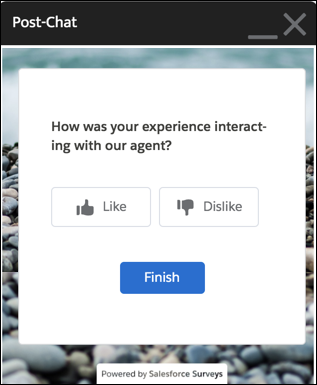
To open a post-chat survey within the chat window on your website, allow inline framing of surveys within the URL on the Session Settings page. This feature is available with the Salesforce Feedback Management license.
1. From Setup, in the Quick Find box, enter Session Settings, and then select **Session Settings**.
2. Navigate to the **Trusted Domains for Inline Frames** section and select **Add Domain**.
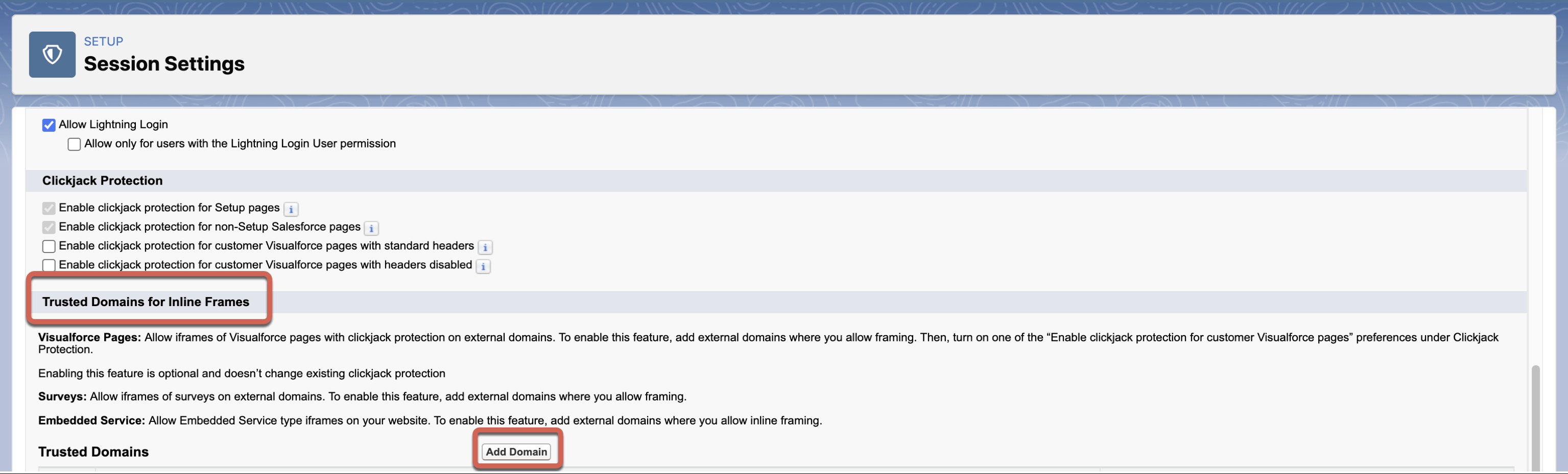
3. Enter your domain name and select **Surveys** as the IFrame Type.
Use an accepted domain format: \*.example.com or https://example.com.
4. **Save** your work.
Surveys must be enabled with at least one active survey. Only active surveys can be used to gather post-chat feedback.
1. From Setup, in the Quick Find box, enter Embedded Service, and then select **Embedded Service Deployments**.
2. To add a post-chat survey, select **View** by an existing embedded service deployment.
3. Click **Edit** next to Chat Settings.
4. In the Chat Setting header, click **Edit**.
5. In the Post-Chat Settings section, search and select any active survey.
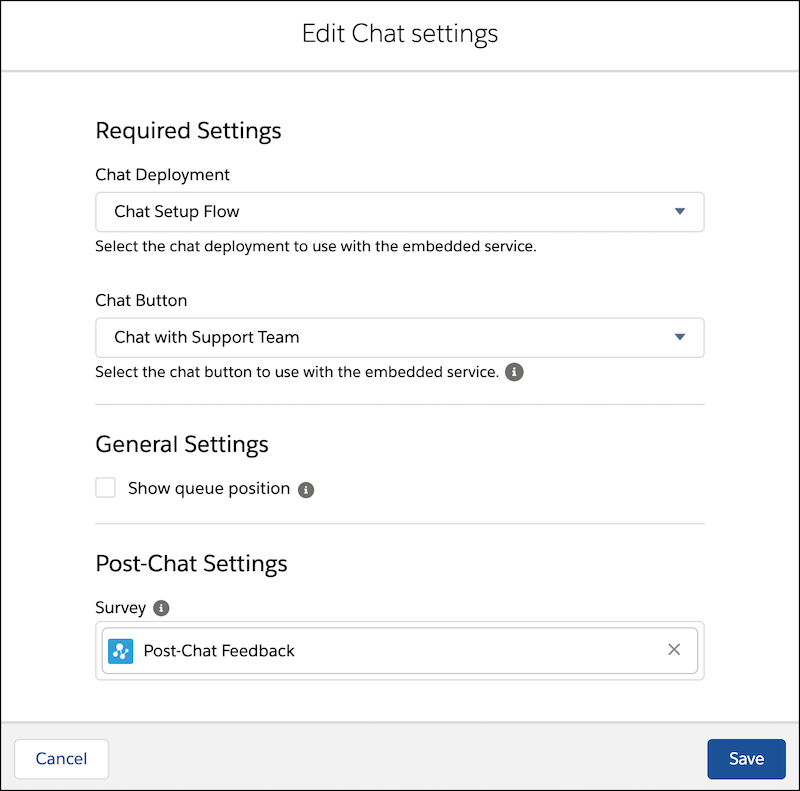
6. Save your changes.

Note : If your company domain hosts the chat, you must allow list it.
A survey invitation is generated each time a customer decides to provide feedback. If the pre-chat form is configured to associate customer information with Salesforce records, the survey invitation is also associated with the same Salesforce records.
#### See Also
- [Salesforce Feedback Management](https://help.salesforce.com/s/articleView?id=xcloud.concept_salesforce_surveys.htm&type=5&language=en_US)