
See how replies appear in the console.
Required Editions
| View supported editions. |
To view replies, service reps need the Service Replies User permission set. See Give Agents Access.
Replies appear in the Einstein Replies component of the Chat and Messaging tab in the Lightning Service Console. Replies are shown depending on the default state set by your Salesforce admin. If replies are paused by default, click Resume and Einstein quickly catches up on the conversation and begins drafting new replies.
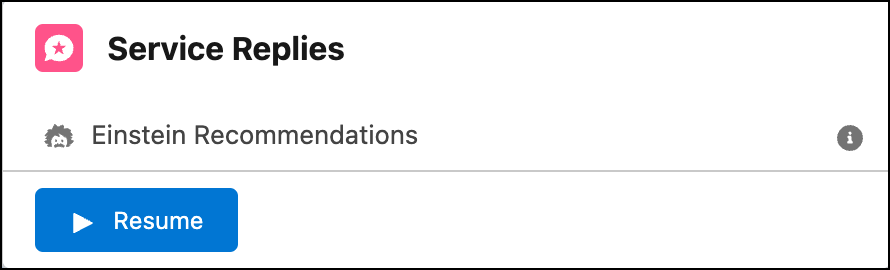
Or, if replies are shown by default, Einstein recommends replies when your customer sends the first message in a chat or messaging session. Recommendations are refreshed each time the customer sends a message.
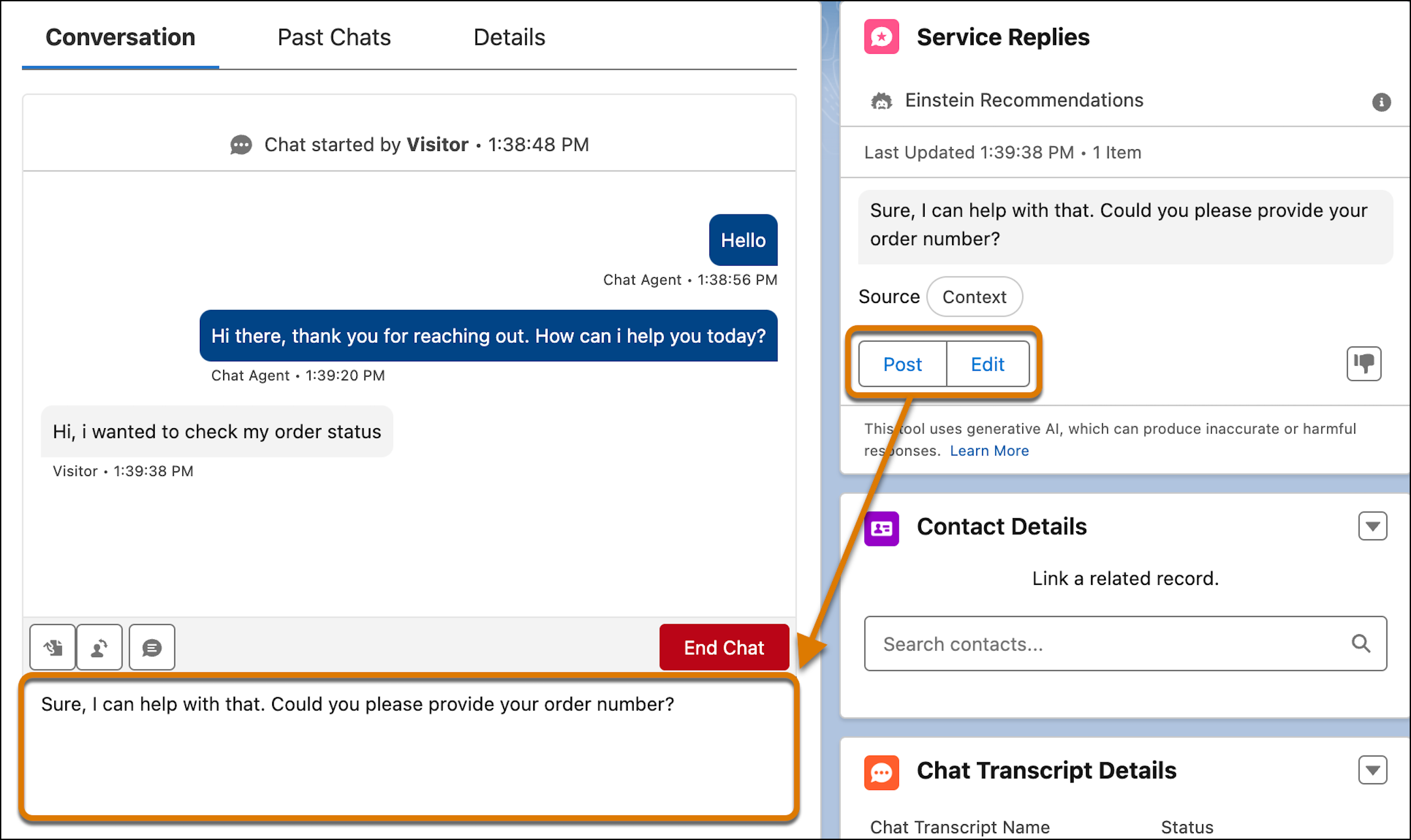
- To send a reply directly to a customer, click Post.
- To modify the reply, click Edit, make your changes, and then click Post.
-
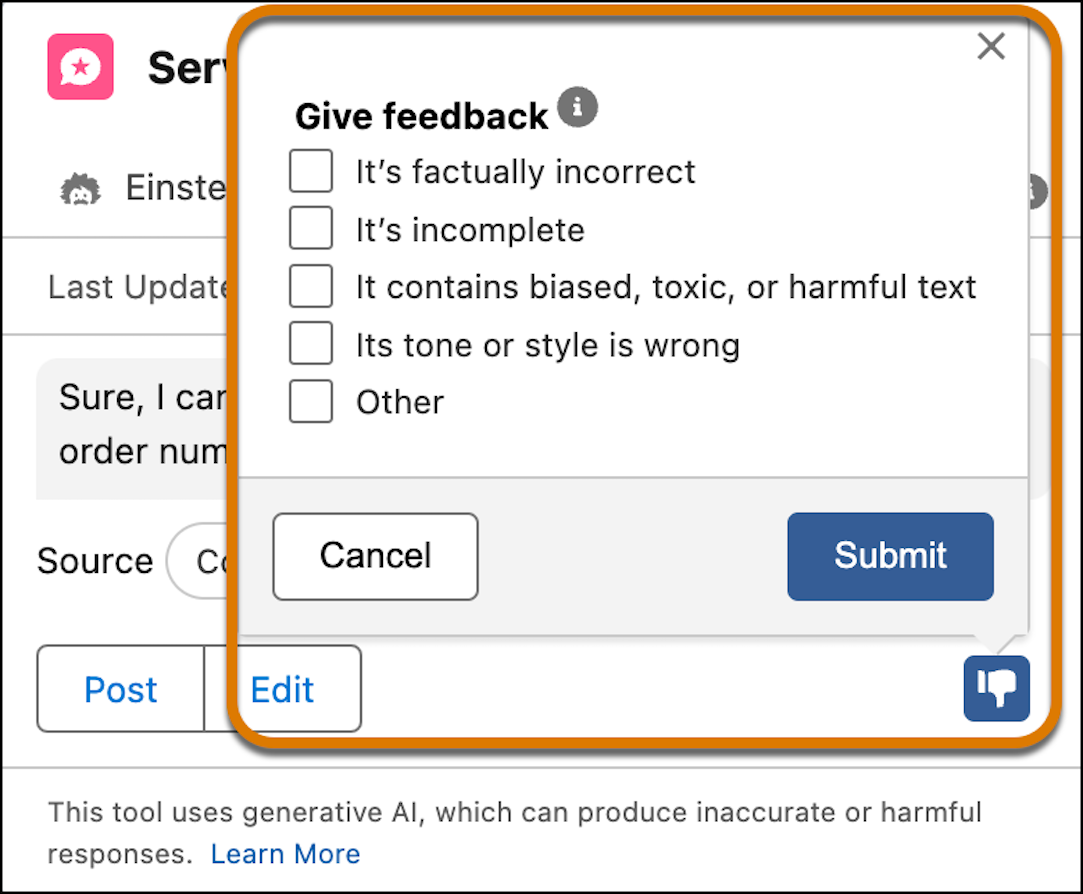
You can reject replies and give feedback. To enter your own feedback, click Other. When you're finished with your feedback selections, click Submit.
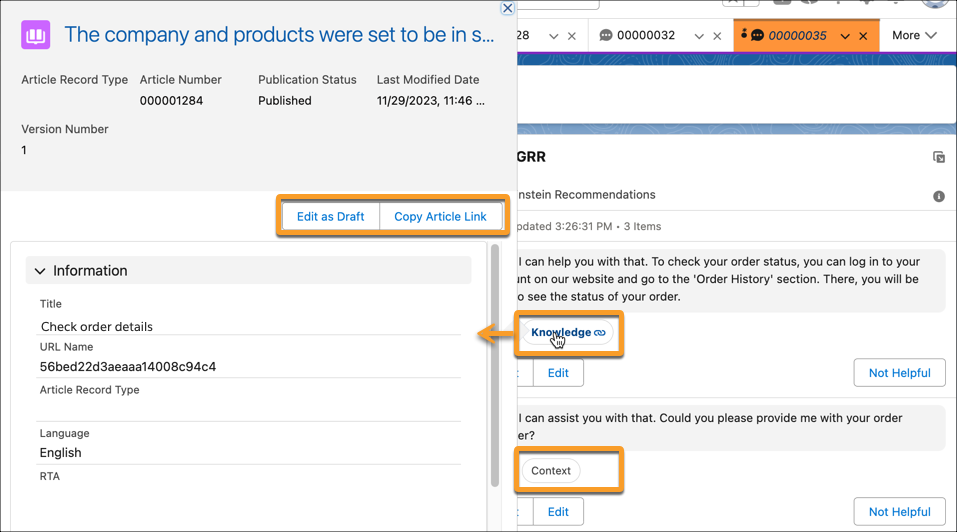
- To see whether replies come from a conversation context or they’re grounded in a data library, check next to each reply. Chat replies grounded in your knowledge base are shown first.
- To see the article Einstein used as a source for the reply, click
Knowledge. From the article view, service reps can see the
knowledge article record, edit the article and publish updates, and copy a link to the
article.
 Note Service reps can see replies grounded in knowledge only if an active data library is assigned to Service Replies. See Agentforce Data Library.
Languages
Service Replies for Chat is available in English, Danish, Dutch, Finnish, French, German, Hebrew, Italian, Japanese, Korean, Norwegian, Portuguese (Brazilian), Portuguese (Portugal), Russian, Spanish (Mexico), Spanish (Spain), Swedish, and Thai.
To use grounded replies in multiple languages, you, need at least 1 knowledge article in the language that you want to use. For replies based on the conversation context, Einstein detects the language and drafts replies accordingly. So, if you start a conversation in Spanish, Einstein drafts and recommends replies to you in Spanish. Only customer’s messages longer than 20 characters for can be reliably used language detection. Replies are drafted in the user locale’s language if Einstein can't detect the language.
You can also translate a customer's message with Einstein. Click the Translate link that appears next to the customer message in the Service Console.
Customize the Einstein Replies Component
To customize the Einstein Replies component, in the Lightning App Builder, open the Chat and Messaging pages. Then, update the settings for each layout. See Create and Configure Lightning Experience Record Pages.