
After Einstein has identified common responses in your transcripts, select and review the most useful replies, and then publish them to your service reps.
Required Editions
| View supported editions. |
| User Permissions Needed | |
|---|---|
| To publish and manage replies: |
Create on quick text AND Manage Replies for Einstein Reply Recommendations AND View Setup and Configuration OR Customize Application |
After your model is built, the Einstein Reply Recommendations Setup page lists up to 100 common replies that Einstein has identified from your closed chats—that is, your actual service rep conversations! Review, curate, and publish these reply candidates to QuickText so they can be recommended to service reps.
- On the Einstein Reply Recommendations page in Setup, select one or more replies to review. To view the full text, click a reply’s name.
- Review and fine-tune the candidate replies to fit your company voice and service rep needs. Replace specific product names and customer information with merge fields, so that replies are applicable across chats.
-
To publish replies, select them and click Publish Candidates to Quick
Text.
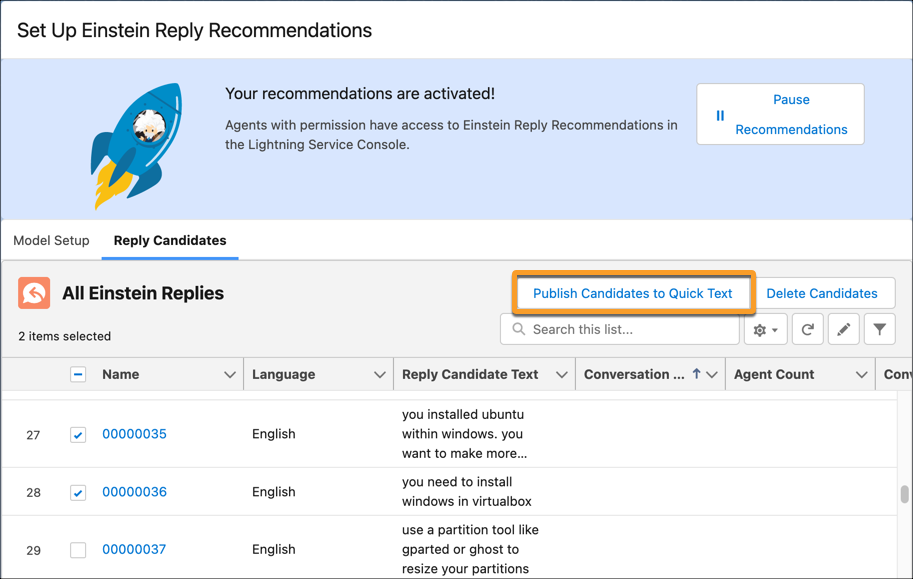
 Tip Although you can publish multiple replies at once, we recommend that you review each reply individually before you publish it. Because the replies are taken from closed chats with your customers, they could contain customer or service rep data. By reviewing each reply, you can remove personal information or similar replies, as well as fine-tune phrasing and tone.
 -
Add information about the replies that you’re publishing, such as which Quick Text
folder to save your replies in and the channels where they’re available.
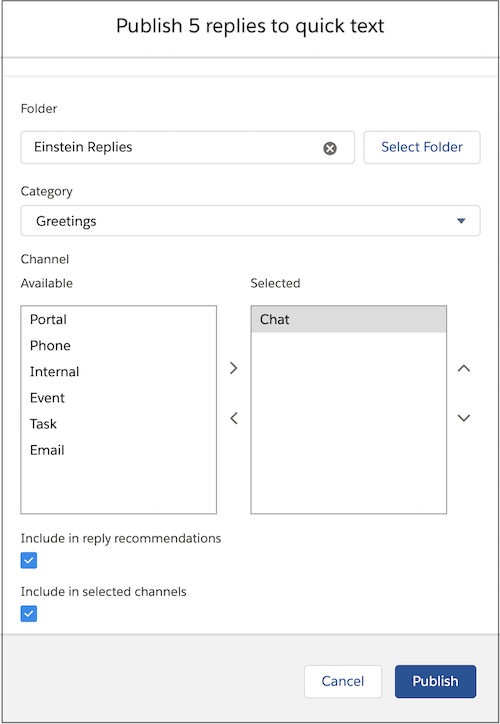
Setting What to Do Record Type If prompted, select a quick text record type to customize access to the replies. If you’re publishing multiple replies at once, the record type you select applies to all of them. Quick Text Name
(single replies only)
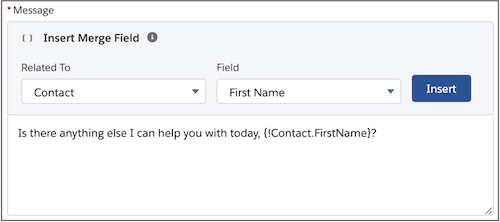
Optionally, change the reply’s name from an auto-generated number to something more meaningful. Message
(single replies only)
Optionally, update the text of the reply. For example, add a merge field, such as the contact’s name.
Folder Select a quick text folder to store the replies in. If you don’t select a folder, replies aren’t added to a folder. We recommend creating one or more folders just for your published replies.
 Important Visibility to replies is set at the folder level. Service reps need access to the folder that you select to view the replies as recommendations or quick text. By using multiple folders, you can group replies—for example, designating replies as Tier 1 or Tier 2 support—and assign access accordingly.
If you don’t see the Folder field, turn on folder sharing for quick text. Then, in the Object Manager in Setup, find the Quick Text object and add the Folder field to its page layout.
Category Select a quick text category. Categories are customizable and make it easier to search for quick text. Channel Optionally, select which channels service reps can access and search for the replies as quick text. This option is separate from reply recommendations. Only Chat and Messaging support quick text. Include in reply recommendations Select this option so that the replies can be recommended to service reps in the Einstein Replies console component. Include in selected channels Selecting this option makes the replies available as quick text in your selected channels. If you select both Include in reply recommendations and Include in selected channels, service reps can see the replies as recommendations in the Einstein Replies component, and they can also search for the replies as quick text in the selected channels.  Note If you don’t see the reply that you want, add your own reply from the Quick Text tab or include an existing Quick Text record. Go to the Quick Text record, and select Include in Reply Recommendations.
 - Click Publish. The replies’ status in the list changes from New to Published to Quick Text.
After you publish your replies, give service reps access to reply recommendations and activate your model.