---
schema_version: "1"
id: 2883dcf0e3c79f40cbd6c132f20bf529e1f0239ccae7b3c1f940ceea6413db4f
title: Enable Quick Text
collection: admin
version: current
locale: en-us
portal_url: https://docs.salesforce.com/admin/current/en-us/service/264-0-0/quick_text_enable.md
canonical_url: https://help.salesforce.com/s/articleView?id=service.quick_text_enable.htm&release=264.0.0&type=5
source_site: help.salesforce.com
content_type: documentation
content_hash: d504316a0fe7ace81f78cdedd054c4c62c4233d8a08bbb62325ba67b66bd6d29
description: Enable quick text for your org so that your users can insert predefined messages into customer conversations and records. Optionally, customize your quick text categories to make each message’s purpose clear.
products:
- Service Cloud
release: "264"
---
# Enable Quick Text
Enable quick text for your org so that your users can insert predefined messages into customer conversations and records. Optionally, customize your quick text categories to make each message’s purpose clear.
### Required Editions
To enable quick text and customize quick text settings:
Customize Application
If you’re using Lightning Experience, quick text is automatically enabled. Any quick text settings that were configured in Salesforce Classic also apply in Lightning Experience.
If you enable quick text in Salesforce Classic, you can’t disable it. Quick text is automatically enabled in Salesforce Classic orgs where Chat is enabled.
1. From Setup, in the Quick Find box, enter Quick Text Settings and select **Quick Text Settings**.
2. Click **Enable Quick Text**.
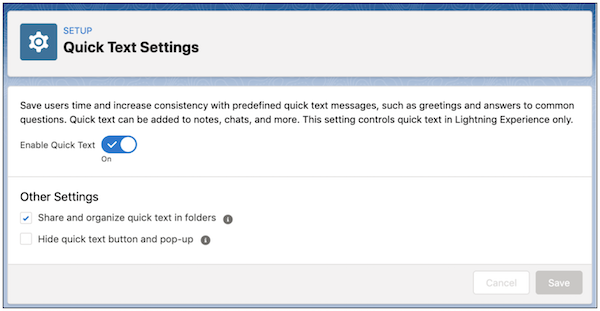
3. Optionally, select **Share and organize quick text in folders** (available only in Lightning Experience). Folders help you create unique sets of quick text messages for different business units or groups of users. You can create up to four levels of folders to organize quick text messages.
4. Optionally, select **Hide quick text button and pop-up** (available only in Lightning Experience). By default, buttons are displayed to help users discover and work with quick text. In rich text fields, a button is displayed in the toolbar. In plain text fields, a popup button is displayed. If these buttons cause your users a disruption, you can hide them.
5. Click **Save**.
6. Optionally, customize the categories used to organize quick text messages. Categories help users find the right message more quickly. Your default quick text categories are Greetings, FAQ, and Closings.
1. From Setup, in the Object Manager, select **Quick Text**.
2. Click **Fields & Relationships**, then click **Category**.
3. Customize the values listed in the Category Picklist Values section, and save your changes.

Note In orgs created before Spring ’18 that enabled quick text in Salesforce Classic, the Category field is required and a default category is provided. In orgs created after Spring ’18, this field is optional.
After enabling quick text, give users access to quick text by updating their permissions and setting up quick text folders.
#### See Also
- [Give Users Access to Quick Text](https://help.salesforce.com/s/articleView?id=service.quick_text_access.htm&release=264.0.0&type=5 "Giving users access to quick text lets them insert predefined messages in their emails, chats, events, tasks, Knowledge articles, and more. Service reps can respond to customers and update cases quickly and easily. Sales reps can work with their contacts, accounts, and opportunities more efficiently.")
- [Quick Text Considerations](https://help.salesforce.com/s/articleView?id=service.quick_text_considerations.htm&release=264.0.0&type=5 "Learn how quick text functionality can impact you and your users.")
- [Create Quick Text Messages](https://help.salesforce.com/s/articleView?id=service.quick_text_create.htm&release=264.0.0&type=5 "Create custom predefined messages to insert into emails, chats, tasks, events, and more. Quick text can include merge fields, line breaks, and special characters.")