Create custom predefined messages to insert into emails, chats, tasks, events, and
more. Quick text can include merge fields, line breaks, and special characters.
Required Editions
| User Permissions
Needed |
| To create quick text messages: |
Create on quick text |
| To create a quick text folder: |
Create on quick text |
| To share a quick text folder: |
Owner of the folder OR Manage access on the folder |
| To manage and share all quick text folders: |
View Setup and Configurations AND Modify All Records on quick text |
-
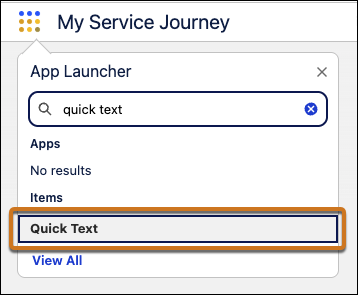
From the App Launcher, search for and select Quick Text to open
the quick text tab.
-
Optionally, create shareable folders to organize your quick text messages and create
unique sets of messages for different business units or groups of users, like service and
sales. You can create up to four levels of folders: one root folder and up to three
subfolders.
-
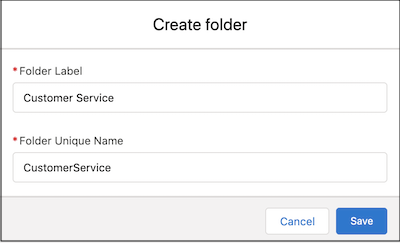
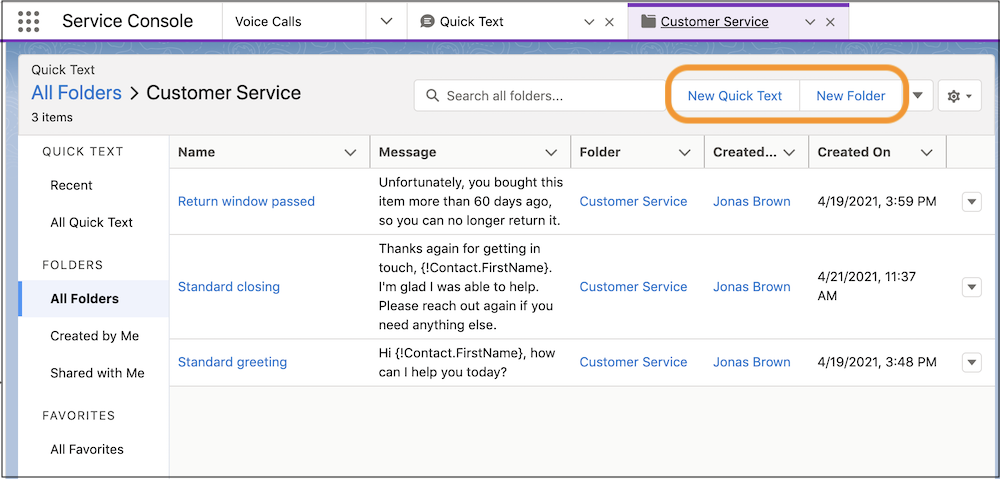
Click New Folder.
-
Name your folder and save it.
-
Repeat these steps until you have all the folders you need. You can also create
more later, or designate users to create them.
-
Click New Quick Text to create your first quick text message. If
prompted, select a record type for the new message to customize access to it. Then click
Continue.
-
Add information about the quick text message.
| Setting |
Description |
| Quick Text Name |
Enter a name that helps users understand when to use the message. |
| Message |
Enter the message that you want users to be able to insert into their
communications. You can include line breaks, lists, special characters, merge
fields, and up to 4,000 characters.
Merge fields, like a contact name, help
you personalize your communications with customers. Quick text supports the
Salesforce Merge Language (SML) used in Salesforce Classic email templates,
not the Handlebars Merge Language (HML) used in Lightning Experience email
templates.
|
| Folder |
Optionally, select a folder. This field is visible if:
- Share and organize quick text in folders is
enabled
- The Folder field is added to the Quick Text record page layout
Users need access to the folder you select in order to view its quick
text messages. You can group quick text messages into folders—for
example, designating them as service or sales—and assign access
accordingly.
|
| Category |
Select a category that indicates the message’s purpose. Categories can be
customized from the Quick Text object settings in the Object Manager in Setup.
In orgs created before Spring ’18 that enabled quick text in Salesforce
Classic, this field is required and a default Category is provided. In orgs
created after Spring ’18, this field is optional.
|
| Channel |
Select the channels in which you want the message to be available. If you
don’t specify a channel, the message can’t be used. Depending on which features
are enabled in your org, these channels might be available.
- Email—for Email actions
- Event—for Event actions
- Internal—works with internal fields, like on the Change Status
action. This channel isn’t supported in Lightning Experience, though it
appears in the list.
- Knowledge—for Knowledge articles in Lightning Experience
- Chat—works with Chat in the Service Console
- Messaging—works with Messaging in the Service Console
- Phone—for the Log a Call action
- Portal—works in an Experience Cloud site or a customer portal. This
channel isn’t supported in Lightning Experience, though it appears in the
list.
- Social—for social posts
- Task—for Task actions
|
| Include in reply recommendations |
Visible only if Einstein Reply Recommendations is turned on. Select this
option to let Einstein recommend the message to support reps in the Einstein
Replies console component. |
| Include in selected channels |
Leave this option selected. It makes the message available in the channels
you selected. |
-
If you use merge fields, click Preview to review the message
with data from records that you choose.
-
Click Save.