---
schema_version: "1"
id: 8d966aa619c38fa72812e61c8bebcf03def53ec31e559c9e216b7084ca5dbf4b
title: Procure and Manage Phone Numbers
collection: admin
version: current
locale: en-us
portal_url: https://docs.salesforce.com/admin/current/en-us/service/264-0-0/phone_assignmnt.md
canonical_url: https://help.salesforce.com/s/articleView?id=service.phone_assignmnt.htm&release=264.0.0&type=5
source_site: help.salesforce.com
content_type: documentation
content_hash: b14de1b8832e6c32600e61f309552b02dbd5925bf4d0ce502104d0304fff0882
description: Procure and claim phone numbers for yourself without waiting for admins to assign them to you. You can choose from available local or standard company phone numbers, depending on your business requirements.
products:
- Service Cloud
- Digital Engagement
release: "264"
---
# Procure and Manage Phone Numbers
Procure and claim phone numbers for yourself without waiting for admins to assign them to you. You can choose from available local or standard company phone numbers, depending on your business requirements.
### Required Editions

Note Your admin can clone the **Salesforce Voice Contact Center Rep** or **Admin** permission sets to enable the **Manage Numbers** user permission. This feature is available for all users that belong to the cloned permission set. Admins can add or remove users from the permission set as required.
Applies to these telephony models
- Salesforce Voice with Amazon Connect
- Salesforce Voice with Partner Telephony (if supported by your telephony provider)
1. From your profile, go to **Settings**.
2. In the Quick Find box, enter and select **Phone Number Assignment**.
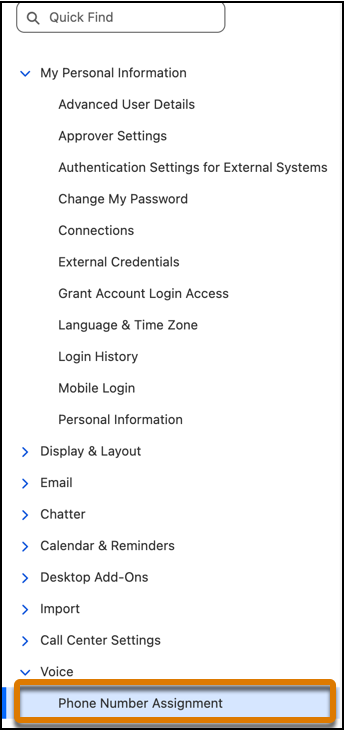
3. To claim a phone number, click **Claim**.
1. Select a **previously claimed phone number**, or **claim a new number**.
Claim a previously used number to select from numbers already available in your telephony. Claim a new number to directly procure a number and add it to your telephony service.
2. Filter by **Country** and **Area Code** to view the available phone numbers.
4. Select the number from the list and click **Claim**.
Both your claimed and admin-assigned phone numbers are listed in the **My Phone Numbers** table. From here, you can assign different voicemail greetings to each of your numbers to make sure that your callers receive the most applicable message.
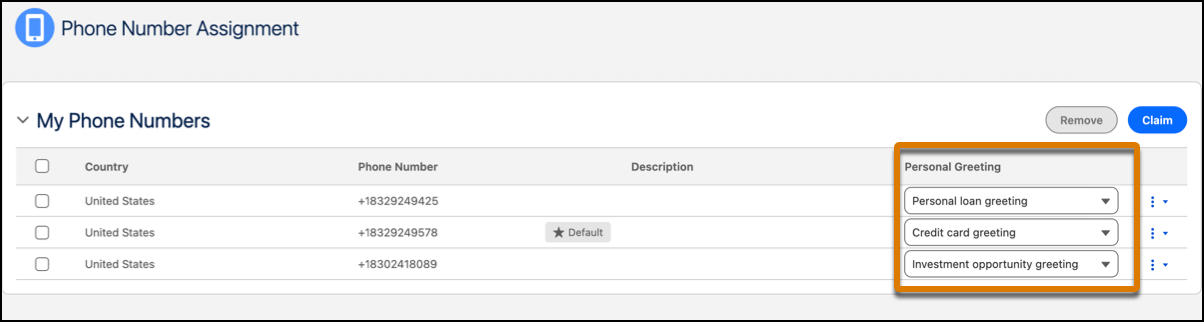
For more information on recording greetings, see [Record Voicemail Greetings](https://help.salesforce.com/s/articleView?id=service.voice_personal_grtng.htm&release=264.0.0&type=5 "Improve the calling experience for your customers by recording voicemail greetings that play automatically when you’re unable to answer a call. Any messages that your callers leave in response are stored in your voicemail box for you to review at any time.").
Use the **Set Default** option to set a phone number as your default. The default number displays as your caller ID on the customer’s device. Use the **Remove** option to remove a phone number from your claimed numbers. The default phone number cannot be removed by your contact center supervisor.

Note When you remove a phone number, it’s released back into the pool for reps to claim and use. Removing a number doesn't permanently remove it from available numbers. For information on how admins can remove phone numbers, see [Release a Phone Number](https://help.salesforce.com/s/articleView?id=service.voice_direct_calling.htm&release=264.0.0&type=5).
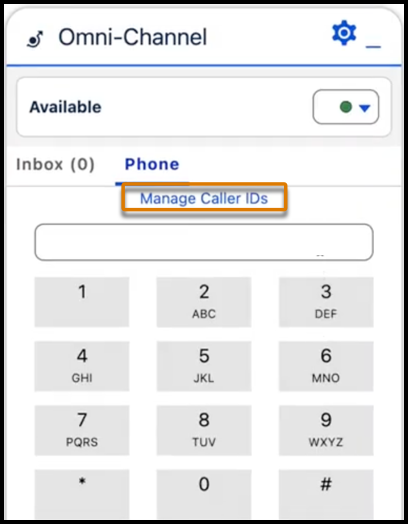
To view or update your default number while making a call, click **Manage Caller IDs** on the Omni widget to directly open the **Phone Number Assignment** screen.

Note To use this feature with Salesforce Voice with Partner Telephony, your telephony provider must implement the `VFSProvider` apex interface.
#### See Also
- [Salesforce Voice with Partner Telephony Apex Reference: VFSProvider](https://developer.salesforce.com/docs/atlas.en-us.voice_pt_developer_guide.meta/voice_pt_developer_guide/voice_pt_apex_reference.htm)
- [Object Reference for the Salesforce Platform: ConversationVendorInfo](https://developer.salesforce.com/docs/atlas.en-us.object_reference.meta/object_reference/sforce_api_objects_conversationvendorinfo.htm)