
Give your reports contrast on the Gantt map by customizing their icons and colors. You can map any tabular report that has geolocation fields.
Required Editions
| Available in: both Salesforce Classic (not available in all orgs) and Lightning Experience |
| The Agentforce Field Service and Operations core features, managed package, and mobile app are available in Enterprise, Unlimited, and Developer Editions. |
| User Permissions Needed | |
|---|---|
| To configure the Field Service managed package: | Customize Application |
| To customize icons and colors for reports: | Custom permission set: FSL Admin Permissions |
 This is a Field Service managed package feature.
- From the App Launcher, find and open the Field Service Admin app, and then click the Field Service Settings tab.
-
Click Dispatcher Console UI | Map. Under Report Styles, select a report.
 Note You can select a report only if it’s available in the Field Service Reports folder. See Reports and Dashboards. Only reports with geolocation fields are shown.
 -
Select a color and an icon for the report, then click Add
Report.
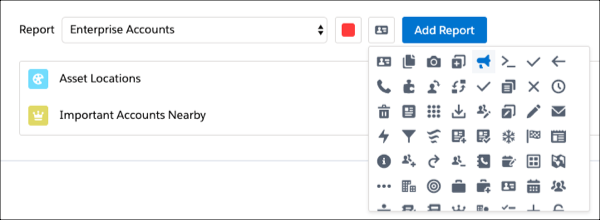
- Click Save.
- From the App Launcher, find and open the Field Service app. To open the Classic Dispatch Console, click the Field Service tab.
- Click Map | Map Layers | Reports.
-
Select a report and click Add Layer.
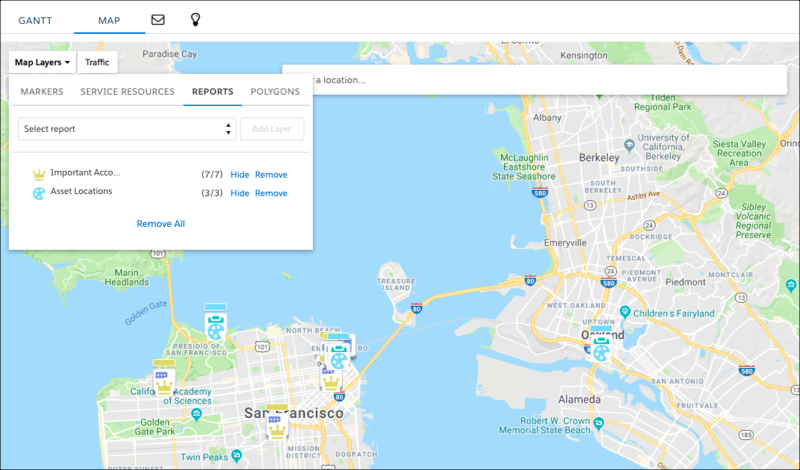
If you decide not to use customized icons and colors for your reports, they are mapped using the default style for that object type.