
When a dispatcher asks Agentforce for a summary, by default, the summary looks at today’s schedule. You can add, remove, or modify the summary’s categories to suit your needs. For example, show all the unscheduled appointments for the upcoming two weeks or show all the incomplete appointments from the past week.
Required Editions
| Available in: Lightning Experience |
| Available in: Enterprise, Performance, Unlimited, and Developer Editions, with an Agentforce for Field Service license. Also available with Einstein 1 Field Service Edition or Agentforce 1 Field Service Edition. |
| User Permissions Needed | |
|---|---|
| To use Field Service Scheduling Summary and Create Filter actions: | Access Agent Topics and Actions for Field Service |
 This is a Field Service managed package feature.
The standard summary includes five categories. These three categories can be modified or removed:
- Unscheduled appointments due today
- Emergencies
- In-jeopardy appointments
These two categories are added to the summary if Enhanced Scheduling and Optimization is enabled and can’t be modified or removed:
- Appointments with rule violations
- Overlapping appointments
The first three categories are based on reports in a predefined dashboard. To modify, remove, or add additional categories, you need to create a new dashboard.
- From the App Launcher, find and select Dashboards.
- Open the Agentforce: Summary of Scheduling Issues dashboard.
- Click Save As and enter a name.
- Remove reports, modify the existing reports or build and add new reports based on the available service appointment fields.
- Save the dashboard in the Agentforce for Field Service Dashboards folder.
- From the App Launcher, find and select Field Service Admin.
- From the Field Service Settings tab, select Dispatcher Console UI.
- Open the AGENTFORCE tab.
-
From the Dashboards list, select the dashboard you created.
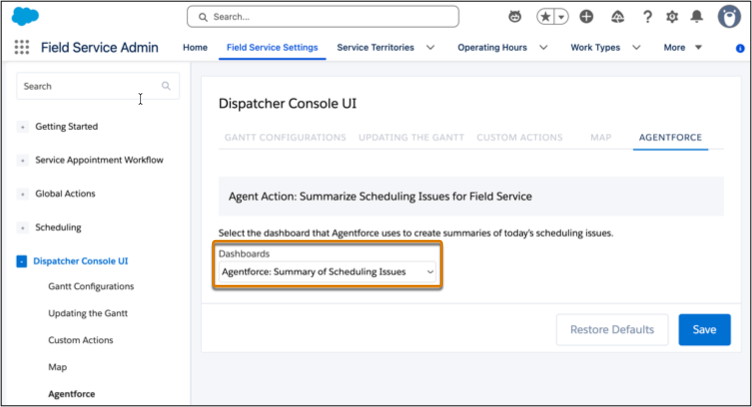
- Click Save.
Considerations:
- When defining reports, don't define a date.
- Due to performance issues, use selective report conditions and avoid conditions such as NOT IN or NOT EQUAL TO. See Write Efficient Queries in Trailhead for more information.
- These Reports and Dashboards Limits and Allocations apply to the dashboards and reports you create.