Gauge your backlog with the Command Center for Service Queues Backlog tab. The Queues
Backlog tab is shown if either queue-based routing or external routing for Omni-Channel is
enabled in your org.
Required Editions
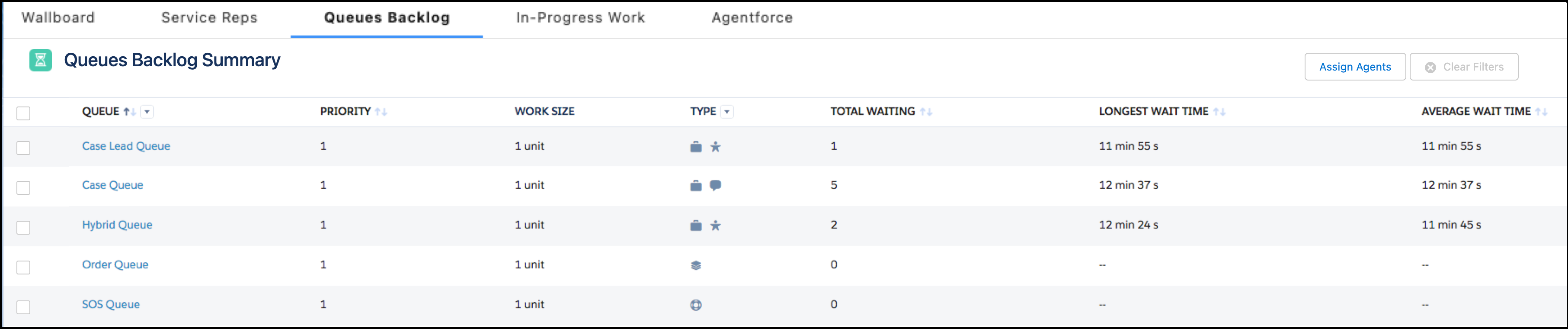
Spend some time catching up on the activity in your Omni-Channel queues using the Queues
Summary view in the Queues Backlog tab. You can see your queues’ priority, configured work
size, type, and wait times. This information can give you an idea of how efficiently work
moves through the queue and to your service reps. Use these insights to determine which queues
are doing well and which could use a few more service reps.
To change the service reps assigned to queues, select the queues, and then click
Assign Agents. When you add a service rep to a new queue, they remain
assigned to their previous queues as well. For telephony providers that don't support adding
service reps directly to a queue, you assign groups of service reps to a queue instead of
individual service reps.
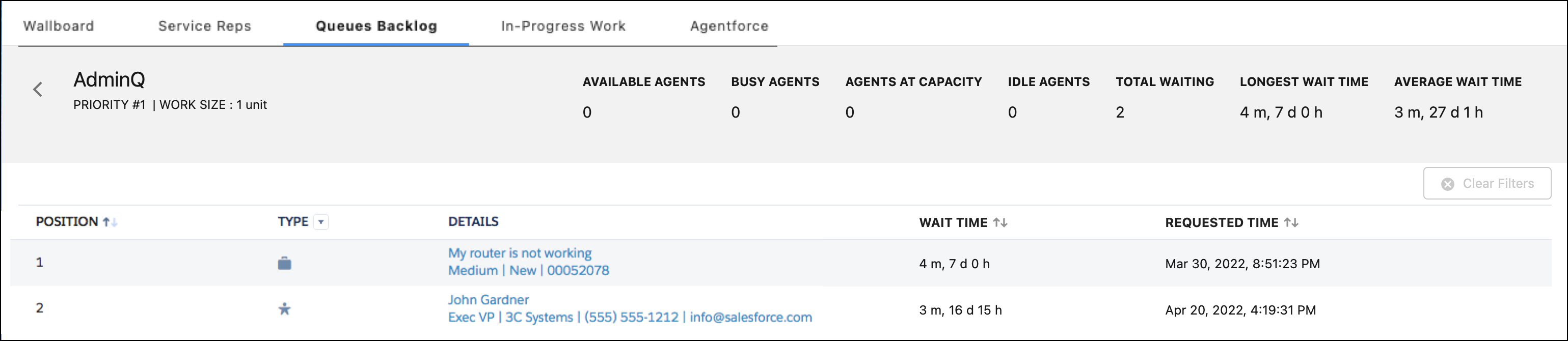
The Queue Details view drills into specific queues so you can see their configurations,
online service reps, wait times, and work items. If you see lots of service reps and not much
work, you know it’s time to move service reps to another queue. But if you see only a few
service reps and long wait times… it’s time to call for backup.