---
schema_version: "1"
id: deea5404645220495cb575c571338ae0a9f13436e25c71d1666d54ce84bf671d
title: Set Up a Status-Based Capacity Model
collection: admin
version: current
locale: en-us
portal_url: https://docs.salesforce.com/admin/current/en-us/service/264-0-0/omnichannel_status_based_capacity.md
canonical_url: https://help.salesforce.com/s/articleView?id=service.omnichannel_status_based_capacity.htm&release=264.0.0&type=5
source_site: help.salesforce.com
content_type: documentation
content_hash: 522492d24dd699943f0e6d4fb989352c69e2b4a583130916549bf5c98f64a917
description: Measure service rep capacity more accurately with the status-based capacity model. With this model, Omni-Channel determines service rep capacity based on the status of accepted work rather than the open tabs and sessions. If service reps are unavailable or close their work tabs, their work remains assigned and applied to their capacity until the work is completed or reassigned. Service reps can also pause work to be completed later. In contrast, the tab-based capacity model releases a service rep's capacity when a work tab is closed in the service console.
products:
- Service Cloud
release: "264"
---
# Set Up a Status-Based Capacity Model
Measure service rep capacity more accurately with the status-based capacity model. With this model, Omni-Channel determines service rep capacity based on the status of accepted work rather than the open tabs and sessions. If service reps are unavailable or close their work tabs, their work remains assigned and applied to their capacity until the work is completed or reassigned. Service reps can also pause work to be completed later. In contrast, the tab-based capacity model releases a service rep's capacity when a work tab is closed in the service console.
### Required Editions
| User Permissions
Needed |
| To set up Omni-Channel: |
Customize Application |
1. From Setup, enter Omni-Channel in the Quick Find box, then select **Omni-Channel Settings**.
2. Select **Enable Status-Based Capacity Model**.
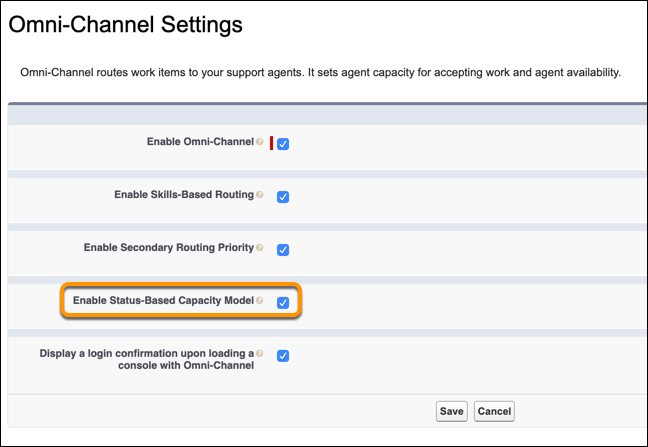
You can now set up the status-based capacity model for each channel.
3. From Setup, enter Service Channels in the Quick Find box, then select **Service Channels**.
4. Edit an existing service channel or add a new one.
5. For each service channel, select the Status-Based capacity model. (1)
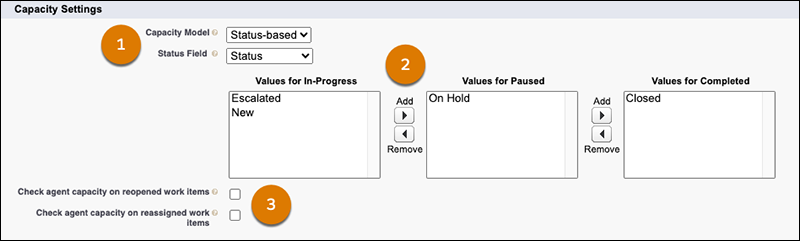
6. Specify the picklist field that you use to track work status and the field values that you use for completed, paused, and in-progress work. (2) For information on the In-Progress, Paused, and Completed states, see [Service Channel Settings](https://help.salesforce.com/s/articleView?id=service.service_presence_service_channel_settings.htm&release=264.0.0&type=5 "Customize your service channel settings to define how your organization receives work from sources such as chat, email, and social channels."). For information on setting picklist values for Status Field, see [Add or Update Picklist Values](https://help.salesforce.com/s/articleView?id=platform.updating_picklists.htm&type=5&language=en_US). The Paused state is available only when Enhanced Omni-Channel is enabled.

Note For some channels, these values are system-controlled, so mapping picklists in this way isn’t available.
7. Optionally, check one or both of the **Check agent capacity** checkboxes to determine a rep’s capacity before Omni-Channel reopens or reassigns work. (3) If the service rep doesn’t have capacity, the work item is rerouted based on how it was most recently routed. For example, if the work item was routed using queue-based routing, Omni-Channel reroutes the work item to the queue that it was assigned to. For work that’s assigned to a specific service rep, leave the **Check agent capacity** checkboxes blank to override a capacity check and keep the work assigned to the service rep.
## Considerations for Status-Based Capacity Models
Keep these factors in mind when using status-based capacity models.
Review these considerations before you use status-based capacity.
- With the status-based capacity model, Omni-Channel can assign a service rep a total of 100 work items. The Omni-Channel component shows the first 20 assigned work items. An additional 20 work items can remain open and assigned, but they don't impact service rep capacity. To view more work items, a service rep should close other work items, go offline, and then come back online.
- A work item consumes service rep capacity only if Omni-Channel first assigns the work using queues or skills. Work items created before status-based capacity is enabled don't apply toward service rep capacity.
- To make sure that service reps have a manageable workload, they should handle assignments exclusively from Omni-Channel.
- To make sure that service reps are working on the highest priority work, Omni-Channel prioritizes work for them.
- If you don't select the capacity checkboxes when you set up status-based capacity, the automation rules aren’t triggered.
- After Conversation Work (ACW) isn't compatible with the status-based capacity model.
- If using Voice with a status-based capacity model, reps can’t set their own Omni-Channel status.
- Because contact requests aren’t compatible with status-based capacity, the status-based capacity model doesn’t support callbacks for voice calls routed with Omni-Channel Unified Routing.
#### See Also
- [Service Channel Settings](https://help.salesforce.com/s/articleView?id=service.service_presence_service_channel_settings.htm&release=264.0.0&type=5 "Customize your service channel settings to define how your organization receives work from sources such as chat, email, and social channels.")
- [Add or Edit Picklist Values](https://help.salesforce.com/s/articleView?id=platform.updating_picklists.htm&type=5&language=en_US)