---
schema_version: "1"
id: d7728b366afdde35dd4a6807c1caa1373385b977fd9fce2cf5946c1f7b8ce3df
title: Set Up Secondary Routing Priority
collection: admin
version: current
locale: en-us
portal_url: https://docs.salesforce.com/admin/current/en-us/service/264-0-0/omnichannel_secondary_routing_priority.md
canonical_url: https://help.salesforce.com/s/articleView?id=service.omnichannel_secondary_routing_priority.htm&release=264.0.0&type=5
source_site: help.salesforce.com
content_type: documentation
content_hash: 264c2476ca9394ba4bebff693a8edcfc70fcc0b054c5f7bb42d41fe967cc3552
description: Let your support reps tackle the right cases first with secondary routing priority.
products:
- Service Cloud
release: "264"
---
# Set Up Secondary Routing Priority
Let your support reps tackle the right cases first with secondary routing priority.
### Required Editions
| User Permissions
Needed |
| To set up Omni-Channel: |
Customize Application |
In a queue, priority is determined by how long the work item has been waiting—first in, first out. However, while a work item is pending in the queue, new work could come in that is more urgent. For example, transferred work, an item that has been waiting on someone’s response, or work that is about to reach a service agreement deadline. You can shift an item to a different queue, but within that queue, it’s behind older items. Also, some queues might have the same priority. Secondary Routing Priority solves this problem by moving a work item forward in a queue over older items and resolving conflicts across queues for items with the same routing configuration priority.

Note When you enable secondary routing, existing work isn't reevaluated. Secondary routing applies to new work opened after this feature is enabled.
1. From Setup, enter Omni-Channel in the Quick Find box, then select **Omni-Channel Settings**.
2. Select **Enable Secondary Routing Priority**.
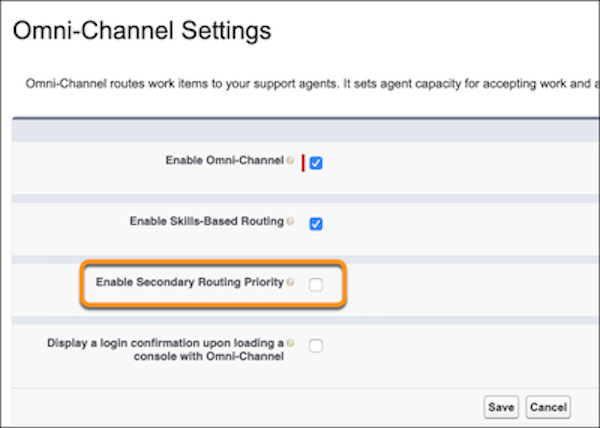
You can now configure secondary routing priority mappings for each channel.
3. From Setup, enter Service Channels in the Quick Find box, then select **Service Channels**.
4. Edit an existing service channel or add a new one.
5. In the Secondary Routing Priority section, select a priority field. Then map field values to priorities.
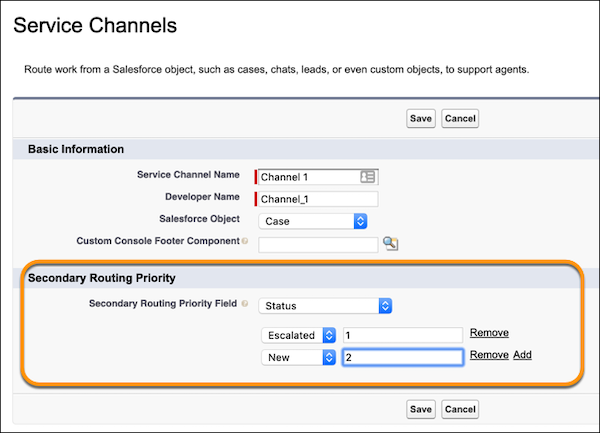

Example
To prioritize escalated cases first and new cases next, select **Status** as the priority field. Then set the Escalated field value to priority 1, and the New field value to priority 2. The highest priority is 0.

Note Secondary Routing Priority is not automatically updated for skills-based routed chat and messaging channels. To update the SecondaryRoutingPriority field on the PendingServiceRouting object, use the API.
#### See Also
- [Understand Capacity Models](https://help.salesforce.com/s/articleView?id=service.service_presence_capacity_model.htm&release=264.0.0&type=5 "Omni-Channel determines service rep capacity in one of two ways: Tab-Based or Status-Based.")
- [Set Up a Status-Based Capacity Model](https://help.salesforce.com/s/articleView?id=service.omnichannel_status_based_capacity.htm&release=264.0.0&type=5 "Measure service rep capacity more accurately with the status-based capacity model. With this model, Omni-Channel determines service rep capacity based on the status of accepted work rather than the open tabs and sessions. If service reps are unavailable or close their work tabs, their work remains assigned and applied to their capacity until the work is completed or reassigned. Service reps can also pause work to be completed later. In contrast, the tab-based capacity model releases a service rep's capacity when a work tab is closed in the service console.")
- [Configure Work Items as Primary or Interruptible](https://help.salesforce.com/s/articleView?id=service.omnichannel_configure_work_items_as_primary_or_interruptible.htm&release=264.0.0&type=5 "Make sure that uninterruptible work like a chat goes only to service reps with the capacity to handle it. Define uninterruptible work as primary, and long-standing or less-urgent work, like cases or leads, as interruptible.")
- [Configure After Conversation Work Time](https://help.salesforce.com/s/articleView?id=service.omnichannel_configure_after_conversation_work_time.htm&release=264.0.0&type=5 "Give service reps a set amount of time after a customer conversation to wrap up their work before they start a new conversation. Service reps can use this After Conversation Work (ACW) time to send follow-up emails, update a case, or finalize their conversation notes. Supervisors can use Command Center for Service and reports to track the amount of time service reps spend on wrap-up work.")
- [Service Channel Settings](https://help.salesforce.com/s/articleView?id=service.service_presence_service_channel_settings.htm&release=264.0.0&type=5 "Customize your service channel settings to define how your organization receives work from sources such as chat, email, and social channels.")
- [Supported Objects for Omni-Channel](https://help.salesforce.com/s/articleView?id=service.service_presence_supported_objects.htm&release=264.0.0&type=5 "Omni-Channel turbocharges your service reps’ productivity by assigning records to them in real time. But which objects and records does Omni-Channel support?")