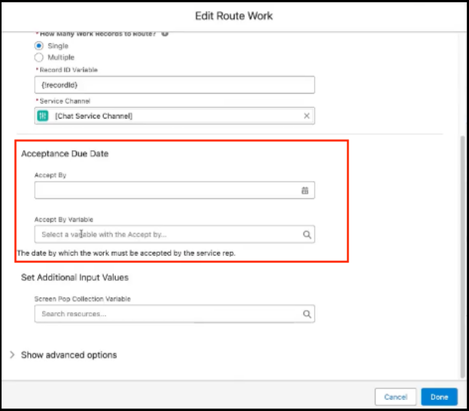
You can set an acceptance due date in Omni-Channel flows.
Report on Acceptance Due Date
To report on Acceptance Due Date, add the Acceptance Due Date field to any of your custom
report types that have the AgentWork object.
After adding the field, write a row-level formula to identify work items that were accepted
on or before the target date. To write a row-level formula, see Write a Row-Level Formula. An example formula is:
IF(ISNULL(AgentWork.TargetAcceptDateTime), "No target set", IF(AgentWork.AcceptDateTime > AgentWork.TargetAcceptDateTime, "Target Not Met", "Met Target"))
The example formula displays ‘Target Met’ if the rep accepts the work item on or before the
target date, ‘Target Not Met’ if accepted after, or ‘No Target Set’ if no target date is
set. The formula assumes that the report is filtered for work items with Status as Accepted.
Name the formula as per your requirement, for example ‘Target Met’ and group all rows based
on the formula. Within the report add filters where both ‘TargetAcceptDateTime’ and
‘AcceptDateTime’ are NOT NULL.
To visualize the results of the report add a Donut chart that shows the percentages of
Target Met and Target Not Met. The chart summarizes the percentage of work items accepted
within the target time.
To summarize the results of the report create a summary formula. To write a summary
formula, see Add a Summary Formula Column to a Report. An example
formula is:
RowCount/PARENTGROUPVAL(RowCount, GRAND_SUMMARY)
Customize the report further by adding filters around users, channels, or time frames.