
Route cases from your customer support emails to qualified support reps with an Omni-Channel flow.
Required Editions
| View supported editions. |
| User Permissions Needed | |
|---|---|
| To assign an Omni-Channel flow to route cases | Customize Application |
If you use Email-to-Case, use an Omni-Channel flow rather than a record-triggered flow to route cases to the right destination, such as queue or support rep. Avoid using other case assignment rules so that Email-to-Case routes cases using the logic in your Omni-Channel flow.
Inside the Omni-Channel flow you can build logic to route, or you can choose to not route the case. If an exception occurs while the flow executes, then the case is routed to the fallback queue.
- Assign the Run Flows or Manage Flows permission to the automated case user. This user is defined in Setup under Support Settings.
- From Setup, in the Quick Find box, enter Email-to-Case, and then select Email-to-Case.
-
Create or edit the routing address that your customers use to submit inquiries to your
support team.
For the Omni-Channel flow to be used for routing, this address must be verified.
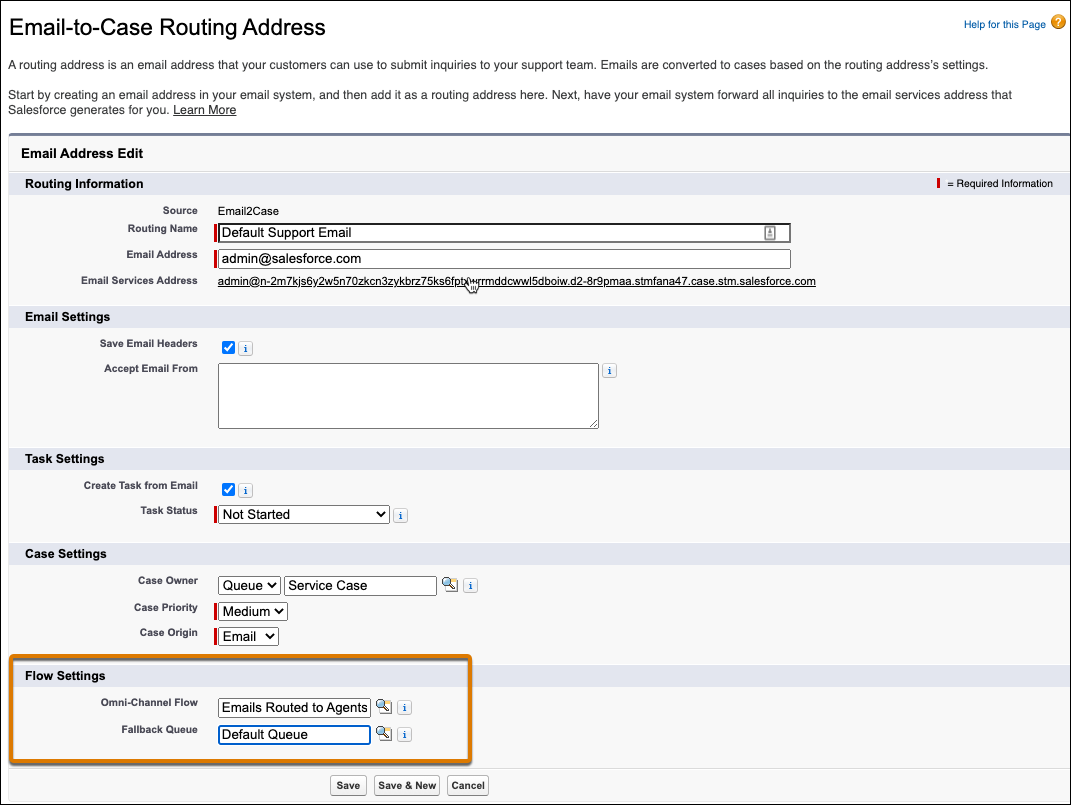
- In the Flow Settings section, specify the flow that you created to route your cases.
-
Specify a fallback queue.
The fallback queue must use Case as the service channel object and have an Omni-Channel routing configuration.
- Click Save.
When a customer sends an email to your routing address, Email-to-Case creates a case if one doesn't exist. The flow then executes and directs the case to the appropriate Omni-Channel queue or support rep.