---
schema_version: "1"
id: ef4f778c168a574aac27820e4ae94831b2a75dab9ddf6e7b498543ec7bc25d5c
title: View Real-Time Metrics about Your Amazon Connect Contact Center
collection: admin
version: current
locale: en-us
portal_url: https://docs.salesforce.com/admin/current/en-us/service/264-0-0/omnichannel_open_realtime_metrics_report.md
canonical_url: https://help.salesforce.com/s/articleView?id=service.omnichannel_open_realtime_metrics_report.htm&release=264.0.0&type=5
source_site: help.salesforce.com
content_type: documentation
content_hash: 6c82f0cf06e47450d63cca790fb75c2de10598ca717144a97b10a4e7698f8e1e
description: To get the latest metrics about your contact center, open Amazon Connect’s Real-Time Metrics dashboard directly from Command Center for Service. The dashboard shows key metrics such as the reps online, handled and abandoned calls, and more.
products:
- Service Cloud
- Digital Engagement
release: "264"
---
# View Real-Time Metrics about Your Amazon Connect Contact Center
To get the latest metrics about your contact center, open Amazon Connect’s Real-Time Metrics dashboard directly from Command Center for Service. The dashboard shows key metrics such as the reps online, handled and abandoned calls, and more.
### Required Editions
This article applies to:
- Salesforce Voice with Amazon Connect
- Salesforce Voice with Partner Telephony from Amazon Connect
To set up the View Amazon Real-Time Metrics button.
Salesforce Voice Contact Center Admin
To view the View Amazon Real-Time Metrics button.
Assign User’s Profile to Supervisor Configuration Settings
Add the AWS Dashboard action to Command Center for Service tabs.
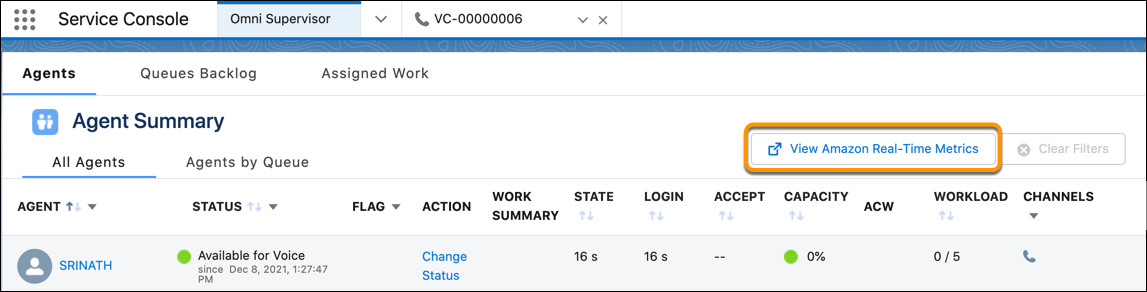
1. Open Command Center for Service.
2. From any tab, click **View Amazon Real-Time Metrics**.
#### See Also
- [Show the Default Actions on Command Center for Service Tabs](https://help.salesforce.com/s/articleView?id=service.omnichannel_show_default_actions_omni_supervisor.htm&type=5&language=en_US)