---
schema_version: "1"
id: 45d4af6254ae64c6e82dd574ad9c6e5011146e0f7d2ca07666c90c6fef9885cb
title: Create the Screen Flow for the Command Center for Service Custom Action
collection: admin
version: current
locale: en-us
portal_url: https://docs.salesforce.com/admin/current/en-us/service/264-0-0/omnichannel_custom_action_create_screen_flow.md
canonical_url: https://help.salesforce.com/s/articleView?id=service.omnichannel_custom_action_create_screen_flow.htm&release=264.0.0&type=5
source_site: help.salesforce.com
content_type: documentation
content_hash: 1ce3ae1a7279c4712c0956c381c9f4a73f33cf28690072d9d2c584ae71aa9e4d
description: To define the action behavior and design the screen that appears when a supervisor clicks the action button, create a screen flow in Flow Builder. For example, you can create a screen that lets a supervisor send an email to service reps.
products:
- Service Cloud
release: "264"
---
# Create the Screen Flow for the Command Center for Service Custom Action
To define the action behavior and design the screen that appears when a supervisor clicks the action button, create a screen flow in Flow Builder. For example, you can create a screen that lets a supervisor send an email to service reps.
### Required Editions
1. From Setup, in the Quick Find box, enter Flows, and select **Flows**.
2. Click **New Flow**.
3. Click **Screen Flow** | **Create**.
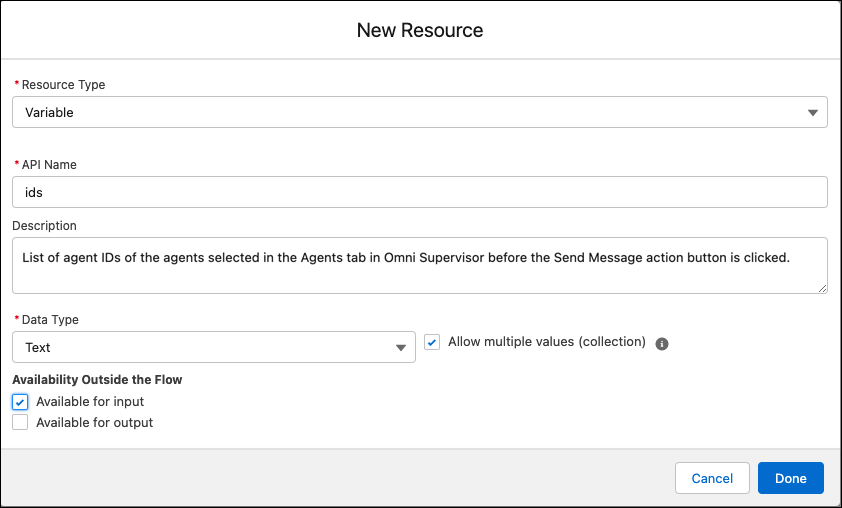
4. To accept the selected service reps, queues, or work items as input to the screen flow, add a Variable resource. For the variable, set the API name to ids, set the data type to Text, select the “Allow multiple values (collection)” option, and select the “Available for Input” option.
This variable stores the service reps, queues, or work items that a supervisor selects in Command Center for Service to perform the action on.
5. To build the page that appears when the supervisor clicks the action button in Command Center for Service, add a Screen element.
6. Define the action behavior using flow elements. For example, to iterate over the multiple input IDs that are passed from the variable, add a Loop element.
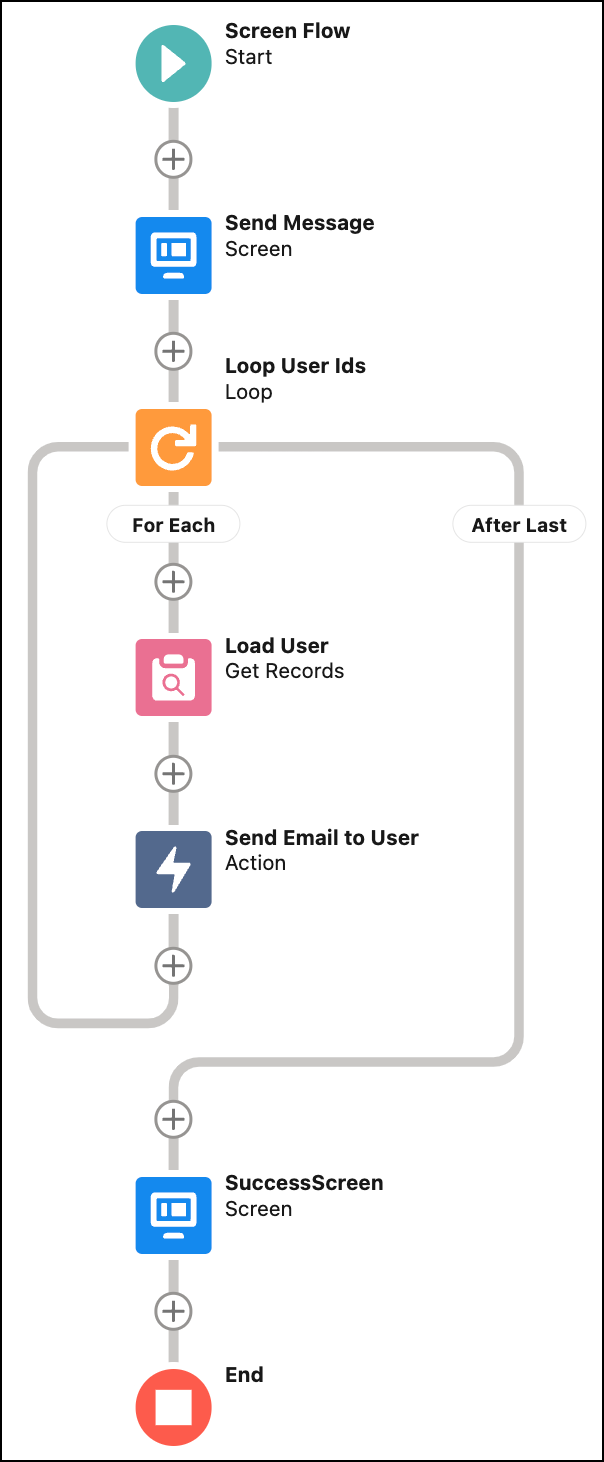
7. Save and name the screen flow.
The screen flow label appears as the action button name in Command Center for Service. For example, enter “Send Email” as the screen flow label.
8. To make the screen flow available for use in an action, click **Activate**.
#### See Also
- [_Trailhead_: Add Screens to Your Flow](https://trailhead.salesforce.com/content/learn/modules/flow-builder/flow-builder-screens)
- [_Salesforce Help_: Flow Builder](https://help.salesforce.com/s/articleView?id=platform.flow_builder.htm&type=5&language=en_US)