When you set up your app, you can choose whether the Omni-Channel component appears as
a sidebar or in the utility bar at the bottom of your screen. The sidebar and utility-bar
versions of the Omni-Channel component have equivalent functionality. However, the sidebar
layout is recommended because it provides more screen real estate and is the primary location
for future Omni-Channel component features.
Required Editions
Regardless of which layout you choose, the Omni-Channel component organizes work items with
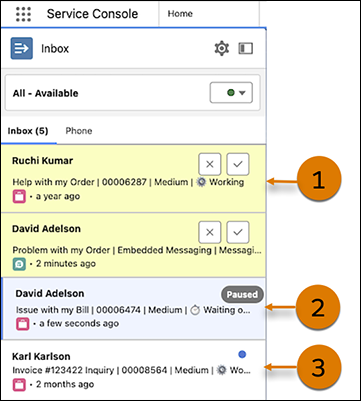
new work items at the top, in-progress items in the middle, and paused items at the bottom.
Within each of those groups, the inbox organizes work items from most recently updated to
least, with the most recent ones appearing higher in the list. Open work items are highlighted
in yellow and paused work items are highlighted in gray. Updated work items have a blue
dot.
This image shows new work (1), selected work that’s paused (2), and work with an update
notification (3) in the Omni-Channel component.
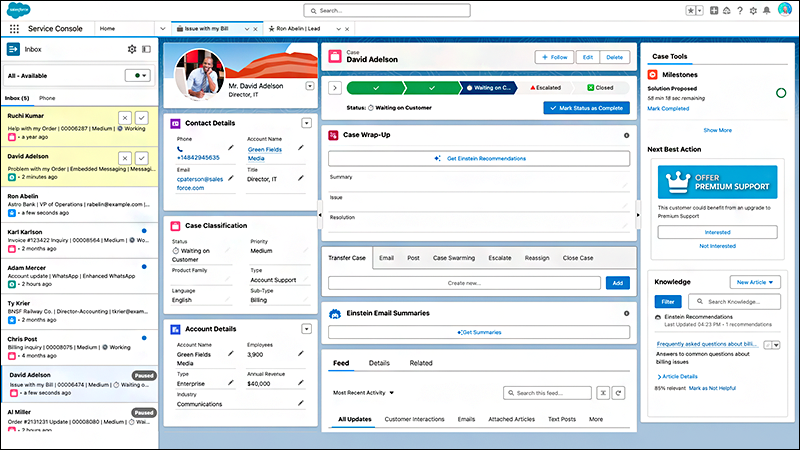
This image shows the Service Console with the Omni-Channel component opened in the
sidebar.
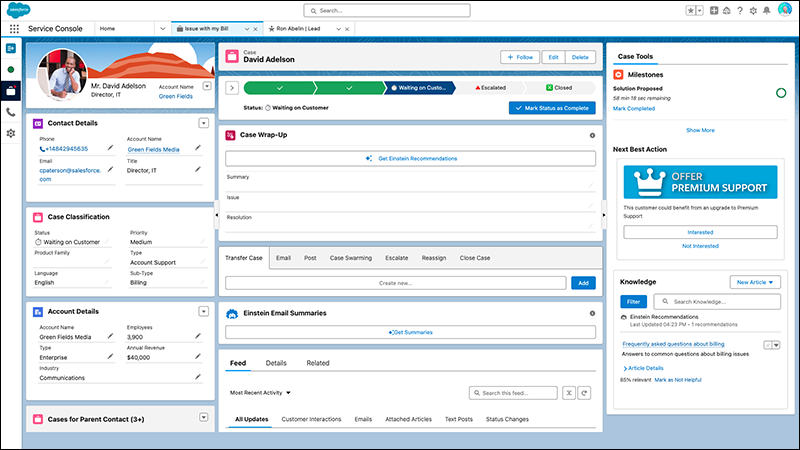
This image shows the same Service Console with the Omni-Channel sidebar view collapsed.