---
schema_version: "1"
id: 60aefdc61f9ee3f7bbd60bef0b910a60b9d5a080a578c752a3ced58dea4c61bd
title: Add the Custom Action to Command Center for Service Tabs
collection: admin
version: current
locale: en-us
portal_url: https://docs.salesforce.com/admin/current/en-us/service/264-0-0/omnichannel_add_custom_action_to_supervisor.md
canonical_url: https://help.salesforce.com/s/articleView?id=service.omnichannel_add_custom_action_to_supervisor.htm&release=264.0.0&type=5
source_site: help.salesforce.com
content_type: documentation
content_hash: a259c1ea77350d538a7678bb0ec2d5eaa7494e66529cbee8709090c5d74e4679
description: Edit the supervisor configuration to specify which tabs show the custom action. All supervisors assigned to the supervisor configuration can see the action.
products:
- Service Cloud
release: "264"
---
# Add the Custom Action to Command Center for Service Tabs
Edit the supervisor configuration to specify which tabs show the custom action. All supervisors assigned to the supervisor configuration can see the action.
### Required Editions
To set up custom actions in Command Center for Service:
Salesforce Voice Contact Center Admin
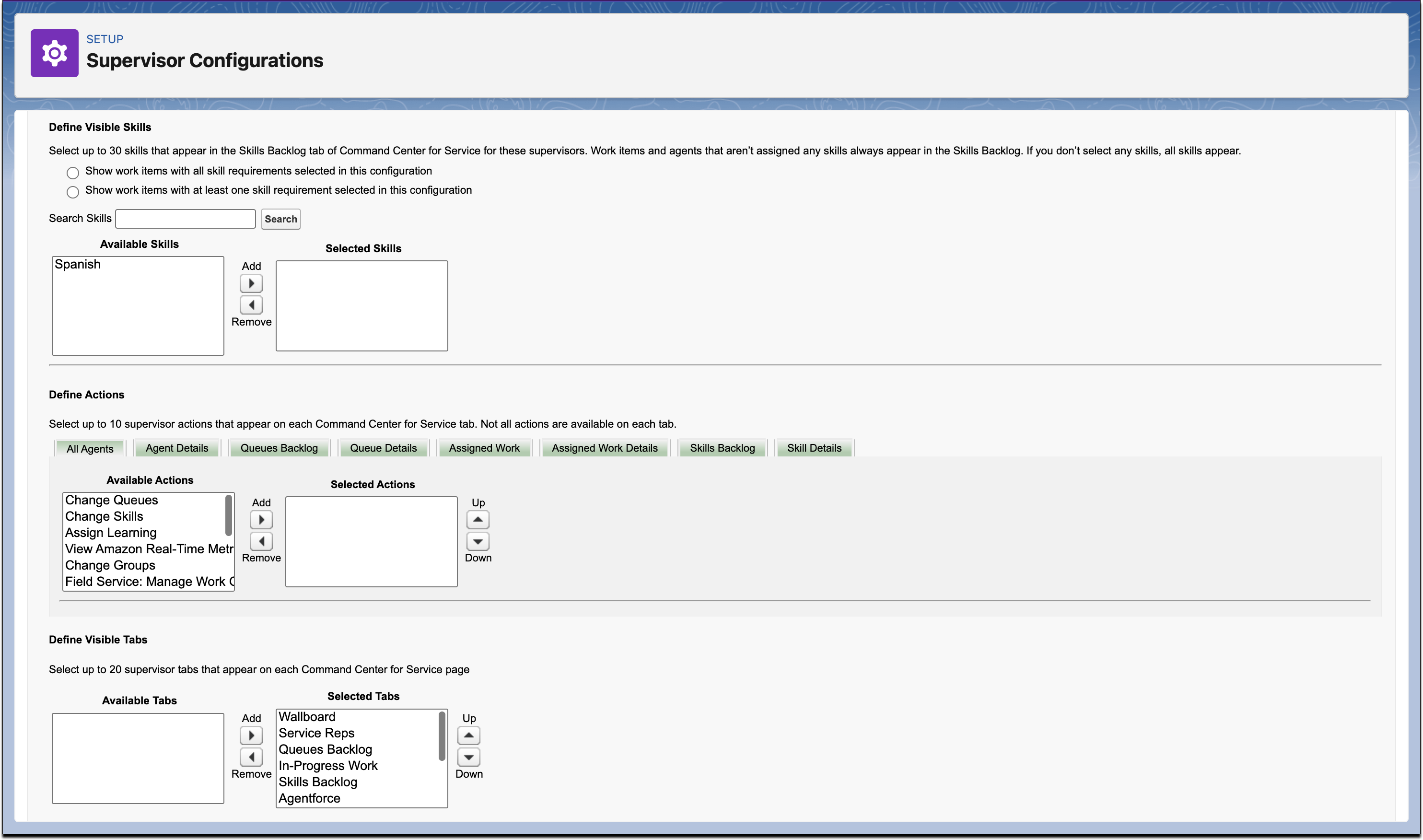
1. From Setup, in the Quick Find box, enter Supervisor Configurations, and select **Supervisor Configurations**.
2. Select an existing supervisor configuration, or create one.
3. In the Define Actions section of the supervisor configuration, select the tab, and then move the custom action to the Selected Actions box.
The custom action button name is the same as its underlying screen flow name. You can add up to 10 actions on each tab.
4. Save the supervisor configuration.
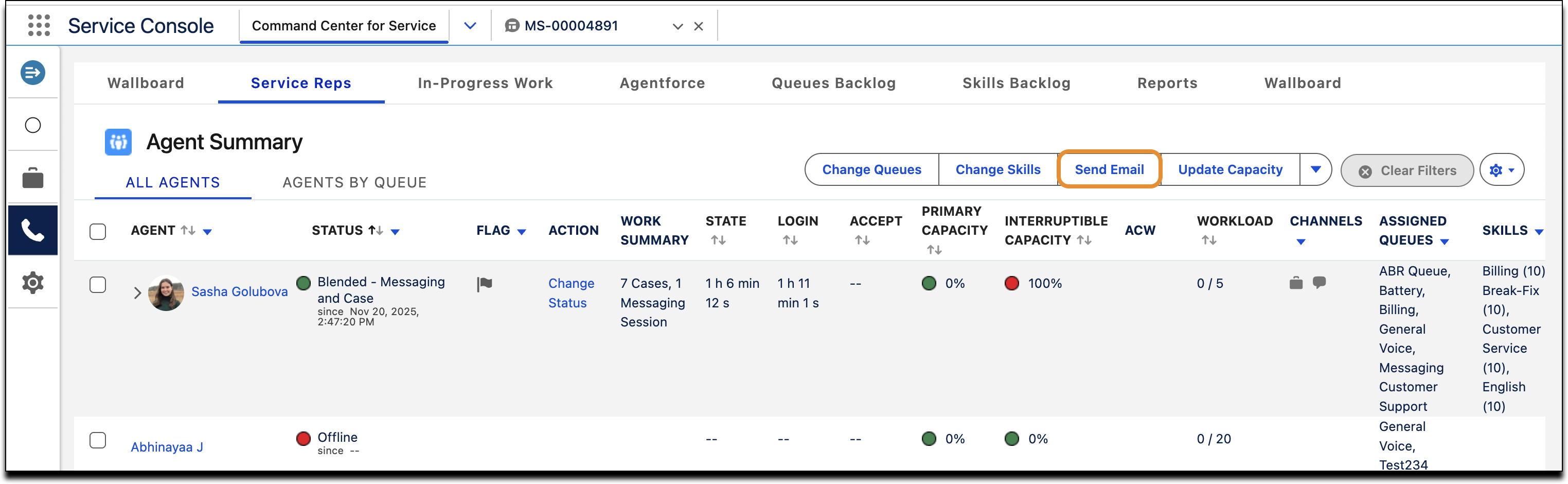
Like system actions, custom actions appear as buttons on the Command Center for Service tab. System actions are actions provided by default. Custom actions are actions that you can add to Command Center for Service tabs.