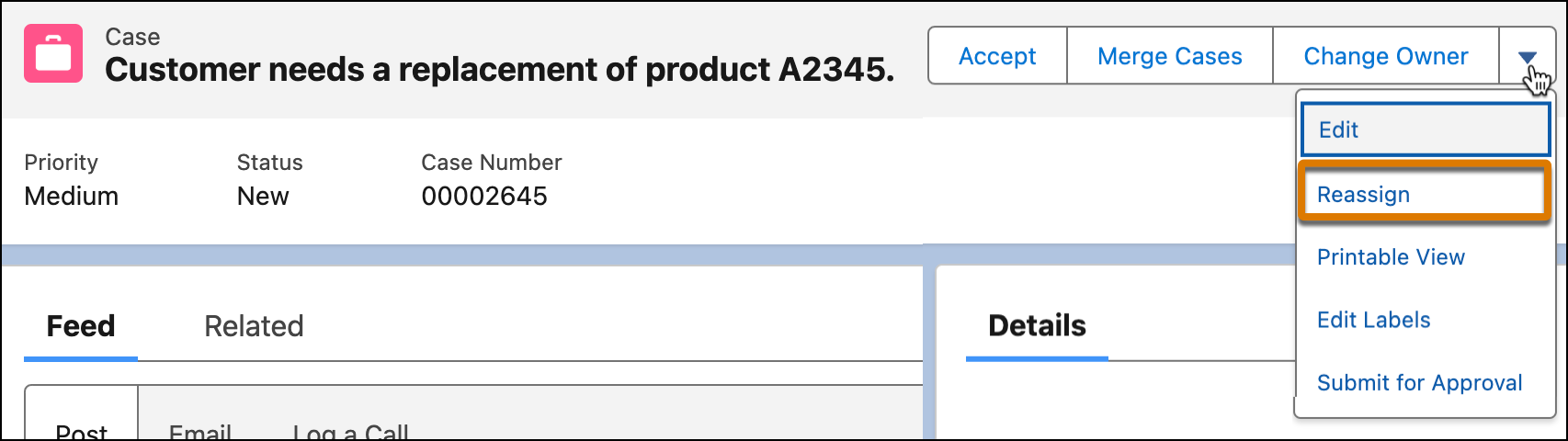
To enable reps and supervisors to reassign routable Salesforce standard and custom objects, like cases, add the Reassign action to the object page layout.
Required Editions
| View supported editions. |

Note Although you can transfer work to a different skill set
with both Standard and Enhanced Omni-Channel, this topic is explicitly for Enhanced
Omni-Channel. To transfer work with Standard Omni-Channel, see Transfer a Work Item to a Different Skill
Set.

Tip To control who can use the Reassign action and when
they can use it, add it as a dynamic action in Lightning Builder instead of adding it to a
page layout, as described here. With Lightning builder, you can add visibility rules. See
Create Dynamic Actions in Lightning App
Builder.
Before you set up work reassignment, complete these prerequisites.
- Verify that Enhanced Omni-Channel routing is enabled. If it’s not, the Reassign action isn’t available.
- To reassign work items without a routing configuration to a skill or specific rep, select a default routing configuration in the service channel settings. For example, work that wasn’t originally routed by Omni-Channel doesn’t have a routing configuration.
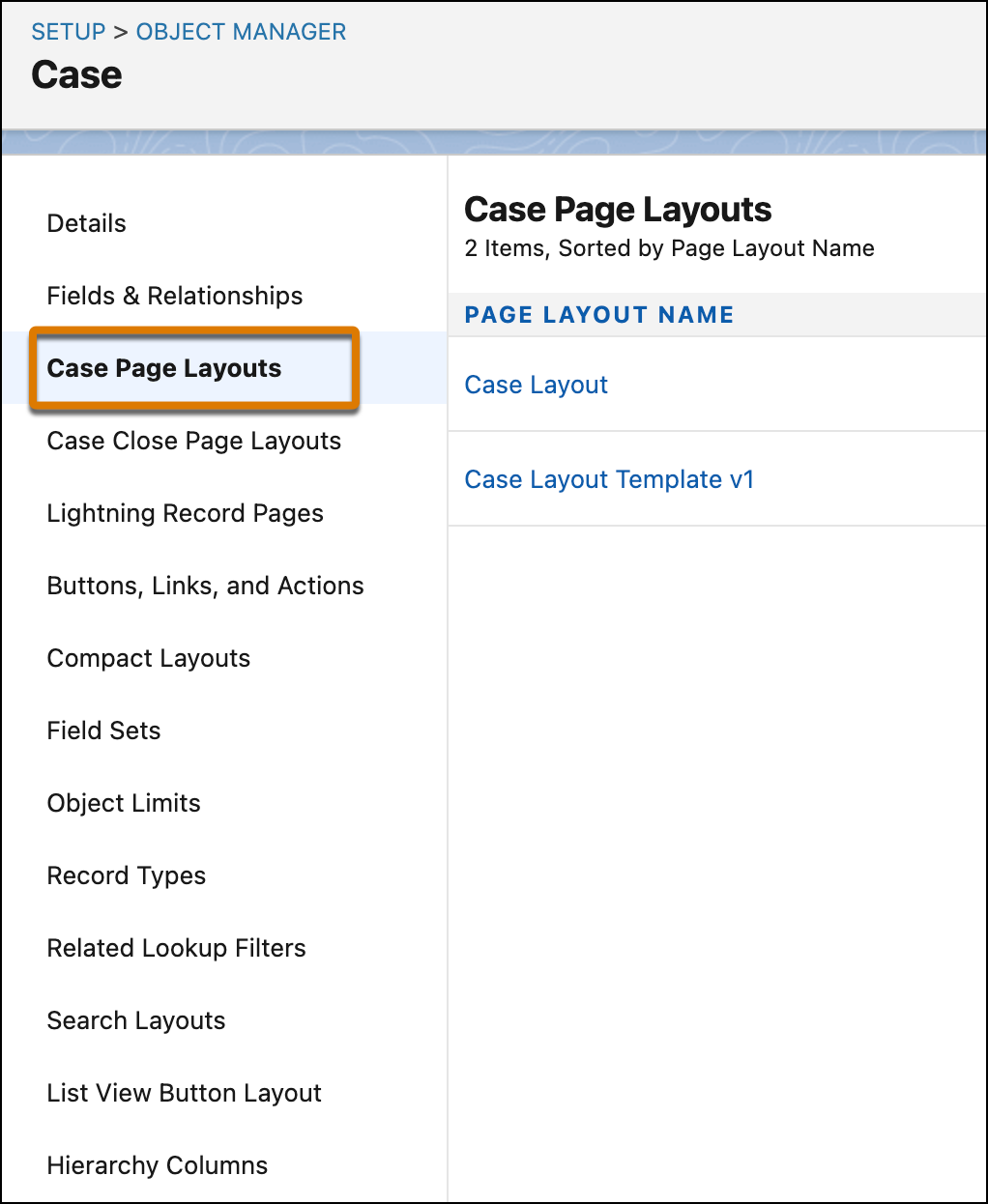
- In Object Manager, open the object, like Case.
- To open a page layout where you want to add the Reassign action, click object Page Layouts, and then select a layout.
- In the Mobile & Lightning Actions section, drag the Reassign action on to the Salesforce Mobile and Lightning Experience Actions section of the page layout.
- Save the page layout.