Keep emails correctly sorted when a customer replies to a thread with information about a different case.
Required Editions
| View supported editions. |
To use this feature, you must have Email-to-Case and Lightning Threading turned on.
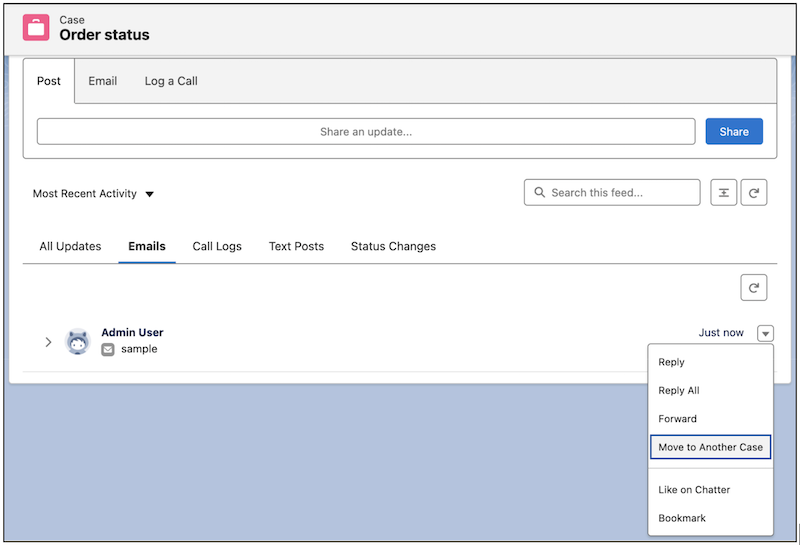
- Go to the email that you want to move.
-
Click the dropdown menu at the top right corner of the email, and select Move to
Another Case.
-
Enter a case number to move the email to that case.
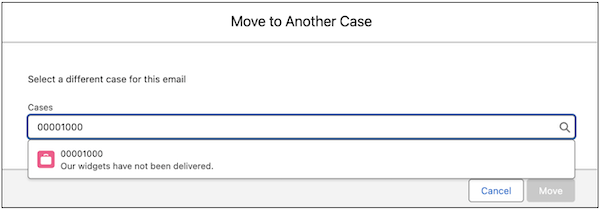
- Click Move.
- Reply to the moved email, letting the customer know that the email is attached to a different case. A new token is introduced, which makes sure that future emails stay threaded to the case where you moved the email.
Let Service Reps Move Emails
Let service reps reassign emails from one case to another with Email-to-Case. They can keep emails correctly sorted when a customer replies to a thread with information about a different case.
- Verify that Email-to-Case and Lightning Threading are turned on.
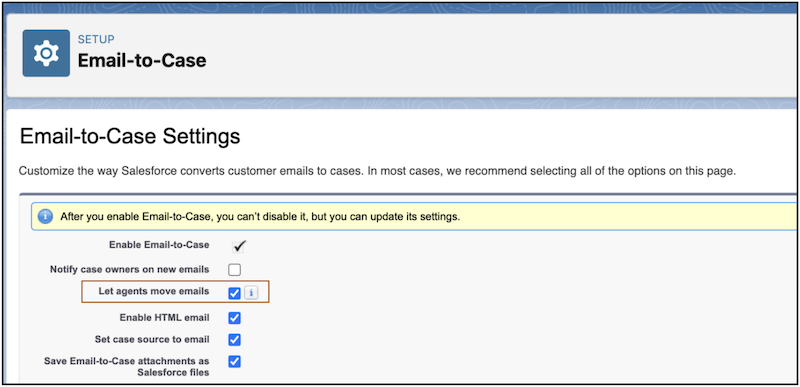
- From Setup, enter Email-to-Case in the Quick Find box, and then select Email-to-Case Settings.
- Click Edit and select Let Agents Move Emails.
-
Save your changes.