
An Enhanced Chat session ends when the service rep selects End Chat. If a customer continues to send messages, a new session is created. The conversation continues seamlessly from the customer’s perspective, but the rep loses access to the original pre-chat data. These instructions let service reps access pre-chat data across sessions. It’s not necessary to set up access to pre-chat data if you’re already using User Verification to persist messaging history.
Required Editions
| View supported editions. | |
 This article applies to:
|
Enhanced In-App Chat and Enhanced Web Chat channels |
 This article doesn’t apply to:
|
Enhanced WhatsApp, Enhanced Facebook Messenger, Standard and Enhanced SMS, Enhanced Apple Messages for Business, Enhanced LINE, and Bring Your Own Channel |
| User Permissions | |
|---|---|
| To set up Omni-Channel Flow and Enhanced Chat: | Customize Application |
| To modify permission sets and profiles: | Manage Profiles and Permission Sets |
Before you begin, you must have an Omni-Channel flow that already handles pre-chat data. To learn more, see Map Pre-Chat Values in Omni-Channel Flow.
Since pre-chat data isn’t stored across sessions by default, you must store this data
in a Salesforce record during the first session. Then, update your Omni-Channel flow to access
this data from subsequent sessions. Your updated flow looks up this information using the
ConversationId field of the Messaging Session record, which is the same
across sessions.

- From Setup, in the Quick Find box, enter Flows, and then select Flows.
- Find and select your previous flow from the list.
-
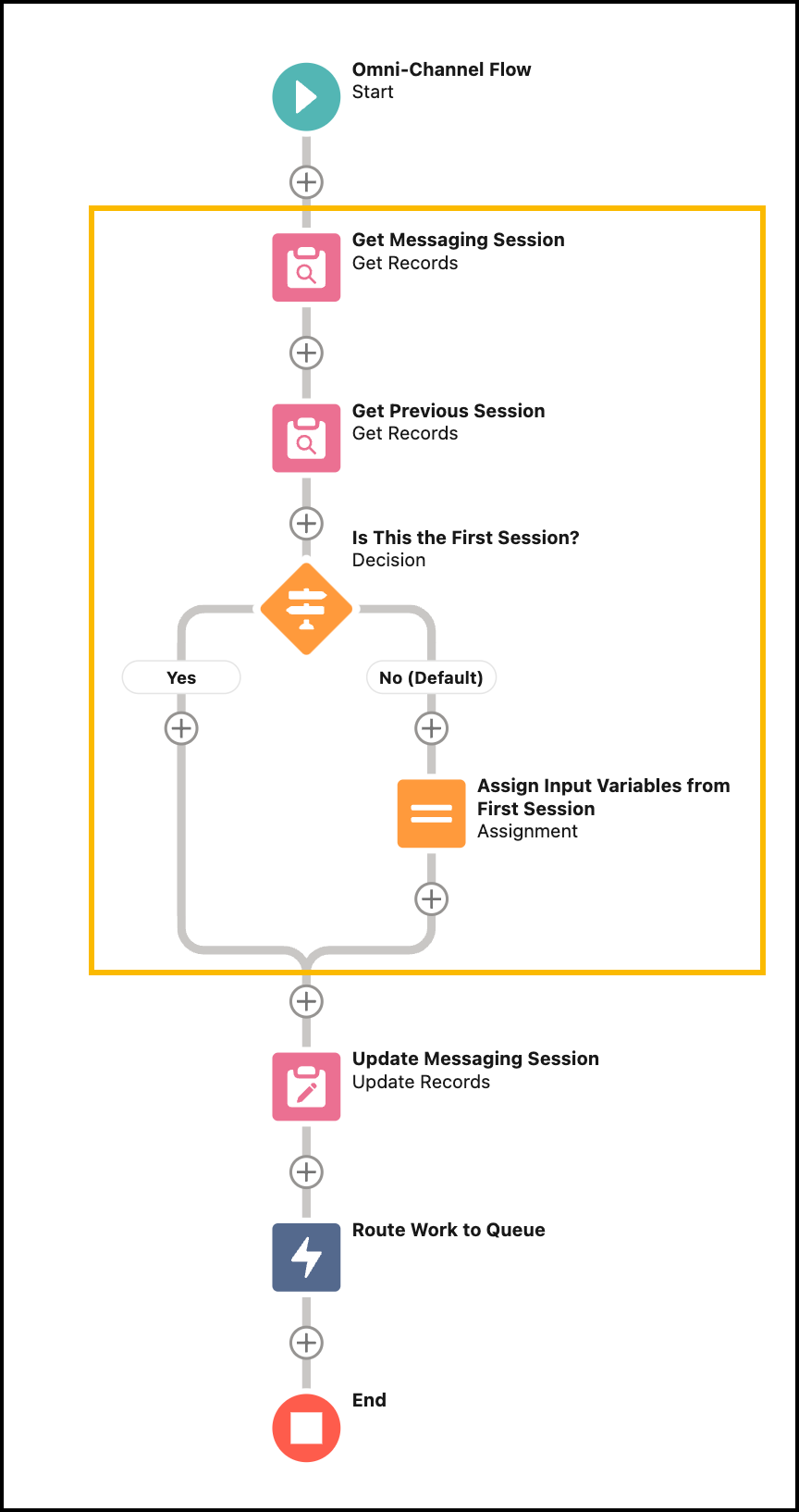
Before handling the pre-chat input variables or routing the work, add a check to determine
if we have a pre-existing session from the same conversation. If so, we use that information to
repopulate the input variables.
-
Use a Get Records element to get the current messaging session
using the
recordIdinput.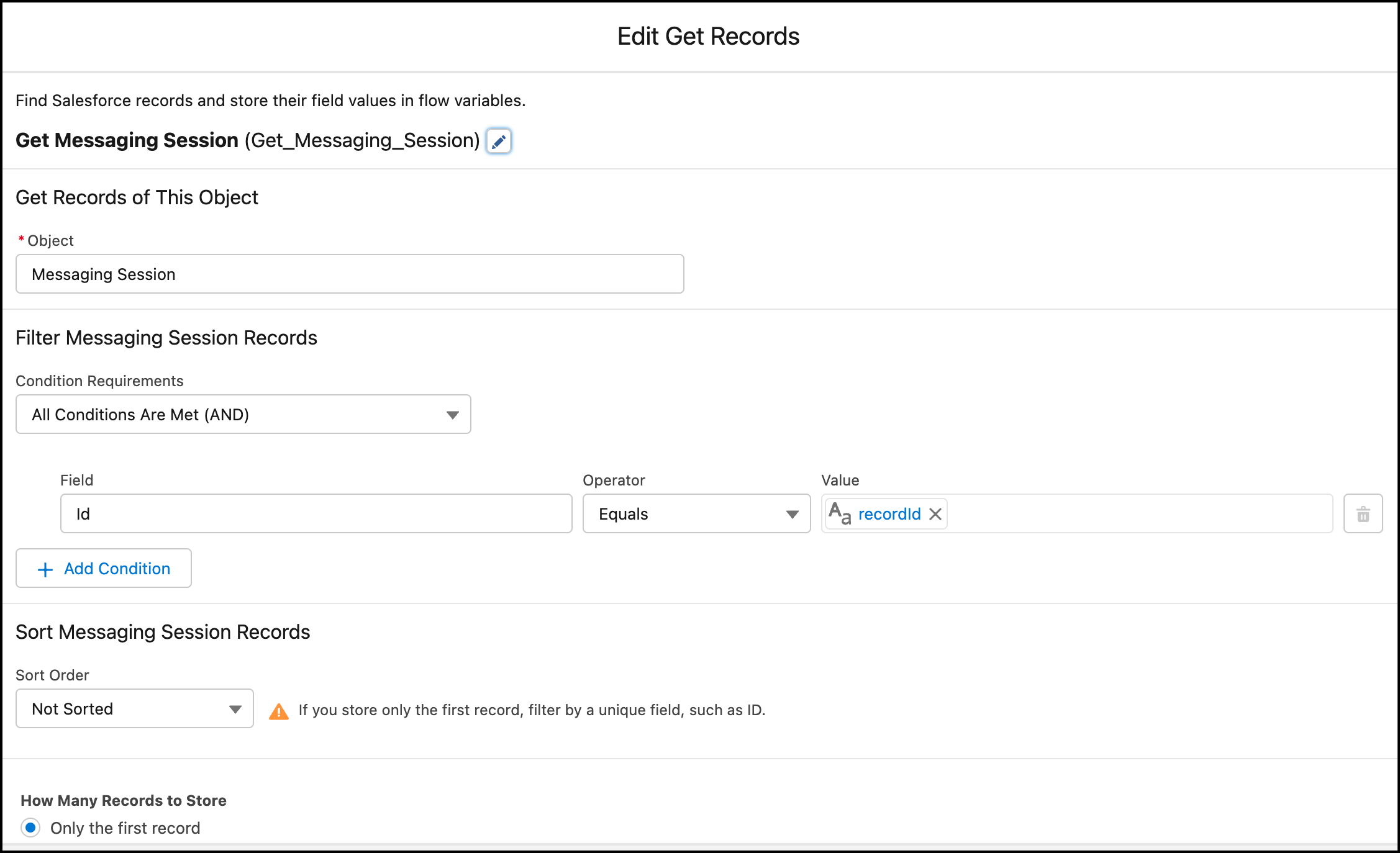
-
Use a Get Records element to find a pre-existing messaging session
with the same
ConversationIdas the current messaging session. We also make sure that theIdisn’t the same as the current messaging session. In this example, we sort the results by creation date so that we can ensure that the first result is the first session. We then only return the first result.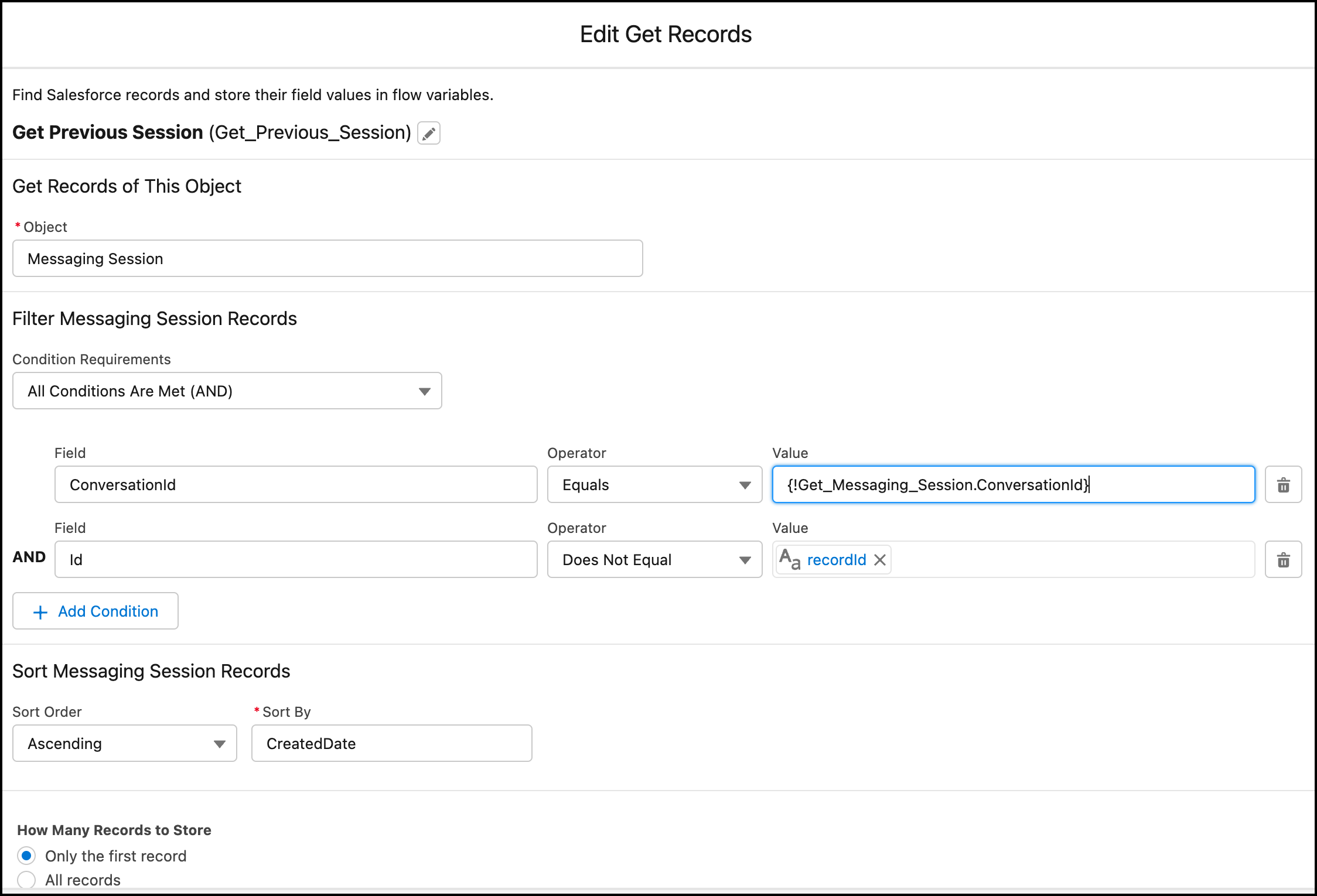
-
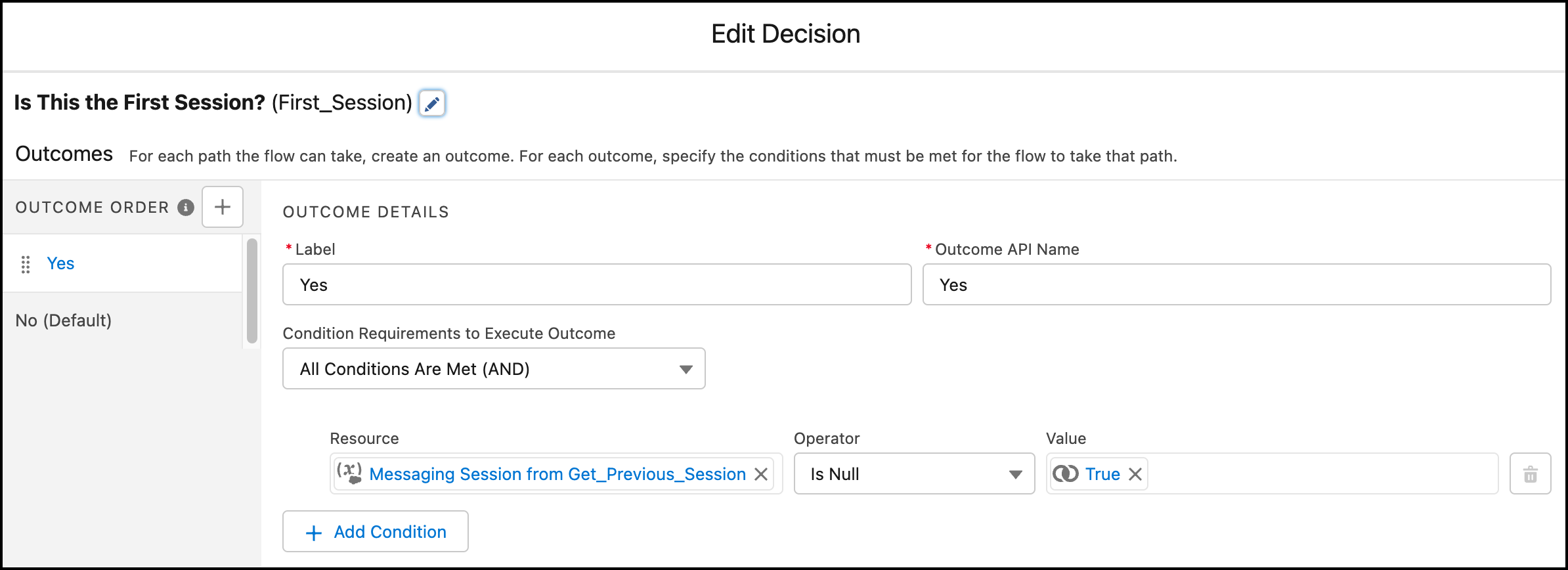
To determine if this session is the first messaging session, use a Decision
Tree element and check if the previous result is null.
- If this session is the first messaging session, no action is necessary.
-
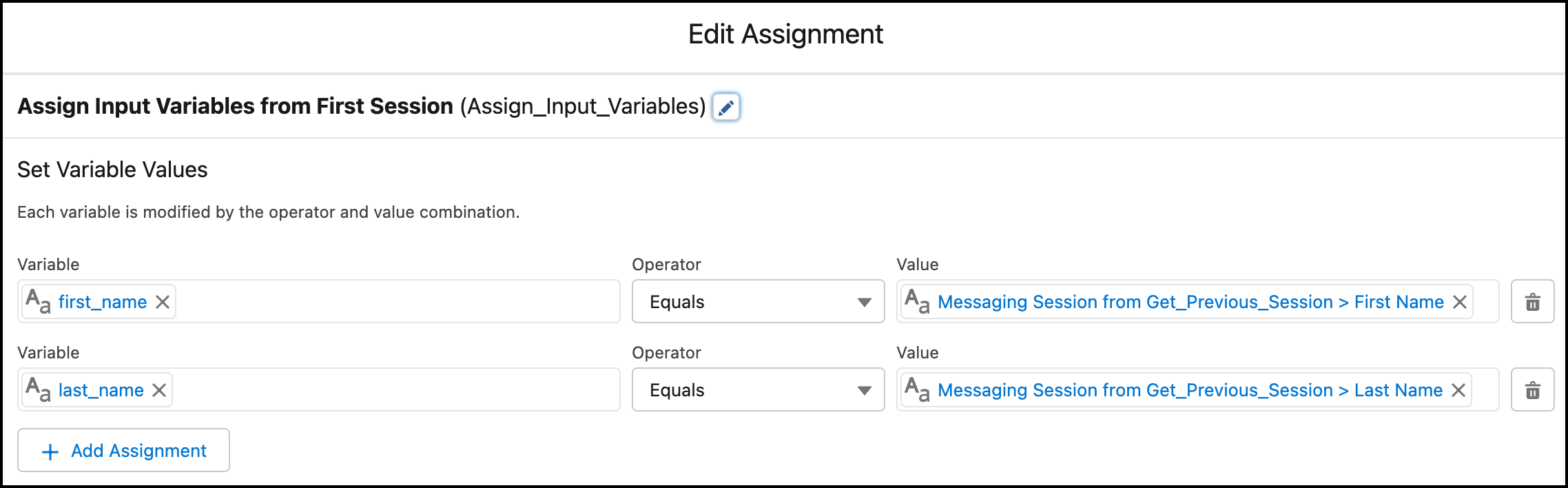
If this session isn’t the first messaging session, extract the pre-chat
information from wherever you previously stored it and put it in the correct input variables.
In this example, we extract the values from custom fields in the original Messaging Session
record.
- After this new logic, you can handle the pre-chat input variables and route the work in just the same way as you did in your original flow.
-
Use a Get Records element to get the current messaging session
using the
-
The following screenshot illustrates what your new flow could look like. The new logic is
highlighted.
- Click Done.
- Save this flow as a new version, and verify that it’s activated in your org.