
While Enhanced Chat shows messaging history in the conversation window to verified end users, unverified end users want to review messaging history. Now, unverified and verified end users can download a PDF conversation transcript after the session ends.
Required Editions
| View supported editions. | |
 This article applies to:
|
Enhanced In-App Chat and Enhanced Web Chat channels |
 This article doesn’t apply to:
|
Enhanced WhatsApp, Enhanced Facebook Messenger, Standard and Enhanced SMS, Enhanced Apple Messages for Business, Enhanced LINE, and Bring Your Own Channel |
Turn On Download Transcripts
- Before an end user can download a transcript of their Enhanced Chat conversation, an admin must enable it:
- From Setup, enter Messaging Settings, and select Messaging Settings.
- Click the downward arrow to the right of your channel, and select Edit.
- Select Let customers download their conversation transcripts.
- Save your changes.
You can't download a transcript from an app built on Mobile Publisher.
Download a Transcript
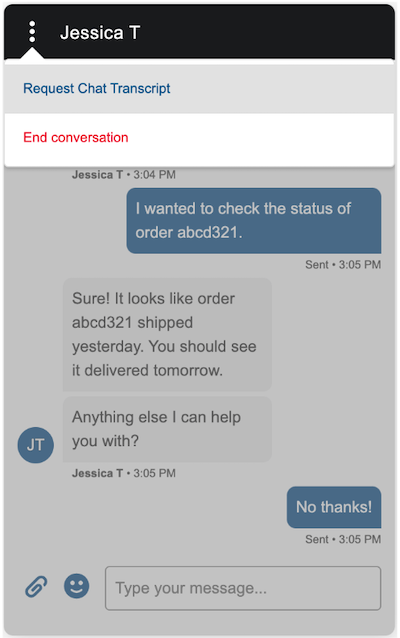
To download a transcript of the chat conversation, an end user clicks the Menu icon, then selects Request Chat Transcript.
What’s Included in a Downloaded Transcript
- A transcript can contain up to 200 conversation entries. A conversation entry is defined
as a single block of text that was initiated by a service rep, end user, bot,
Service agent, or auto-response.
- If chatting with a service rep, a conversation entry includes updates about a service rep's status, such as joining or leaving the conversation.
- If chatting with a Service agent, a conversation entry includes citations. While you can customize the word Sources in the custom label file, it still appears in the transcript as Sources.
- Read receipts and estimated wait time aren't considered conversation entries.
- Enhanced Chat v2 transcripts are text-only.
- All timestamps are in the GMT time zone and can’t be localized.
- These languages aren’t supported: Arabic, Hebrew, Amharic, Armenian, Bengali, Burmese, Georgian, Gujarati, Kannada, Khmer, Malayalam, Punjabi, Tagalog, Tamil, Telugu, Thai, Urdu, Yiddish.
- Unsupported characters are replaced with a “?”.
- Emojis either display in greyscale or text.