| Send message |
All or Input Footer |
Explains the icon for sending a message in the chat conversation window. |
| Type your message... |
All or Input Footer |
Placeholder text that appears in the text input field after a service rep has
responded to a chat session. |
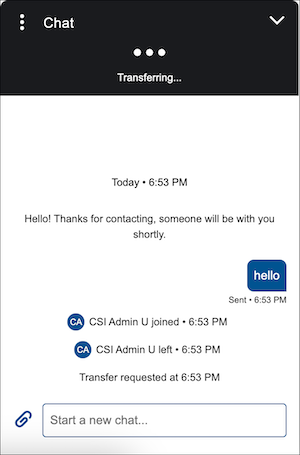
| Start a new chat... |
All or Input Footer |
Placeholder text that appears in the text input field before a service rep has
responded to a chat session. |
| Awaiting response... |
All or Input Footer |
A placeholder in the input field when the input field is temporarily disabled. An end
user sees their input field temporarily disabled when a bot is typing. |
| Yes, Leave Page |
All or Auto-Response |
Text for the button that appears when an End Conversation Auto-Response messaging
component, with the Display Method set to Popup Message, is sent to the end user. To stop
viewing the component, an end user clicks a backwards arrow, and is taken to a message
letting them know that, once they leave the component page, they can’t return to it. This
button is a confirmation that the end user is okay with permanently leaving the
component. |
| Back to chat |
All or Auto-Response |
Hover text for the icon that lets an end user leave the display page for an End
Conversation Auto Response messaging component. Specifically, this appears when the Display
Method for the messaging component is set to Popup Message. |
| Leave current page? |
All or Auto-Response |
Title text that appears in the chat conversation window after an End Conversation
Auto-Response messaging component, with the Display Method set to Popup Message, is sent to
the end user. To stop viewing the component, an end user clicks a backwards arrow, and is
taken to a message letting them know that, once they leave the component page, they can’t
return to it. |
| After you leave this page, you can't return to it. |
All or Auto-Response |
Body text that appears in the chat conversation window after an End Conversation
Auto-Response messaging component, with the Display Method set to Popup Message, is sent to
the end user. To stop viewing the component, an end user clicks a backwards arrow, and is
taken to a message letting them know that, once they leave the component page, they can’t
return to it. |
| Post-Chat Page |
All or Auto-Response |
Header text explaining that you’ve landed on the End Conversation auto-response
messaging component’s display page. |
| Cancel |
All or Auto-Response |
Text for the button that appears when an End Conversation Auto-Response messaging
component, with the Display Method set to Popup Message, is sent to the end user. To stop
viewing the component, an end user clicks a backwards arrow, and is taken to a message
letting them know that, once they leave the component page, they can’t return to it. This
button allows the end user to return to the component display page. |
| Download file |
All or File Transfer |
When an end user receives a file in the messaging conversation, this is hover text for
the button to download that file. |
| Unsupported file type: {0}. Try again. |
All or File Transfer |
An error message that appears when an end user attempts to attach an unsupported file
type. The {0} variable shows the file type to the end user. |
| Sending file... |
All or File Transfer |
If a file sent from the end user isn’t sent to the messaging conversation instantly,
this appears to let them end user know that it’s sending. |
| These files exceed the {1} MB limit: {0}. Try again. |
All or File Transfer |
Error message that appears if you try to attach a file that’s larger than 1MB.
|
| Add up to 5 attachments. |
All or File Transfer |
An error message that appears if you attempt to attach more than 5 files at a time
from the Attach File icon. |
| Don't send file {0} |
All or File Transfer |
When an end user has uploaded a file to the text input footer of the messaging
conversation window but hasn’t yet sent the file, an X icon appears to let the end user
remove the file. This text appears when you hover over the icon. |
| Attach file |
All or File Transfer |
Hover text for the paperclip icon next to the text input field. |
| Resend |
All or Chat Body |
Next to the inline error message telling the end user that their text couldn’t be
sent, there’s a Resend text button. When the end user clicks Resend, we try to send
the same message to the rep. |
| Delivered |
All or Chat Body |
This appears when a message is sent to a service rep, but the rep has not yet read
it. |
| Placeholder |
All or Chat Body |
This appears in place of a messaging component menu selection in the following
scenario: When an end user makes a selection from a Question with Static or Dynamic
Options messaging component, then either refreshes the page or opens a new page with
session continuity, and there is a server error preventing the menu selection from
showing up in the refreshed or new page. |
| {0} sent an unsupported message type. |
All or Chat Body |
An error message that lets the end user know that a service rep or bot sent an
unsupported message. The {0} variable tells the end user who sent it. |
| {0} says... |
All or Chat Body |
Text that appears in your browser tab if you navigate away from the page where you’re
messaging and a service rep sends a message. |
| Yesterday |
All or Chat Body |
A time stamp indicating that a message was sent the previous day. |
Sources: 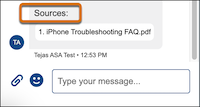 |
All or Chat Body |
Indicates one or more citations in a conversation with an Agentforce Service
Agent. While this is customizable for the messaging conversation window, it will
always appear as “Sources:” in the downloaded messaging conversation
transcript. |
| Not sent |
All or Chat Body |
Appears to the end user when a network issue prevents an end user’s message from being
sent. |
| Read |
All or Chat Body |
Appears to the end user to indicate that a service rep has read their message. Read
recipts must be turned on for this to appear. |
| Revised |
All or Chat Body |
Explains that the previous version of this message from an Agentforce Service
Agent was re-written. |
| Sent |
All or Chat Body |
When a message from the end user is successfully delivered to the service rep, the
word Sent appears below the line of text. |
| This conversation ended. Close the chat window and start a new one. |
All or Chat Ended |
Text that appears when a JWT expires in an unauthenticated messaging session. |
| You ended the conversation at |
All or Chat Ended |
Text that appears when an end user ends an unauthenticated messaging session. |
| Leave Form |
All or Secure Form |
When an end user clicks the Back to chat arrow after viewing a secure form, a
confirmation message appears. The end user can click Leave Form to return to the chat
conversation. |
| Enter the correct input format. |
All or Secure Form |
A general error message for any secure form field that has a formatting requirement.
When an end user attempts to input data into the field in the incorrect format, this
error message appears. |
| Next |
All or Secure Form |
A secure form presents to the end user as a series of fields to engage with. The end
user clicks the Next button to move forward in filling out each field on the form. |
| After leaving the form, you can open it again in the messaging window. However, your
progress isn't saved. |
All or Secure Form |
When an end user clicks the Back to chat arrow after viewing a secure form, a
confirmation message appears. This custom label is for the body of the confirmation
message. |
| Select one |
All or Secure Form |
When a Secure Form’s dropdown menu only allows one selection, this prompt
appears. |
| Stay on Form |
All or Secure Form |
When an end user clicks the Back to chat arrow after viewing a secure form, a
confirmation message appears. The end user can click Stay on Form to return to the secure
form landing page. |
| Enter a value. |
All or Secure Form |
When an end user is presented with a required field in a secure form messaging
component, this inline message appears to remind them that they must enter a value
before proceeding. |
| Form was submitted. |
All or Secure Form |
A message that’s send to the end user in the chat conversation window, confirming that
a secure form was submitted. |
| Select a value. |
All or Secure Form |
When an end user is presented with a required field in a secure form messaging
component, this inline message appears to remind them that they must make a selection before
proceeding. |
| Enter text |
All or Secure Form |
If you include a text input field on a secure form, this is a field prompt that tells
the end user what to do with the field. |
| Submitting form… |
All or Secure Form |
When a spinner icon appears because it’s taking a few moments to submit a secure form,
this message appears. |
| Submit |
All or Secure Form |
On the final screen of the secure form flow, the Next button changes to a Submit
button. When the customer clicks Submit, their secure form is sent. |
| Leave this form? |
All or Secure Form |
When an end user clicks the Back to chat arrow after viewing a secure form, a
confirmation message appears. This custom label is for the title of the confirmation
message. |
| Select a date |
All or Secure Form |
When an end user is presented with a required date field in a secure form messaging
component, this inline message appears to remind them that they must select a date
before proceeding. |
| Back |
All or Secure Form |
A button on a secure form messaging component that lets the end user return to the
previous page. |
| Select all that apply |
All or Secure Form |
When an end user is presented with a multi-select field in a secure form messaging
component, this inline message appears. |
| We couldn't submit the form. |
All or Secure Form |
An error message that’s sent to the end user if a secure form can’t be sent. |
| 9+ |
All or Unseen Messages |
When an end user minimizes the chat window and then receives more than 9 messages.
This notification appears as a minimized state notification window. |

 This article applies to:
 This article doesn’t apply to: