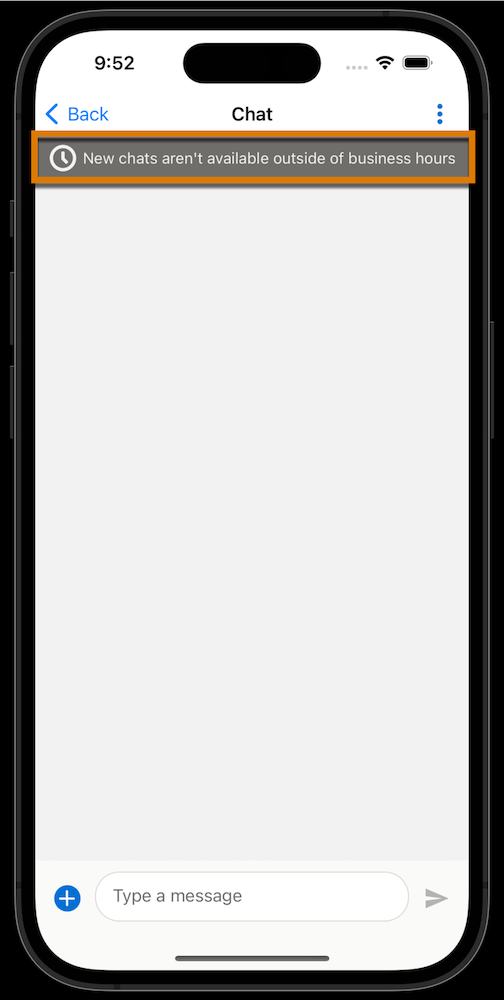
Don’t leave your customers waiting. Prevent customers from starting new messaging
sessions outside of your business hours. After setting business hours, the Enhanced Web Chat
button disappears when you’re not working, and Enhanced In-App Chat customers see a banner
letting them know that your business hours are over. Use the API to prevent incoming
Enhanced In-App Chat conversations outside of business hours.
Required Editions
| View supported editions. |
 This article applies to:
|
Enhanced In-App Chat and Enhanced Web Chat channels |
 This article doesn’t apply to:
|
Enhanced WhatsApp, Enhanced Facebook Messenger, Standard and Enhanced SMS,
Enhanced Apple Messages for Business, Enhanced LINE, and Bring Your Own
Channel |
| User Permissions Needed |
| To create business hours: |
Manage Business Hours Holidays |
| To add business hours to your deployment: |
Customize Application AND Modify Metadata Through Metadata API Functions |
-
Create a business hours record.
-
From Setup, enter Embedded Service Deployments, and click
Embedded Service Deployments.
-
Click the dropdown arrow to the right of your deployment, and select
View.
-
Click Edit Settings.
-
In the Business Hours field, select your business hours record.
-
Save your changes.
-
On the Settings page for your deployment, click Publish.
After adding business hours to your Enhanced Web Chat deployment, the chat button appears
only during your business hours. Outside of business hours, Enhanced In-App Chat
displays a banner that lets the customer know when it’s outside of business
hours.
To prevent incoming conversations outside of business hours, override business hours rules,
or hide or show your chat button at different times, see Show and Hide the Chat Button in Enhanced Web
Chat.