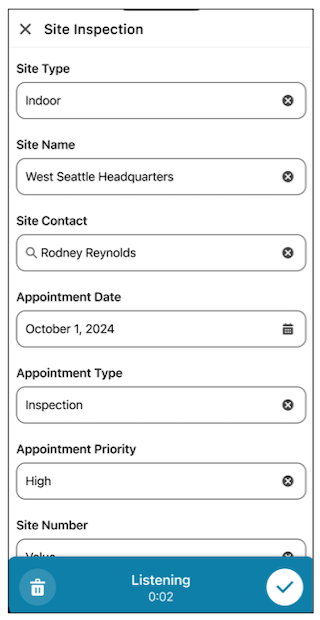
Set up Voice to Form, so Field Service mobile users can use voice input to automatically fill out Data Capture forms.
Required Editions
| Available in: Lightning Experience |
| Available in: The Field Service core features, managed package, and mobile app are available in Enterprise, Unlimited, and Developer Editions. |

To access the Field Service mobile app, users need the Field Service Mobile User license. To use Voice to Form users need the Agentforce for Field Service SKU license.
| User Permissions Needed | |
|---|---|
| To use Voice to Form and Field Service Einstein features | Einstein Field Service User |
Before you begin the setup process, make sure the following conditions are met:
- Complete all the steps outlined in Set Up Einstein Generative AI except the Data Cloud Setup. You don't need Data Cloud Setup for Voice to Form.
- Complete the steps outlined in Build a Data Capture Flow.
- Mobile workers must be on the latest version of the Field Service Mobile App.
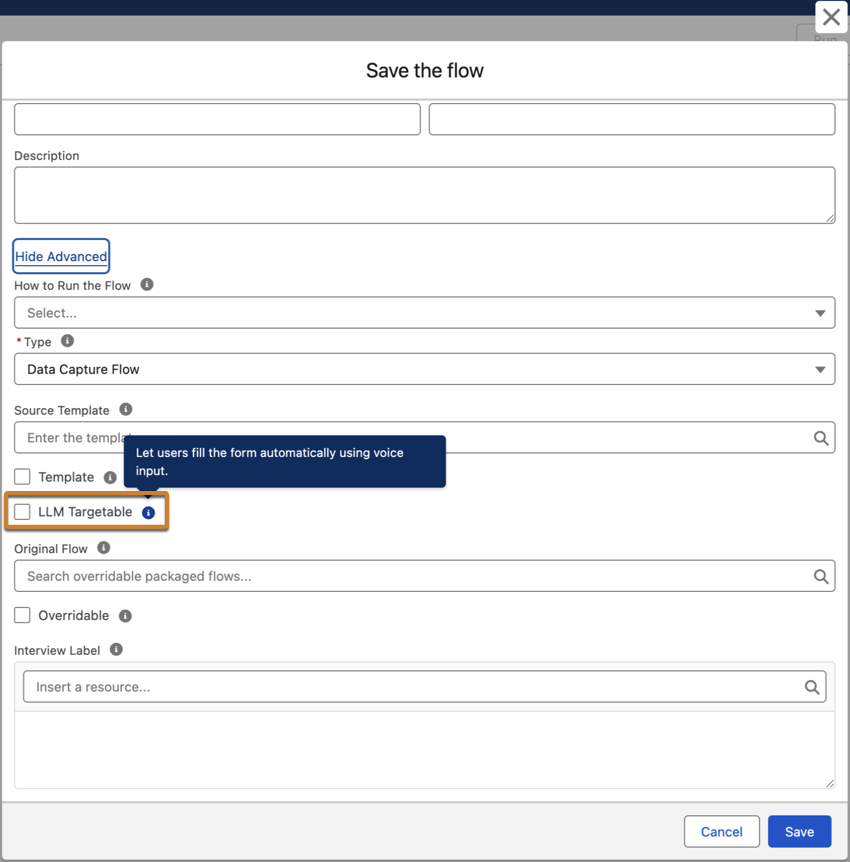
After setting up Data Capture, when saving your Data Capture flows, select LLM Targetable. We include an LLM Context field for every Data Capture component. The LLM Context field appears for all components, but has no effect at runtime for components that don't support Voice to Form. The maximum character length for LLM Context is 131,072 characters.
- On the "Save the Flow" screen, click Show Advanced.
- Select LLM targetable.
-
Save the flow.
To use Data Capture Voice to Form on the mobile app, mobile workers tap the microphone icon on the form and speak. The system intelligently captures information and populates the correct fields.
On Dynamic Data Capture forms, which reveal fields based on earlier answers, mobile workers speak all their inputs in a single session. Voice to Form reveals the hidden fields and maps each value to the correct field in the right order. To capture every value, mobile workers include answers to conditional follow-up questions, even for fields that aren't visible yet.
Voice to Form supports dictation in English, French, German, Italian, Japanese, and Spanish. To use Voice to Form in a language other than English, deploy a translated Data Capture flow for each language that you want to support, assign the translated flow to the relevant work order and ask your mobile workers to set their device's dictation language to the target language. Voice to Form uses the device's dictation language together with the flow's language to fill in the fields in that language.