
When mobile workers are using the Field Service Mobile app, they can reduce distractions and stay focused by using Standby mode in the app.
Required Editions
| Available in: both Salesforce Classic (not available in all orgs) and Lightning Experience |
| The Field Service core features, managed package, and mobile app are available in Enterprise, Unlimited, and Developer Editions. |
| To access the Field Service mobile app, users need the Field Service Mobile user license. |
With the Standby mode feature, mobile workers can pause notifications, data syncs, and location sharing to save battery when standby not actively being used. When mobile workers exit Standby mode, they can go back to full functionality as soon as they open the app again. Workers can continue where they left off, without needing to download records.
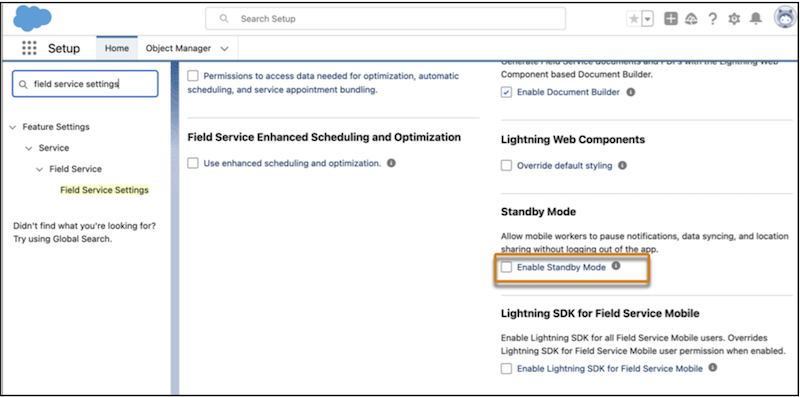
Enable standby mode on the Field Service settings page or on your profile on the Field Service Mobile app.
-
To enable Standby mode on Desktop, go to the Field Service Mobile
Settings page.
- From Setup, in the Quick Find box, enter Field Service Settings.
- Go to Standby Mode and Select Enable.
- To enable Standby mode on the Field Service Mobile app, go to your profile and select Turn on Sleep Mode.