
Configure which GIS maps mobile workers see in the Field Service mobile app. You can either assign a single map to all users, or assign different maps to different users.
Required Editions
| Available in: Lightning Experience. |
| Available in: Enterprise Edition with the Asset Service Lifecycle Management add-on license, or in Performance, Unlimited, and Developer Editions. |
| User Permissions Needed | |
|---|---|
| To set up map assignments: | Customize Application |

Note
To complete this task, you need the ArcGIS map ID, which appears in the Item ID field in the Overview tab within the ArcGIS portal.
- If you want to assign different maps to different users, add a custom text field to the service resource page layout. Then, for each user, populate the field with the ArcGIS map ID relevant to them. See Create a Custom Field and Customize Page Layouts with the Enhanced Page Layout Editor.
- From Setup, find and select Field Maps Settings.
- From the Map Settings tab, click New Map Assignment.
- Enter a name. The developer name is populated for you.
-
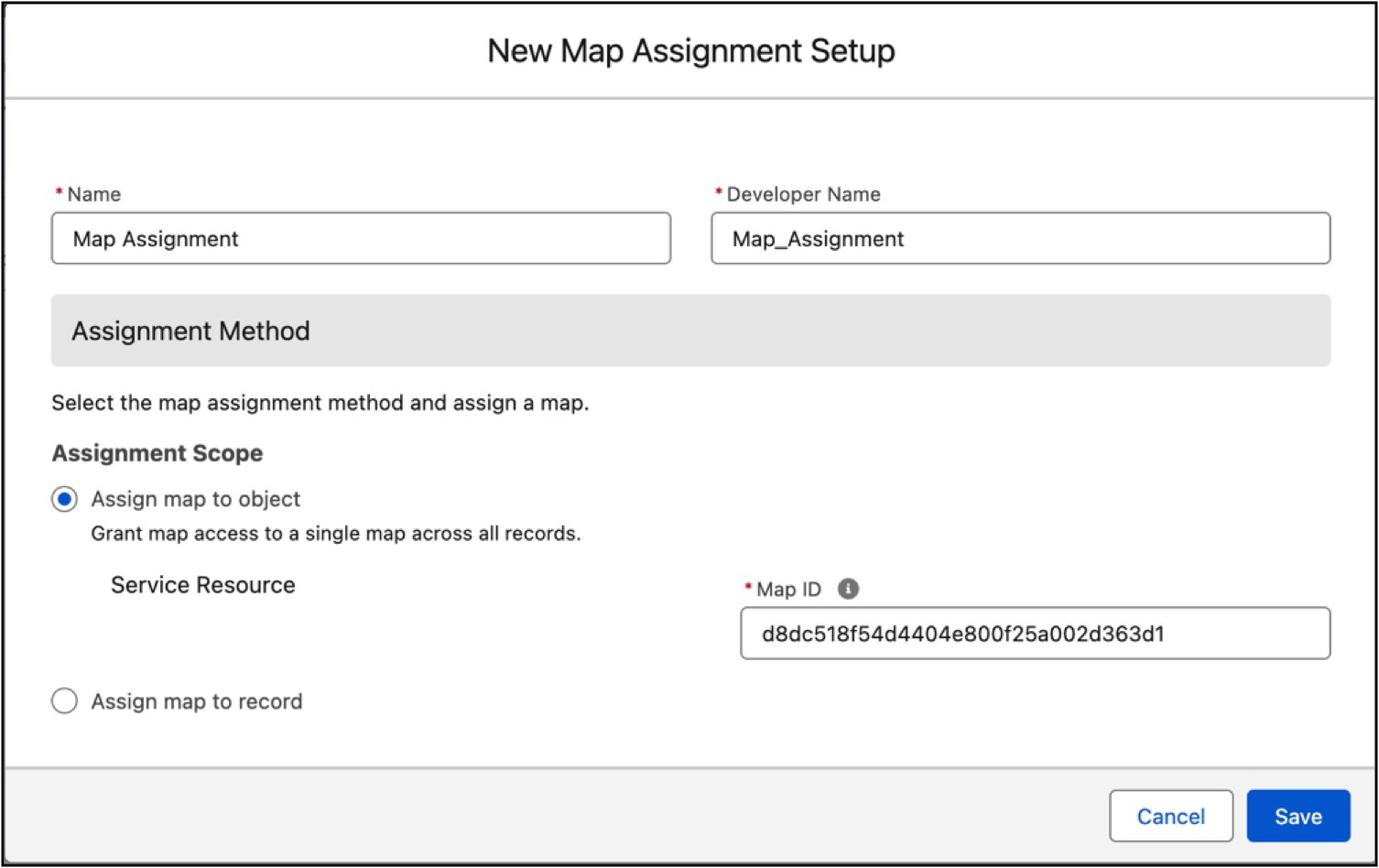
To assign the same map to all service resources.
- Select Assign map to object.
- Enter the ArcGIS map ID.
-
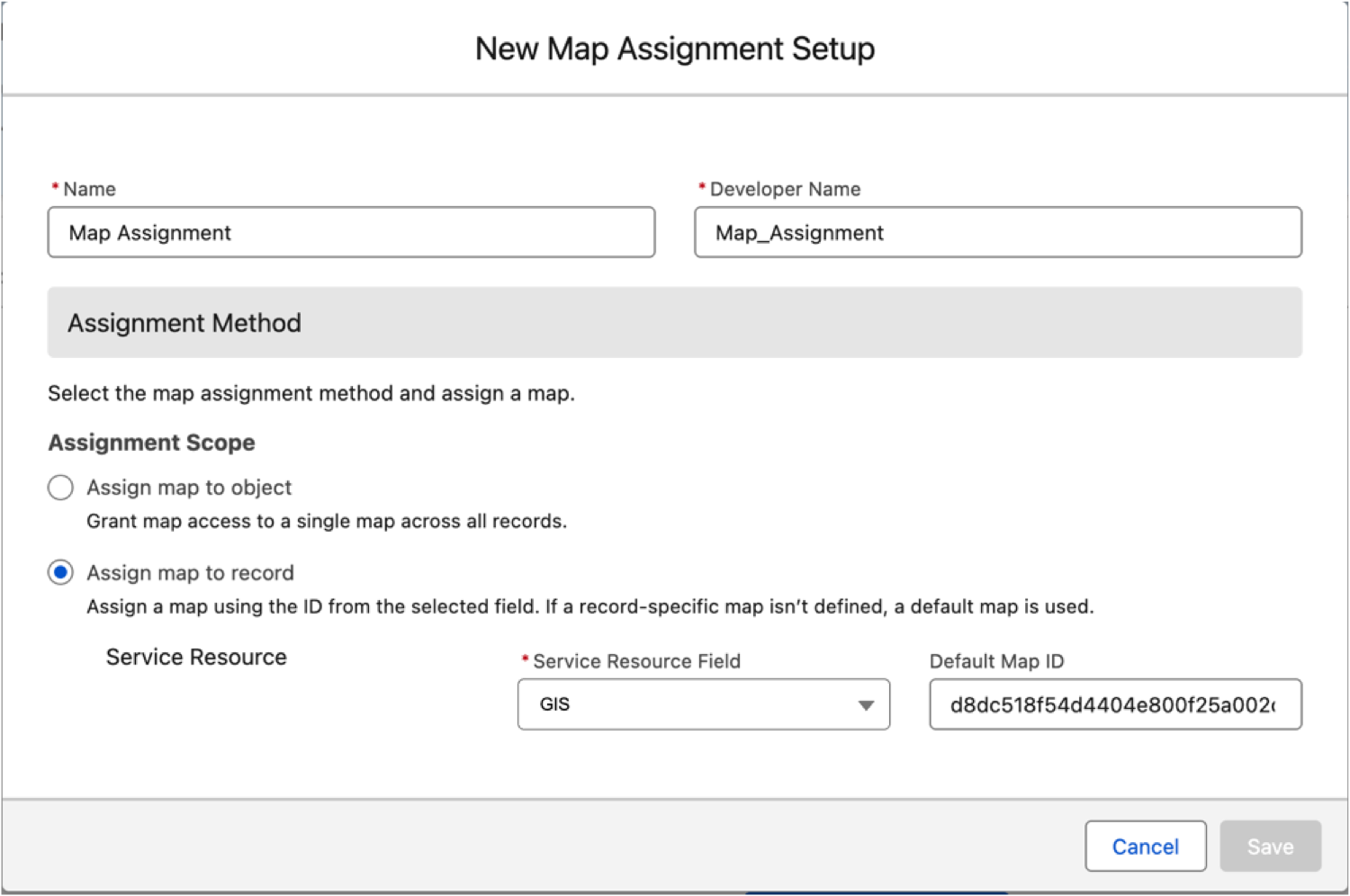
To assign different maps to different service resources.
- Select Assign map to record.
- From Service Resource Field, select the custom field that contains the ArcGIS map ID.
-
To assign specific maps to some of your mobile workers, and a default map to all other
mobile workers, enter a default map ID.
For example, if you’ve defined 3 different maps, you can assign 2 of these maps to specific users. Then, assign the third map to the remaining users by entering its ID in the Default Map ID field. This field can also be useful as a fallback if you forget to assign a map ID to a service resource.
- Save your changes.