---
schema_version: "1"
id: 43ac0dfff3bd08c9129ee0d47fed296468d54cd2e1f78ce9532e8812f93872ac
title: Create a High-Volume Briefcase for Field Service
collection: admin
version: current
locale: en-us
portal_url: https://docs.salesforce.com/admin/current/en-us/service/264-0-0/mfs_hvb_create.md
canonical_url: https://help.salesforce.com/s/articleView?id=service.mfs_hvb_create.htm&release=264.0.0&type=5
source_site: help.salesforce.com
content_type: documentation
content_hash: 743a1fed35dbd44489ac45f8b32e790fcd5b73323802cf273f7239b9989d6a89
description: Create a High-Volume Briefcase by using Briefcase Builder.
products:
- Field Service
release: "264"
---
# Create a High-Volume Briefcase for Field Service
Create a High-Volume Briefcase by using Briefcase Builder.
### Required Editions
Available in: Lightning Experience
Available in: Performance and Unlimited Editions
User Permissions Needed
To create a High-Volume Briefcase in Setup:
Customize Application
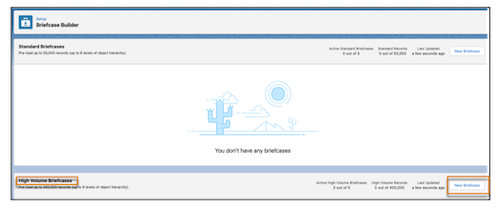
1. From Setup, in the Quick Find box, enter Briefcase Builder, and then select **Briefcase Builder**.
2. Click **New Briefcase** in the High Volume Briefcase section, and choose **High Volume**.
3. Enter a name and an optional description for your Briefcase.
4. Select the data to add to the Briefcase.
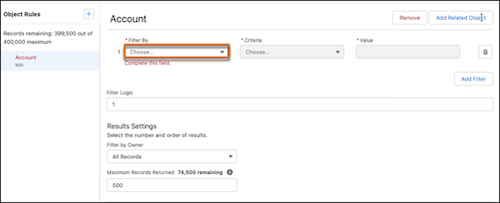
Use object rules to configure which objects are included in your Briefcase and how the objects’ records are related to each other. To add a top-level object rule, click the + button next to Briefcase Rules, and then click the object that you want to add. To add a related object rule, select its top-level object rule in the left pane, and then click
**Add Related Object**.
In each object rule, use filters to specify which records from the object to include in the Briefcase.
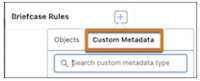
If you have custom metadata types available, you can optionally add custom metadata rules to your Briefcase. For example, add a custom metadata rule to your Briefcase to support a custom flow in the Salesforce Field Service mobile app.
5. To add a custom metadata rule, click the **+** button next to Briefcase Rules, click **Custom Metadata**, and then select the custom metadata type that you want to add.
6. Assign the Briefcase to users, profiles, or user groups. These assignments determine who can access the records in the Briefcase.Users who perform various tasks can be assigned to multiple Briefcases. When assigning multiple Briefcases to one user, they get access to all the offline data combined from all the assigned Briefcases. If a user doesn’t have access to the field used to define a dataset, then that user can’t access any records for that dataset. Chatter groups, or collaboration groups, aren’t supported.
7. To save and activate the Briefcase for use, click **Activate**. To save the Briefcase’s settings without activating it, click **Save**.