Create personalized forms by using the Discovery Framework Data Capture Flow process type in Flow Builder. Use assessment questions from the Discovery Framework to customize your forms. Set properties, apply conditional logic, and hide questions as needed. Use the search and preview capabilities in the flow builder to quickly find and review questions, making sure that the forms meet your business needs.
Required Editions
| Available in: Lightning Experience |
| Available in: Enterprise, Unlimited, and Developer Editions where Field Service, Discovery Framework, Discovery Framework Import or Export, and Discovery Framework Data Capture Flow are enabled |
| User Permissions Needed | |
|---|---|
| To create a form with the Discovery Framework Data Capture Flow process type: | Field Service Standard |
Before you begin, complete the setup required for Discovery Framework-based data capture.
- From Setup, find and select Flows.
- Click New Flow, and then select Start From Scratch.
- Click Next.
- Select Discovery Framework Data Capture Flow, and then click Create.
- Add a screen element to your flow.
- Enter a label and an API name for the screen element.
-
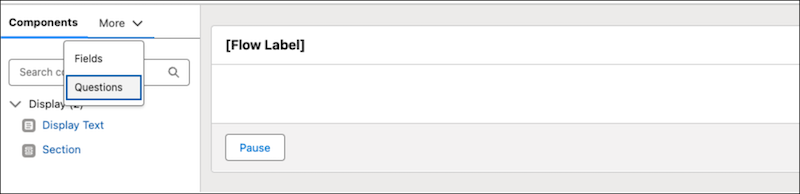
From More, select Questions.
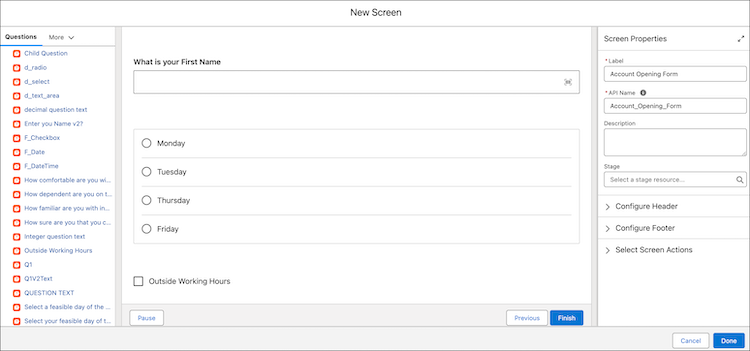
The assessment questions that you created using the Discovery Framework appear.
-
Drag the required assessment questions onto the flow canvas.
You can quickly find the right assessment questions for your form by using the search box in Flow Builder. After you add a question, preview it right away without leaving Flow Builder.
You can also set properties and conditional logic for each question. With Discovery Framework Data Capture Flow, control whether a question is visible based on certain conditions. Use expressions to define these conditions. However, you can't use the output of other questions in these expressions. Instead, use external data sources or user profile information to manage the visibility of questions. See Define Conditions in a Flow.
-
Click Done.
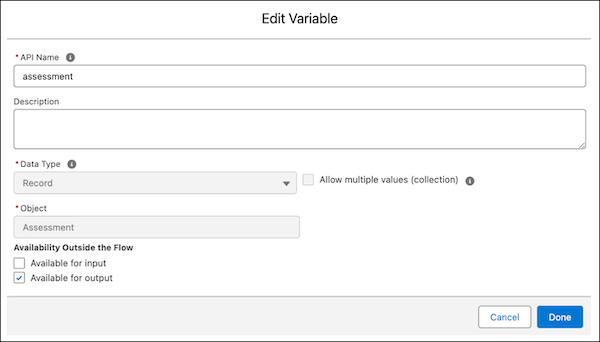
When you're creating a form using the Discovery Framework Data Capture Flow, use the assessment record variable to set values for the assessment record fields. For example, if you want to automatically update the status of the assessment record to Completed after a mobile worker submits the form, edit the assessment record variable and mark it as Available for output.
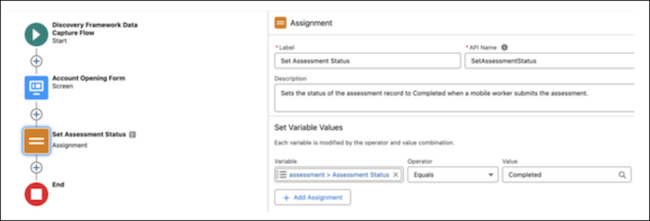
Then, add an assignemnt element to the flow and use the assessment record variable in the assignment element to set the assessment status to Completed.
By using this approach, you can make sure that the assessment status is updated correctly after a mobile worker submits the form.
- Save your changes.
- Enter a flow label and an API name, and then save the flow.
- Activate the flow.