After you build your forms through the Discovery Framework Data Capture flow in Flow Builder, associate the forms with a work order, a work order line item, or a service appointment so that mobile workers can launch these forms and collect data during site visits.
Required Editions
| Available in: Lightning Experience |
| Available in: Enterprise, Unlimited, and Developer Editions where Field Service is enabled |
| User Permissions Needed | |
|---|---|
| To create service appointments: | Create on service appointments |
| To create, update or delete assigned resources: |
Edit on service appointments AND Read on service resources |
| To access forms built with Discovery Framework Data Capture Flow process type: | Lightning SDK for Field Service Mobile |
Before you associate the form to a service appointment, add the Form junction object to the service appointment record page layout. See Set Up Discovery Framework Based Data Capture with Field Service mobile app.
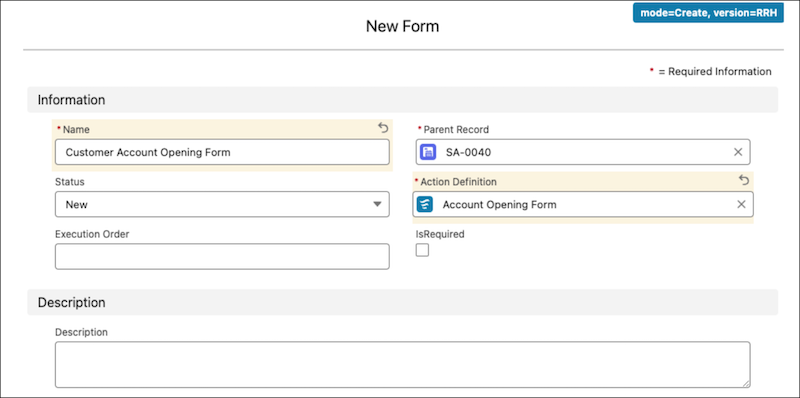
Mobile workers can access the forms directly from the Forms tab on Work Order Overview, or from a service appointment, work order, or work order line item record. This procedure shows how to associate a form built using the Discovery Framework Data Capture Flow to a service appointment. Mobile workers can launch the form from the related list on a service appointment record.
- From the App Launcher, find and select Service Appointments.
- Add a service appointment.
- Select a parent record.
- Enter the earliest possible start date and time. Then, enter the due date and time.
- On the Related tab of the service appointment record, add a form.
- Enter a name for the form.
- In Action Definition, select the screen flow that you created by using the Discovery Framework Data Capture Flow process type.
- Save your changes.
- To test the form, launch it from the related list on a service appointment record on the mobile app.