
After creating Data Capture flows, define how to show them in the Field Service mobile app by adding a Forms tab to the parent record, or defining the flow as a quick action.
Required Editions
| Available in: Lightning Experience in Enterprise, Unlimited, and Developer Editions. |
| User Permissions Needed | |
|---|---|
| To test Data Capture flows in the mobile app: |
Lightning SDK for Field Service Mobile. See Move to Lightning Data Service for Field Service Mobile. |
| To create and delete Data Capture flows and prime subflows for offline work: | Manage Flows |
| To create quick actions and add them to page layouts: | Customize Application |
Add Flows to the Forms and Related Tabs in the Field Service Mobile App
Mobile workers can access Data Capture flows from the Work Order Overview page, or from a service appointment, work order line item, timesheet, or service resource.
-
By default, the page layout for work orders, work order line items, and service
appointments contains a Forms section. If you create your own page layout, add a Forms
section.
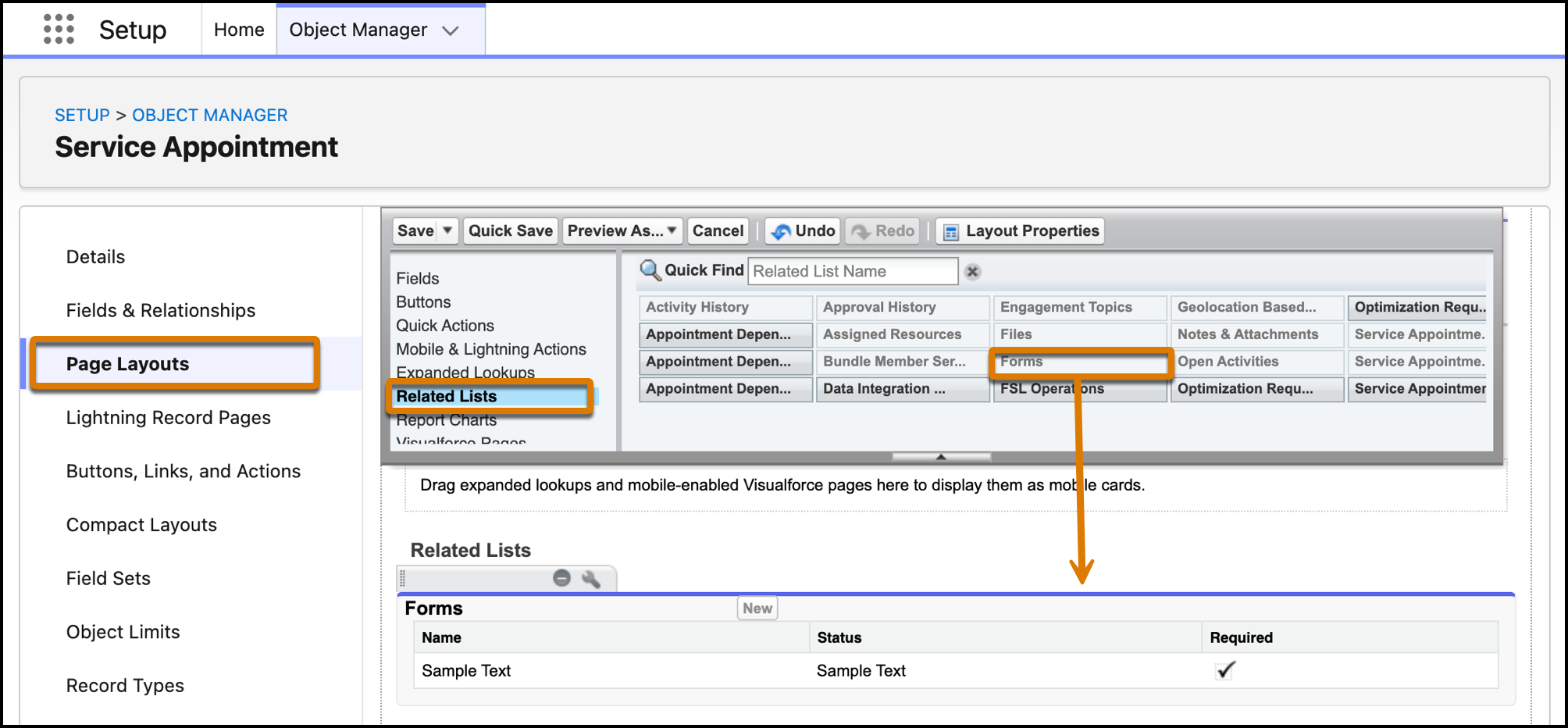
- From the object management settings for work orders, work order line items, or service appointments, go to Page Layouts.
- Open the page layout where you want the tab to appear.
-
Click Related Lists, and drag Forms to the Related Lists
section.
-
Add the flow you created to the Forms section.
- From the App Launcher, find and select Field Service.
- Select Work Orders or Service Appointments, or find and select Work Order Line Items.
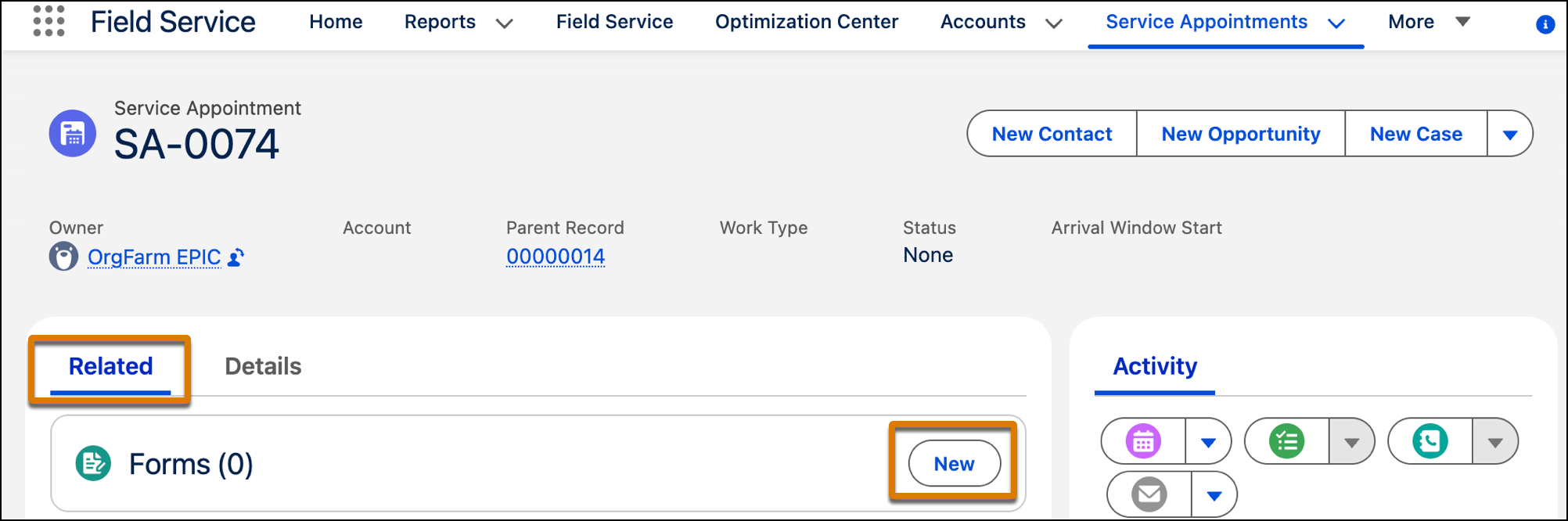
- Open the relevant record and select Related.
-
Click New in the Forms section.
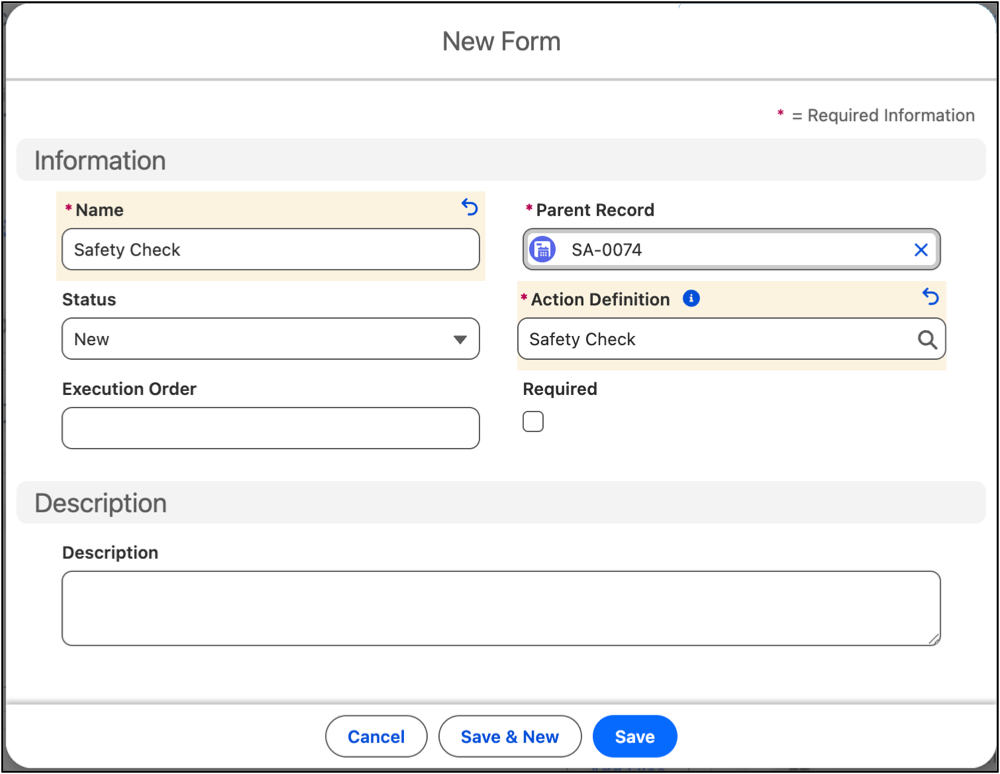
- Enter a name and define the parent record.
-
For Action Definition, enter the name of the flow you created.
-
Save your changes.
 Note
NoteYou can automate this procedure by creating a record-triggered flow that automatically associates your form to a parent record when that record is created. See Triggers for Autolaunched Flows.
-
Test the form in the Field Service mobile app.
Make sure that the mobile app has the latest version installed.
- Open the record where you added the form.
- If you added the form to a work order, from the Work Order Overview page select Forms.
- If you added the form to a service appointment or work order line item, select Related.
- Complete the form.
Add Flows to the Action Launcher in the Field Service Mobile App
Define flows as actions so your mobile workers can quickly open them from the action launcher when viewing service appointments, work orders, work order line items, assets, or custom objects.
To make sure custom objects are available to mobile workers when working offline, add the object to the briefcase.
-
By default, the page layout for work orders, work order line items, and service
appointments contains a Forms section. If you create your own page layout, add a Forms
section.
- From the object management settings for work order, work order line item, service appointment, asset, or custom object, go to Buttons, Links and Actions.
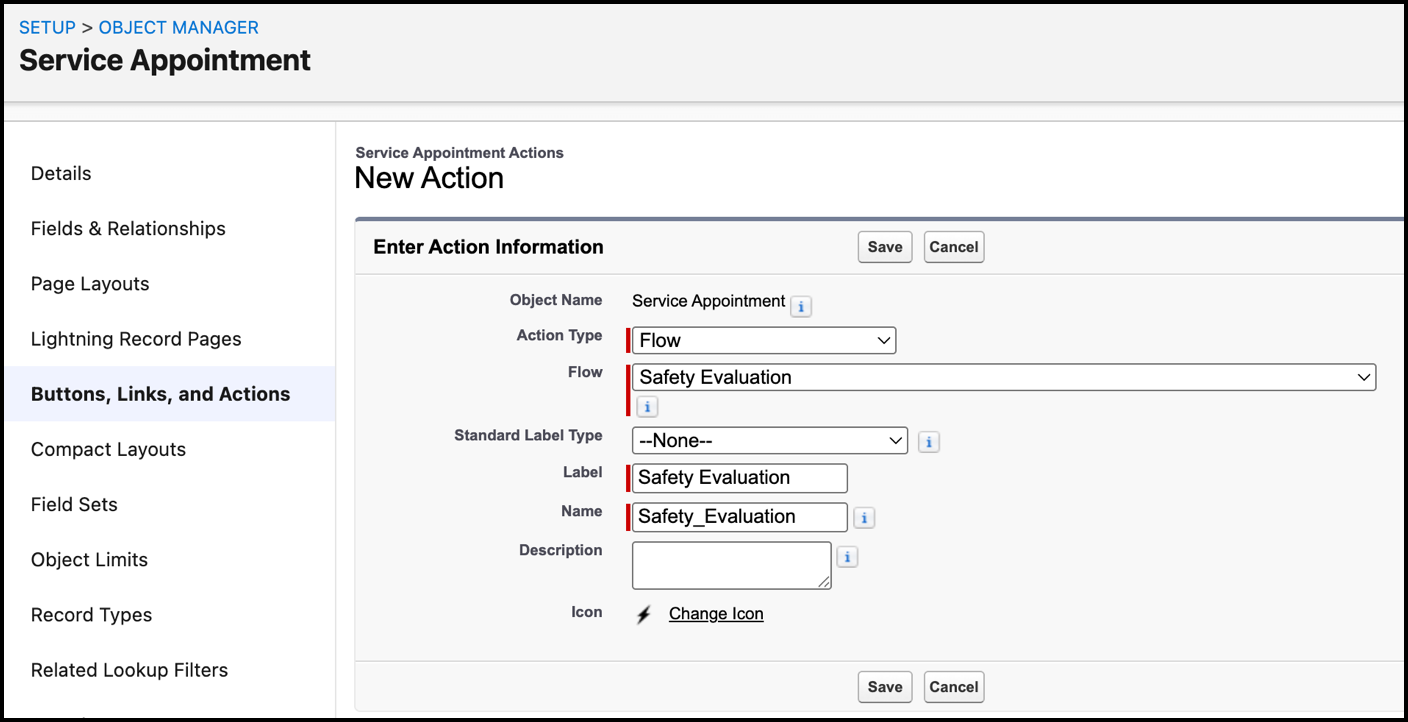
- Click New Action.
- For Action Type, select Flow.
- Select the flow that you created and enter a name.
-
Save your changes.
-
Define the action as a quick action.
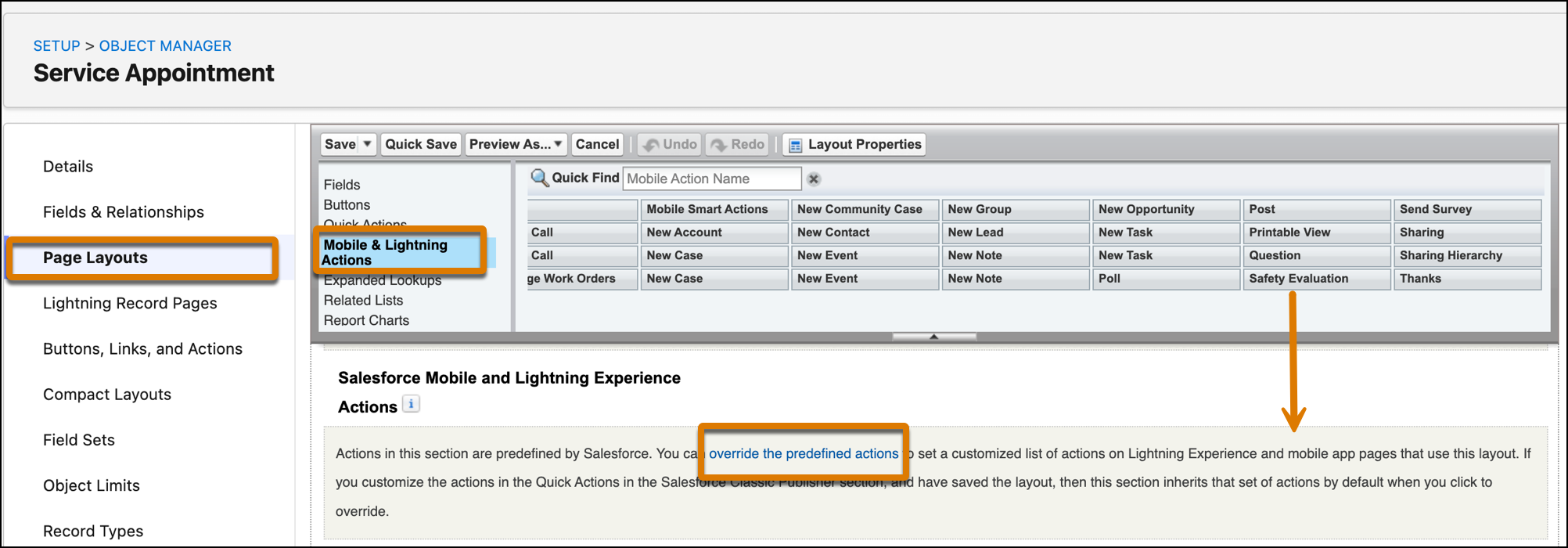
- Select Page Layouts, and open the page layout you want to add the new action to.
-
Click Mobile & Lightning Actions, and drag the action you
created to Salesforce Mobile and Lightning Experience Actions.
-
Test the form in the Field Service mobile app.
Make sure that the mobile app has the latest version installed.
- Open the record where you added the quick action.
- Tap the action in the action launcher.
- Complete the form.
Launch Data Capture Flows from External Apps with Cleared Fields
Add a parameter to deep links that launch Data Capture forms so that technicians see a blank form each time.
When launching a Data Capture form from an external app via a deep link, you can ensure that the form opens with all fields cleared by including the fsl__restart=true parameter. This parameter is useful when you want technicians to start with a blank form for each session, rather than having previously entered values persist from the prior launch.
Example deep link with the parameter:
https://{orgURL}/lightning/n/{flowName}?fsl__restart=true&recordId={recordId}Replace {orgURL} with your Salesforce org URL, {flowName} with the API name of your Data Capture flow, and {recordId} with the ID of the record associated with the form.
When technicians follow the deep link with this parameter, the form opens without values from the previous session.
Add Flows to Work Steps
Define flows to open from a work step when the mobile worker completes the step.
There are two ways to add flows to work steps:
- Manually add the flow to individual work steps, associate the work step with a work plan, and add the plan to a work order.
- Create a work plan selection rule, a work plan template, and a work step template that contains the flow. When a work order meets certain conditions, the work plan, work step, and flow, are automatically related to the work order. The rules and templates are reusable.
Prerequisites
Define the security level for work steps.
- From Setup, open the Object Manager. Then, find and select Work Step.
- From Fields & Relationships, select Process Type.
- Click Set Field-Level Security.
- Select Visible for the relevant user profiles.
- Save your changes.
- Click View Field Accessibility.
- From the dropdown, select Process Type.
- Next to the relevant profile, click Hidden.
- Select Visible, and then click Save.
- Log out of the mobile app, and then log in again.
Add Flows to Work Steps Manually
- In Field Service, select Work Orders and open the work order where you want the flow to appear.
-
Create a work plan.
- Select the Related tab.
- Scroll to Work Plans and click New.
- Enter a name.
- Save the work plan.
-
Add a step to the work plan.
- Open the work plan.
- Select the Related tab.
- Scroll to Work Steps and click New.
- Select the work plan you created from the Work Plan list.
- From the Action Definition list, select the flow you created.
- Save the work step.
-
Test the form in the Field Service mobile app.
- Assign the work order to the mobile worker.
- Log into the mobile app as the mobile worker and refresh it.
- Open the work order and select Work Plans.
- Locate the work plan and work step that you created.
- From the action menu, select Complete and make sure that the flow opens.
Add Flows to Work Steps By Using Selection Rules and Templates
- In Setup, find and select Work Plans.
- Select Generate Work Plans and Work Steps from templates and selection rules.
-
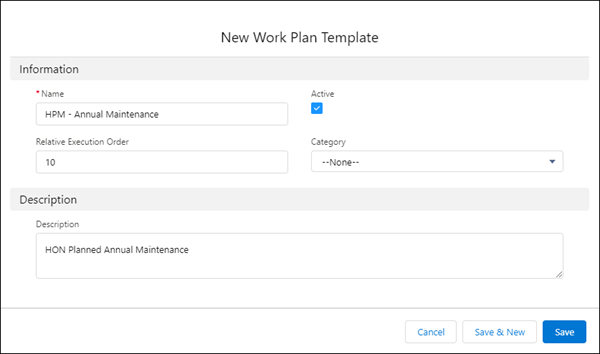
Create a work plan template. Make sure that you select
Active.
- Open the template that you created and select Related.
- From Work Plan Template Entries, select New. Each entry you create becomes a work step.
-
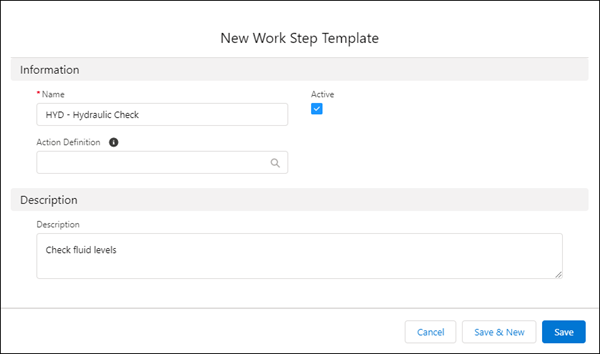
Create a new work step template.
- From Work Step Template, select New Work Step Template
- For Action Definition, select the flow you created.
- Select Active.
- Save the work step template.
-
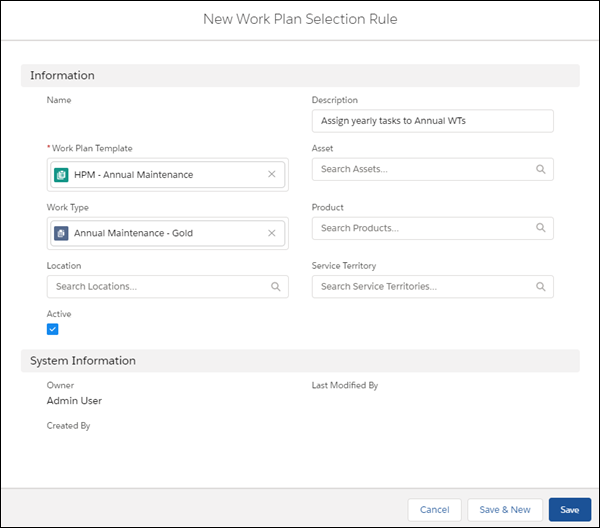
Create a work plan selection rule to relate to the work plan template. This rule defines
when to use the template. See Create Work
Plan Selection Rules.
- From the App Launcher, find and select Work Plan Selection Rule.
- Click New.
- Select the Work Plan template that you created.
- Select Active.
- Define the conditions to activate the template. For example, to activate the template for a work order containing a specific asset, add the asset to the Asset field.
- Save the rule.
- In Field Service, select Work Orders and open the work order where you want the flow to appear.
- Click Generate Work Plans. The template is added to the work plans assigned to the work order.
-
Test the form in the Field Service mobile app.
- Assign the work order to the mobile worker.
- Log into the mobile app as the mobile worker and refresh it.
- Open the work order and select Work Plans.
- Locate the work plan and work step that you created.
- From the action menu, select Complete and make sure that the flow opens.