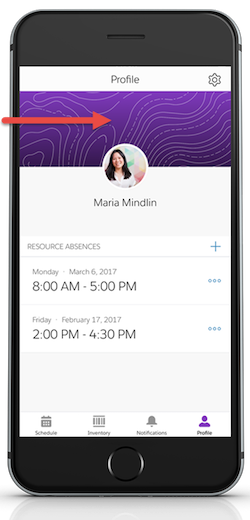
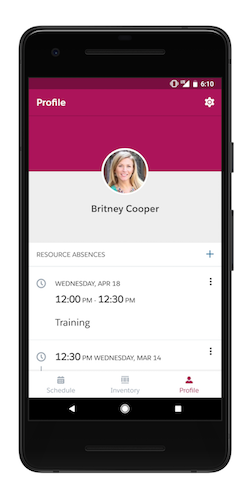
Add a background image to customize the Profile Tab in the Field Service Mobile App.
Required Editions
| Available in: both Salesforce Classic (not available in all orgs) and Lightning
Experience |
| The Field Service core features, managed package, and mobile app are available in
Enterprise, Unlimited, and Developer Editions.
|
| To access the Field Service mobile app, users need the Field Service Mobile user
license. |
| User Permissions Needed |
| To set the company profile image: |
Customize Application |
-
Upload your image as a static resource.
-
From Setup, enter Static Resources into the Quick
Find box and click Static Resources.
-
Click New.
-
Give the static resource a name, like background_banner. Remember
the name, since you need to use it in a later step.
-
Select an image file for upload. An image sized at 3072 x 819 pixels leads to the best
results on large displays such as iPads in landscape mode. However, if your users often
encounter slow mobile networks, consider using a smaller image.
-
Click Save.
-
Create a custom attribute to use the static resource on every user’s Profile tab.
-
From Setup, enter Connected Apps into the Quick
Find box, then select Connected Apps.
-
b. Select Salesforce Field Service for iOS or
Salesforce Field Service for Android.
-
Scroll down to the list Custom Attributes and click New.
-
For the attribute key, enter
COMPANY_PROFILE_IMAGE_RESOURCE_NAME.
-
For the attribute value, enter the name of the static resource you created surrounded by
quotation marks.
-
Click Save.

 Note If you named your static resource background_banner, your attribute value is“background_banner”.