
The Field Service Mobile App Builder user interface makes configuring navigation tabs easy.
Required Editions
| Available in: both Salesforce Classic (not available in all orgs) and Lightning Experience |
| The Field Service core features, managed package, and mobile app are available in Enterprise, Unlimited, and Developer Editions. |
| To access the Field Service mobile app, users need the Field Service Mobile user license. |
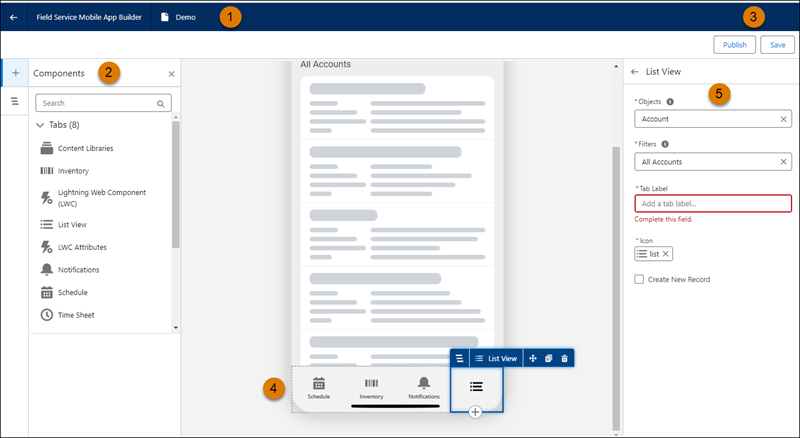
Here’s a breakdown of the parts of the tool.
The header shows you the label of your page. From here you can return to Setup without saving by clicking the Back arrow. (1)
The component palette lets you drag components onto the canvas to create tabs. (2)
In the status bar, you can check whether your configuration is active or a draft, see when it was last modified, and publish or save. (3)
The page canvas area is a preview of your screen. Click the tab to copy, delete, or move the tab. Clicking the tab also brings up properties to edit in the Properties pane.(4)
Edit tab details in the Properties pane. Click a tab in the canvas to see that component’s options in the Properties pane. (5)
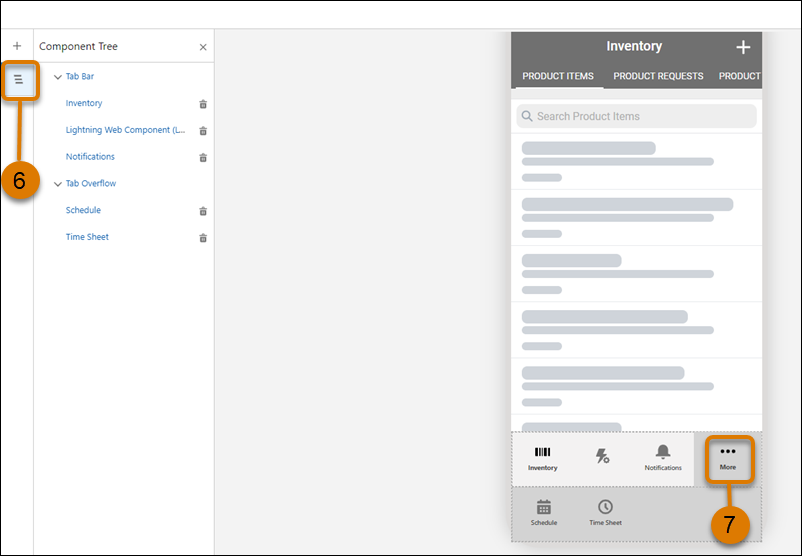
Clicking the component tree toggle lets you see your selected components. From here, you can interact with a component and delete it. You can also easily see if you have components in the tab overflow area, which are available when a user taps More in the app. The overflow area activates when you have more than 4 tabs in the app.